Working with Core Modules
This guide is a complete reference for the app's four modules, plus a Team Management section shared between Capacity Planner and Time-Tracking.
Module 1 - Capacity Planner & Insights
Capacity Planner
The Capacity Planner is a timesheet-style view showing team workload distribution.
Creating a Plan:
- Capacity Planner & Insights → Planner → Create New Planner
- Select Groups and/or Teams to include (plans are built from groups/teams, not individual users, at creation time)
- Choose date range and view mode (Days, Weeks, Months)
- The planner generates a capacity distribution view
Planner Layout:
| Column | Description |
|---|---|
| Group / Team | Left column - the groups/teams in the plan |
| Issue rows | Each row shows an issue with estimated and remaining hours |
| Date columns | Hours for each specific date/week/month |
| Total row | Aggregates hours across all rows |
Grouping Options: Group → Issue | Team → Issue
Saving a Plan: click Save → enter name → Confirm. There's no separate "Saved Plans" screen anymore - saved plans reload from the same Planner landing page.
Analytics Dashboard
The Analytics Dashboard provides a four-tab view of team workload health, with a first-time Guide modal for new users.
Setup: Capacity Planner & Insights → Analytics → click Scope → select a single Project + Date Range → Apply. You can then further narrow results with an Assignee filter.
Tab 1 - Team Allocation:
- Issue distribution by status, type, and priority across the team
- Total issue count and estimated hours per group
- Spot over-loaded statuses or issue types at a glance
Tab 2 - Assignee Capacity:
- Issue count, original estimates, and logged time per assignee
- Compare estimated remaining work vs. available capacity
- Identify over- or under-allocated team members before sprint commitments
Tab 3 - Upcoming Deadlines & Risks:
- Issues near or past their due date, sorted by risk level (overdue first)
- Shows remaining estimate alongside the due date
- Use for weekly stakeholder updates
Tab 4 - Status Aging Monitor:
- Issues stuck in the same status for an unusually long time
- Configurable threshold (e.g., flag "In Review" issues older than 5 days)
- Reveals review bottlenecks and blocked handoffs
Reports (Capacity Report)
Capacity Planner & Insights → Reports opens a list of saved report configurations - visible to users holding the team.view_plans permission for the relevant team. Open one to see the actual table.
Reading the Table:
| Column | Meaning |
|---|---|
| Capacity | Per-assignee available capacity for the period |
| Planned Time | Own time plus rolled-up children's time; rough-plan values are shown in amber against the Jira Original Estimate |
| Actual Time | Hours actually logged as worklogs |
| Planned Vs Actual Variance | How logged time compares to what was planned |
| Capacity Vs Planned Variance | How the plan compares to available capacity |
| Capacity Vs Actual Variance | How actual logged time compares to available capacity |
These replace the older single "Allocation %" column with three explicit variance columns.
Module 2 - Time-Tracking & Reporting
My Work (Calendar + Timesheet)
"My Calendar" and "My Timesheet" are no longer separate sidebar items - they're two tabs inside a single My Work section.
My Calendar tab:
My Calendar is a personal daily view of your logged time.
- Each day cell shows total hours logged for that date
- Hover on a day cell to see a summary of worklogs
- Click a day cell to see the detailed list of issues logged that day
- Logging time from the calendar: click the day cell → Log Time → search issue → enter hours → select category → Save
- Editing a worklog: click the day cell → find the worklog → click the Edit (pencil) icon
- Deleting a worklog: click the day cell → find the worklog → click the Delete (trash) icon
- Use the < > arrows to navigate months; click Today to return to current date
My Timesheet tab:
- The same tabular report engine used by the team Report Builder, scoped to your own worklogs only
- No Group By or Save controls exposed here - use the full Reports section for that
Reports (Report Builder)
The team-wide report builder now lives under Reports, not "Timesheet and Reporting."
| Component | Description |
|---|---|
| Report Source | Custom Filters, a Jira Saved Filter, or a raw JQL Search |
| Filters | Project, Users/Groups/Teams, Account, Time Category - there is no Issue Type or Sprint filter |
| Group By | Up to 5 fields - Project, Assignee, Issue, Issue Type, Priority, Status, Reporter, Parent, plus any custom Jira field |
| View Mode | Overview or Days only - Weeks/Months were removed after a bucketing bug |
| Chart Section | Bar or pie chart of logged time |
| Export | PDF or Excel - CSV export was removed |
Access: viewing a report requires the team.view_worklogs permission; creating, saving, or deleting one requires team.manage_worklogs. Which saved reports you can see is team-scoped unless you hold a global view-worklogs role.
Billing Accounts
Billing Accounts categorize worklogs by client or engagement.
- Create: Time-Tracking & Reporting → Accounts → Create Account → Name + Key → Save
- Use when logging: select from the Account dropdown in the Log Time form
- Filter reports: Add Filter → Account in Reports
- Group reports: Group By → Account for a billing breakdown
Approvals
Time entry approval lives under its own Approvals section, with Team Approvals and Approval Log tabs. It is no longer Jira-Admin-only - a user can approve or reject a timesheet if they are:
- A Jira Admin, or
- The record's designated reviewer, or
- A Team Lead or Program Manager whose role is scoped to "all" teams, or specifically to the timesheet owner's team
The same team-scoped logic controls who can grant grace-period extensions.
Time-Tracking Settings
Settings for this module are split across several tabs rather than one:
| Tab | Contains |
|---|---|
| Time & units | Time Display Unit |
| Booking & Fields | Working Days (only shown if no Workload Scheme is configured) |
| Timezone & defaults | Timezone Mode, Default Time Range |
| Period Configuration | "Week starts on" (replaces the old "First Day of Week" label), tied to weekly/monthly approval period cycles |
| Time Categories / Worklog Fields | Classification and custom field setup |
There is no longer a UI control for "Hours Per Day" in Settings - use per-user Workload Schemes (Settings → Staff) instead.
Module 3 - Portfolio Management
Creating a Portfolio
- Portfolio Management → New Portfolio → enter name
- Click Filter → choose Manual Filter (dropdowns) or JQL
- Click Apply to preview matching issues
- Click Save - appears in sidebar Portfolios section
Example JQL Scopes:
- All active epics:
issuetype = Epic AND status != Done ORDER BY priority DESC - High-priority due this quarter:
priority in (Highest, High) AND due >= startOfQuarter()
Important: Save immediately after creating - unsaved portfolios are lost on navigation.
View Types
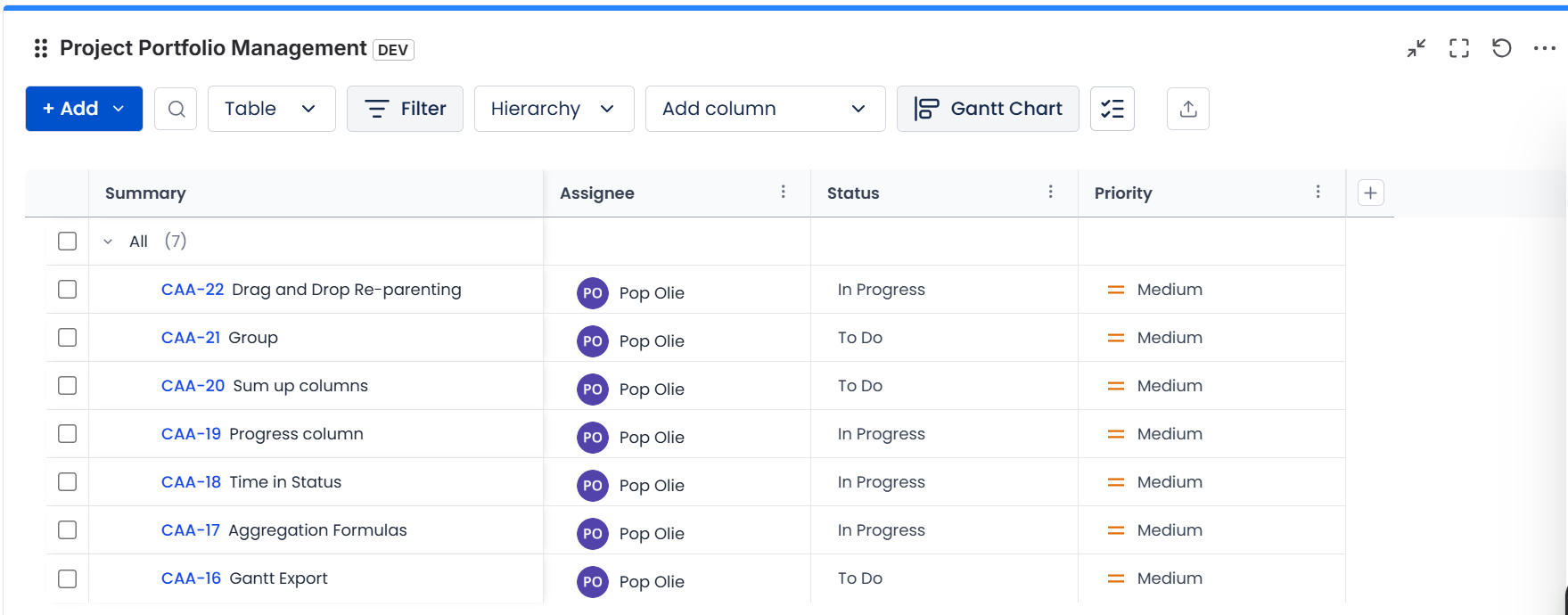
Portfolio Management has five view modes, plus a Gantt panel that opens from within Table view (Gantt is not a separate peer view):
| View | Best For |
|---|---|
| Table | Detailed review, bulk editing, data export - open the Gantt panel from here for timeline planning |
| Graph View | Epic-story-subtask hierarchy visualization |
| Treemap | Visual health check; issue size proportional to effort metric |
| Pie Chart | Status/priority distribution for stakeholder reports |
| Board View | Kanban-style workflow tracking, fast triage |
Switching Views: use the view mode selector in the top-right of the portfolio.
Gantt Chart - Detailed Reference
- Opens as a slide-out panel from Table view - it is not its own view mode
- Drag bar edges to update Jira start/due dates directly
- Create dependencies: hover bar end → drag connector dot → drop on dependent bar start
- Dependency types: FS (Finish-to-Start), SS (Start-to-Start), FF (Finish-to-Finish), SF (Start-to-Finish)
- Baseline mode: compare current plan against a saved baseline
- Critical path: highlighted automatically based on dependency chain
Saved Portfolios
- Creating, viewing, and deleting your own portfolios is open to everyone - there's no role gate on the list itself
- Sharing a specific portfolio uses four granular roles instead of a single tier: View, Edit, Edit generators, and Control - each assignable to Everyone, specific Users, a Jira Group, or a Jira project role, via the portfolio's Share modal
- The portfolio's creator always holds Control; Jira admins can manage any portfolio regardless of its share settings
- Rename: click the portfolio name → type new name → press Enter
- Delete: requires Control access on that portfolio
Dashboard Gadget
Adds portfolio metrics to any Jira dashboard.
Adding:
- Jira dashboard → Add Gadget → search "Project Portfolio Management" → Add
- Configure gadget: select portfolio/scope → Save
Troubleshooting:
- No data: verify portfolio scope still returns issues and you have read access
- Blank after setup: remove and re-add the gadget with fresh configuration
Portfolio Settings
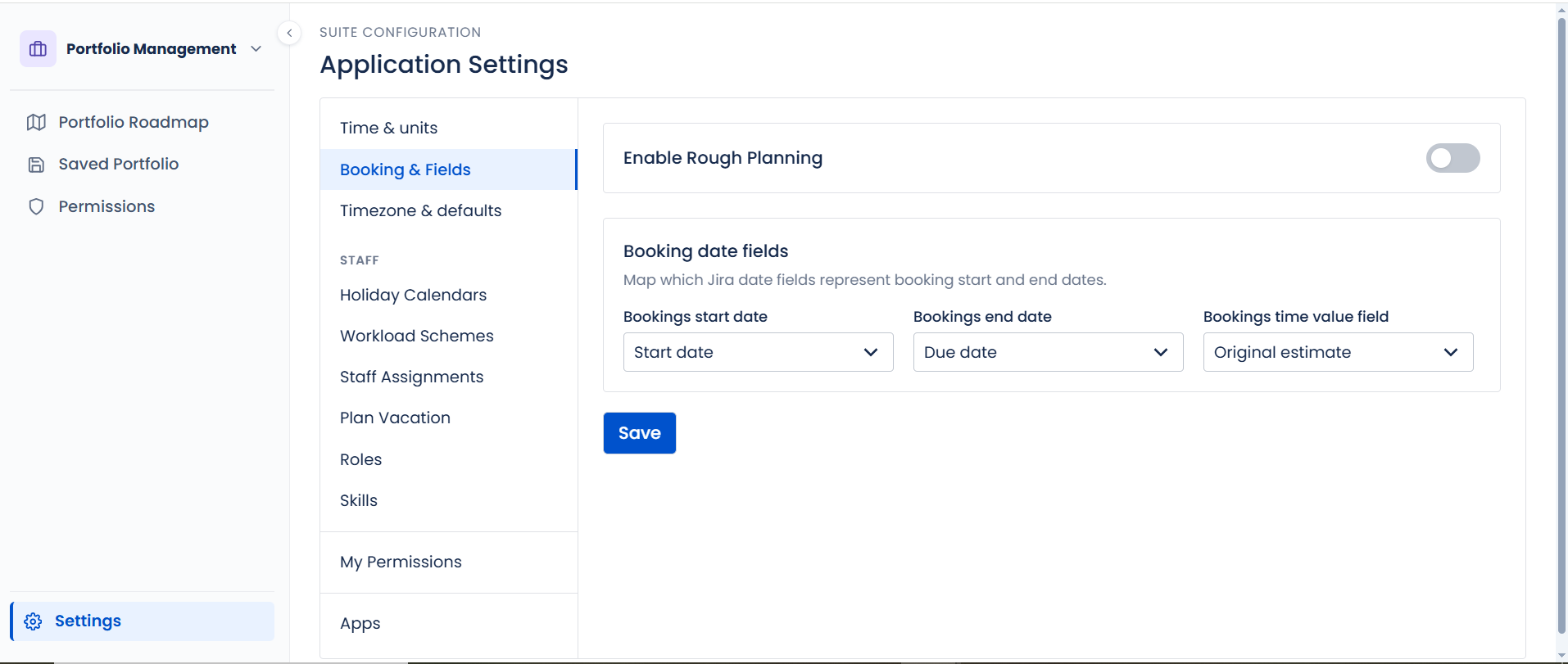
Access: Portfolio → Settings gear icon, or global Settings → Portfolio tab. Tabs: General, Teams, Users.
Only Hours per day is currently a live, editable control on the General tab. Bookings start/end date field mapping and the Working Days checkboxes exist in the underlying settings but their input controls aren't currently rendered in the UI - don't point users to a "map date fields here" screen that isn't there yet.
Module 4 - Backlog Prioritization
Backlog Table
The Backlog Table is a sortable, filterable table with inline-editable scoring metrics.
Setup: Backlog Prioritization → Backlog Table → select Project → choose Scoring Template
Scoring Issues:
- Click any metric cell to edit inline
- Input types: Number, Dropdown/Label, Star rating (1–5), Effort scale (XS/S/M/L/XL), a field bound directly to a native Jira field, or colored Label Pills
- The Score column recalculates automatically - changes save instantly
Sorting: click any column header (Score ↓ = highest priority first)
Filtering: Issue Type, Status, Assignee, Component, Label, Version, Epic - there is no Sprint or Priority filter here
Scoring Templates
Built-in Templates:
| Template | Formula | Best For |
|---|---|---|
| ICE | Impact × Confidence × Ease | Feature requests and bugs |
| RICE | (Reach × Impact × Confidence) / Effort | Product features with reach |
| WSJF | (Business Value + Time Criticality + Risk Reduction) / Job Size | SAFe/ART prioritization |
| Value vs. Effort | Value / Effort | Simple two-dimension ranking |
| Quick Wins | Health Assessment × (2 × (Value / Effort) + Team Size + Type) | Weighting value/effort by team size and delivery type |
Creating a Custom Template:
- Template selector → Manage Templates → Create New Template
- Enter name, add metrics (name, input type, range)
- Enter formula referencing metric names
- Click Save
Priority Matrix
The Priority Matrix is a scatter plot placing each issue on two axes.
- Open: Backlog Table → Matrix view button (top-right)
- Each dot = one issue; hover to see details
- Quadrants are a fixed 50/50 split of the plotted range, labeled generically (e.g. "Low Effort, High Value") rather than as "Quick Wins/Big Bets/Fill-ins/Avoid" - quadrant dividers are not draggable
- Customize axes: click Matrix Settings → X/Y can be any numeric metric or the computed Score
- Also configurable: bubble size, color-by (status category, assignee, issue type, or parent), and point label (key, summary, score, or none)
Views, Filters & Sorting
- View toggle: Table ↔ Matrix (top-right view switcher)
- Saved Views: Save → enter name → reload from Saved Views in sidebar
- Clear Filters: resets all active filters to full unfiltered list
Saved Reports
"Saved Prioritized Reports" is a live view, not a point-in-time snapshot. It groups issues by project based on whatever metric values are currently filled in - it does not store the scoring template, filters, sort order, or a frozen copy of past values. Opening it always reflects current metric values and current issue data, including anything scored since you last looked.
Team Management (shared across Capacity Planner and Time-Tracking)
Team Management is not a standalone module - it's a section available from inside both Capacity Planner & Insights and Time-Tracking & Reporting, with three tabs: Teams, Programs, and Capacity.
Teams
Teams are named groups of Jira users reused across Capacity, Time Tracking, and Portfolio.
Creating a Team:
| Field | Required | Description |
|---|---|---|
| Team Name | Yes | Display name (e.g., "Platform Team") |
| Description | No | Brief description |
| Color | No | Color tag for visual identification |
| Members | Yes | Add by searching for Jira users |
Members are added individually by search - there is no longer a Jira Group auto-sync source option. If a team previously relied on group sync, membership now needs to be maintained manually inside the app.
Using Teams in Other Modules:
- Capacity Planner: Group By → Team
- Reports: Filter by Team
- Time Tracking Reports: Filter or Group by Team
Programs
Programs group multiple Teams into higher-level organizational structures.
Creating a Program:
- Team Management → Programs tab → Create Program
- Enter Program Name, select Teams to include → Save
Hierarchy: Program → Team A (Members) → Team B (Members)
Best use cases:
- Model departmental structure (Engineering → Platform, Frontend, Backend teams)
- Program Increment planning (PI-2025-Q2 → Sprint Teams)
- Leadership capacity rollups (Program → Team → User in Capacity Planner)
Capacity tab
A third tab alongside Teams and Programs - shows team capacity and planned high-level work across a period, giving a rollup view without opening the full Capacity Planner.