User Guide
Capacity Planner
The Capacity Planner is a timesheet-style view that shows how team workload is distributed across users, groups, and teams over time.
Opening the Capacity Planner
Capacity Planner & Insights → Capacity Planner → click Create New Planner or open a saved plan from the sidebar
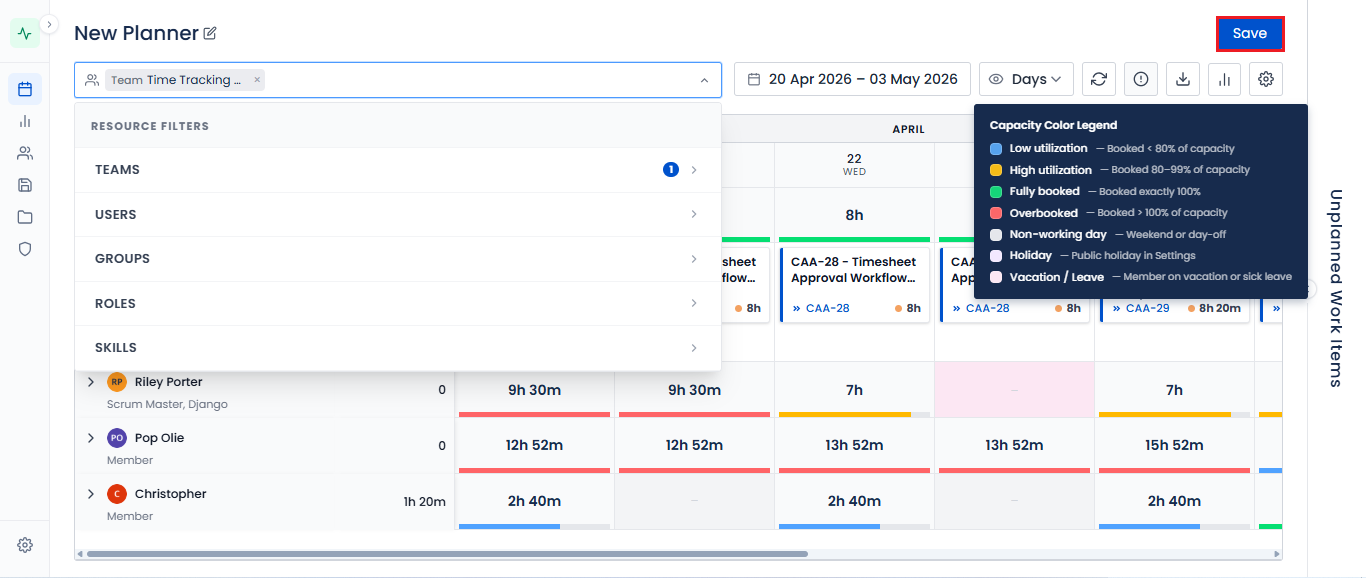
Creating a New Plan
- Click Create New Planner
- Select who to include - Groups and/or Teams (teams are defined in the Team Management section). There is no individual-user picker at creation time.
- Set Date Range and View Mode (Days, Weeks, Months)
- Click Apply - the planner loads the capacity view
Planner Layout
| Column | Description |
|---|---|
| Group / Team | Left column - the groups or teams in the plan |
| Issue rows | Each row shows an assigned Jira issue |
| Estimate columns | Hours per date period (original estimate and remaining) |
| Date columns | One column per day/week/month based on view mode |
| Total row | Aggregates hours across all rows |
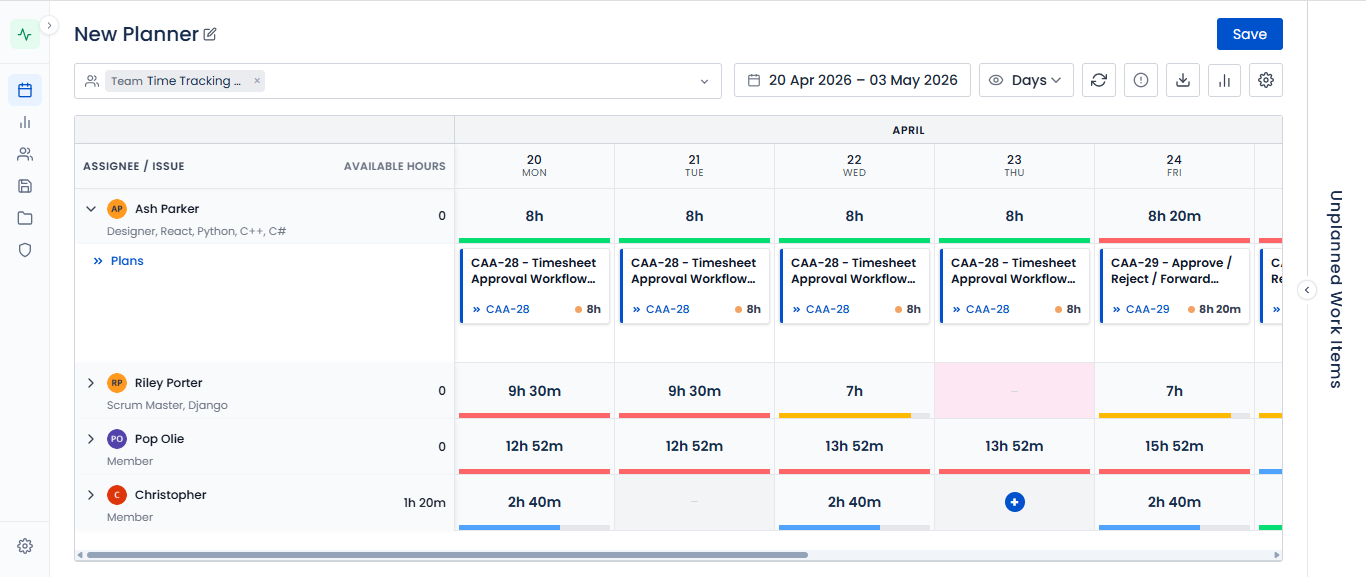
Grouping Options
| Grouping | When to Use |
|---|---|
| Group → Issue | See workload for a Jira group |
| Team → Issue | Team-level rollup |
Reading the Planner
- Green cells - within normal capacity range
- Red / amber cells - over-allocated for that period
- Hover on any cell to see issue details and hour breakdown
Saving a Plan
- Configure the planner (groups/teams, date range, grouping)
- Click Save
- Enter a plan name (e.g., "Sprint 42 Capacity")
- Click Confirm
There's no separate "Saved Plans" screen - saved plans reload from the same Planner landing page.
Tips
- Run a capacity check before every sprint planning session
- Use Team grouping to give leadership a rolled-up view
- Save plans per sprint to build a historical capacity record