User Guide
Capacity Report
The Capacity Report gives managers a per-assignee view of capacity, planned work, actual logged work, and how the three compare.
Opening the Capacity Report
Capacity Planner & Insights → Reports opens a list of saved report configurations - visible to users holding the team.view_plans permission for the relevant team. Open a saved configuration (or create a new one) to see the table.
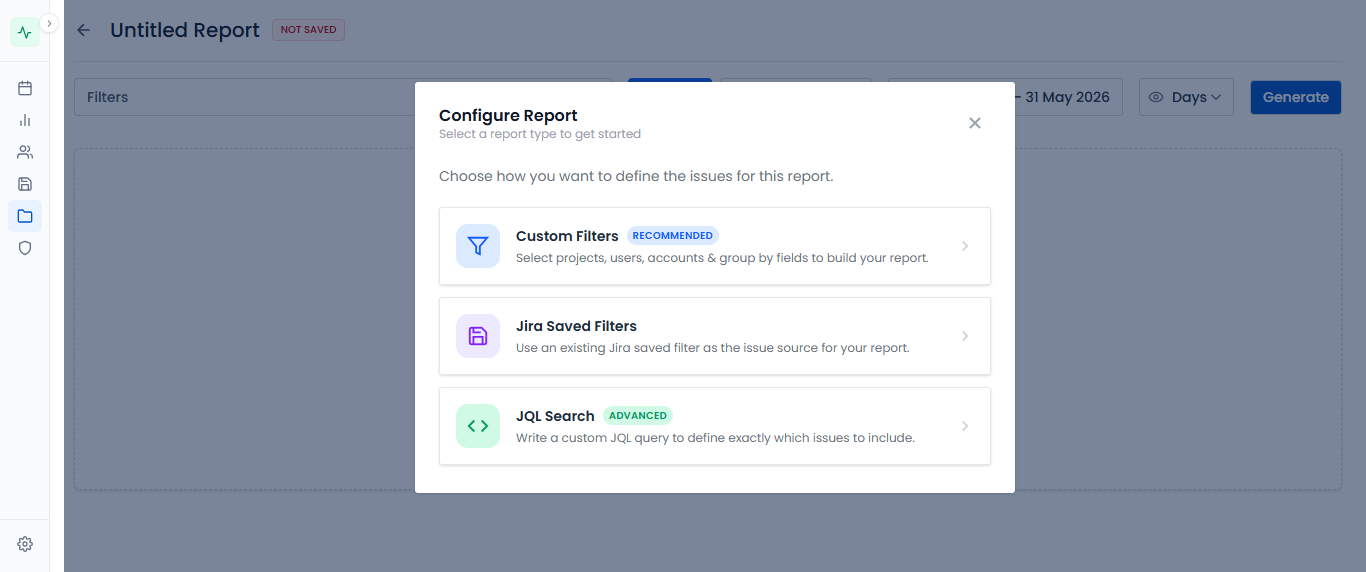
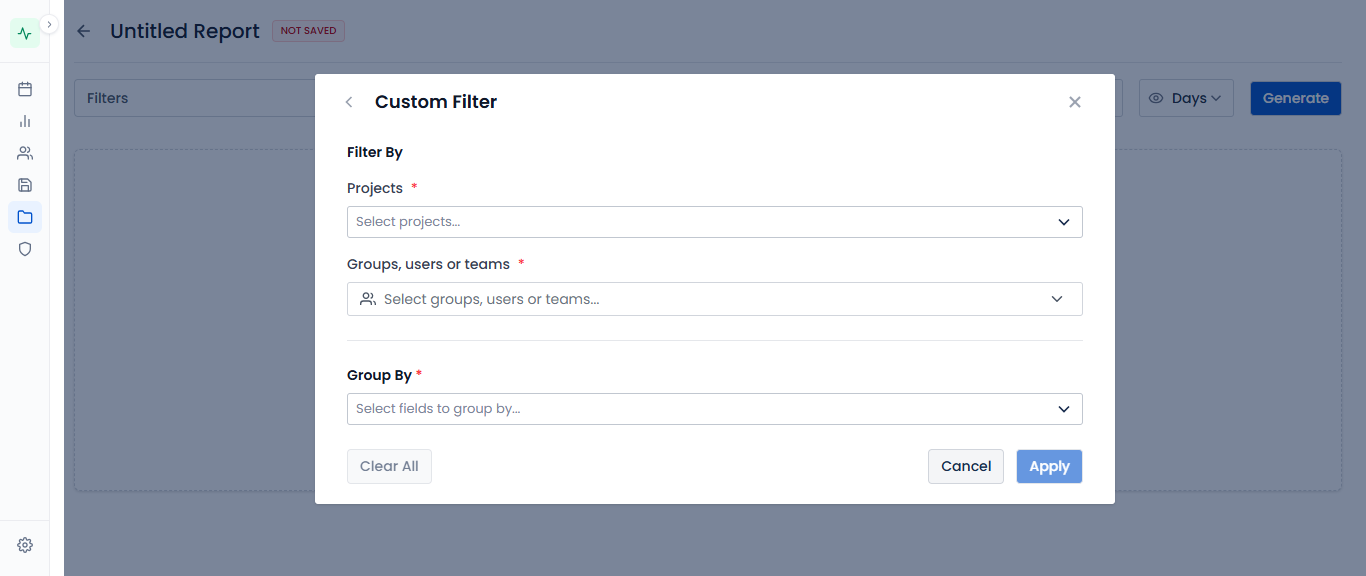
Reading the Report
| Column | Meaning |
|---|---|
| Capacity | Per-assignee available capacity for the period (assignee-grouped rows only) |
| Planned Time | Own time plus rolled-up children's time; rough-plan values show in amber against the Jira Original Estimate |
| Actual Time | Hours actually logged as worklogs |
| Planned Vs Actual Variance | How logged time compares to what was planned |
| Capacity Vs Planned Variance | How the plan compares to available capacity |
| Capacity Vs Actual Variance | How actual logged time compares to available capacity |
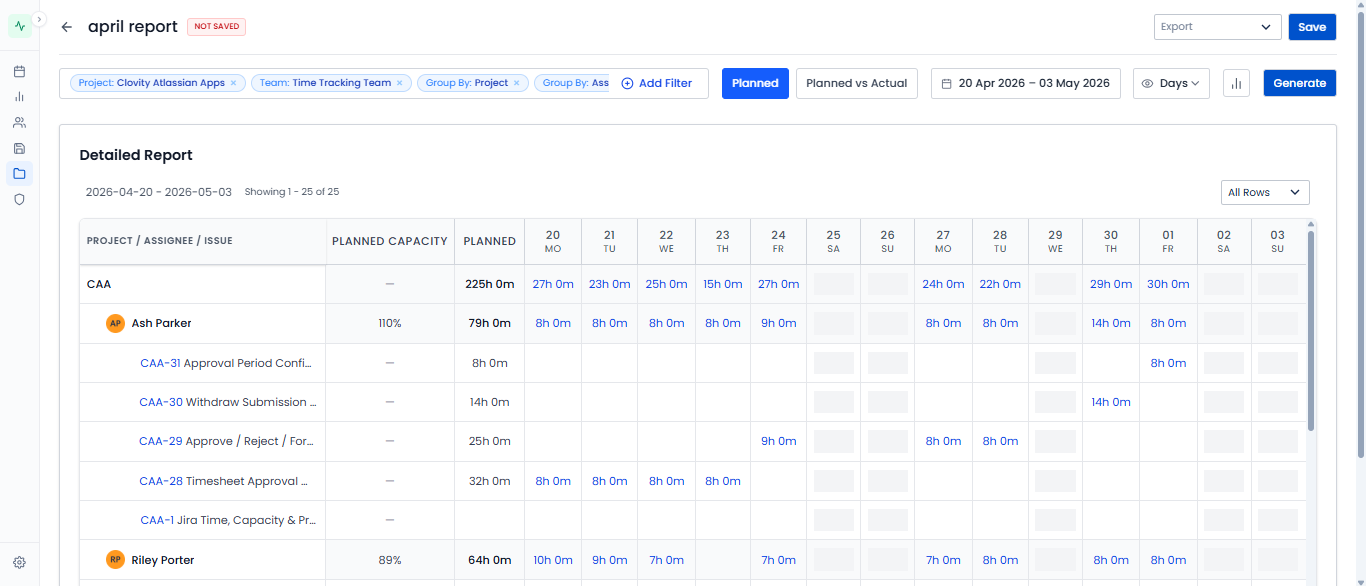
This replaces the older single "Allocation %" figure with three explicit variance columns, so you can see planned-vs-actual drift and capacity headroom separately instead of one blended percentage.
Tips
- Run the Capacity Report at the start of sprint planning to validate commitments before finalising
- Group by Team for a leadership-level rollup; group by Assignee for individual workload detail
- Configure per-user Workload Schemes (Settings → Staff) accurately - inaccurate schemes skew the Capacity column