Importing Subtasks from a Spreadsheet
Subtask Importer works from the Jira issue panel. You import subtasks under a parent issue.
Before You Start
- The app is enabled for the project. Ask your admin if not. See Per-Project Settings.
- Your sheet follows the spreadsheet guidelines.
- You have permission to create subtasks in the project.
Step 1: Open the Parent Issue
Open the Jira issue that the subtasks will belong to. Scroll to the Subtask Importer panel on the issue.
Step 2: Choose Your Source
The panel is titled AI-Powered CSV Importer. It offers two ways to bring in your data.
| Source | How | Limits |
|---|---|---|
| File upload | Drop a CSV or Excel file on the upload area, or click to browse | .csv, .xlsx, .xls - max 10 MB, and up to the project's row limit (500 by default) |
| Google Sheets | Paste the sheet's published CSV URL and click Import Sheet | Sheet must be published to the web as CSV |
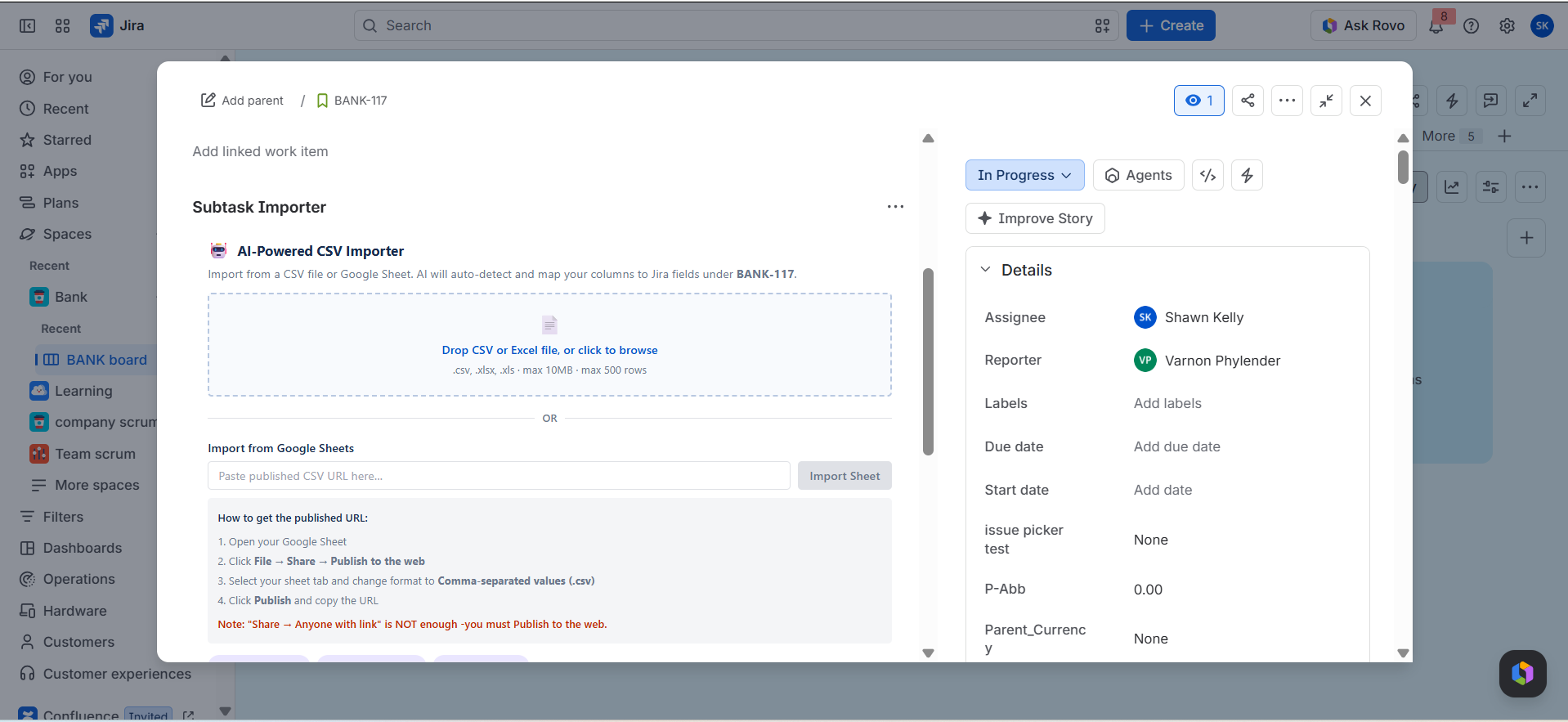
For Google Sheets, the panel lists the steps to get the published URL:
- Open your Google Sheet.
- Click File → Share → Publish to the web.
- Select your sheet tab and change the format to Comma-separated values (.csv).
- Click Publish and copy the URL.
Note: Share → Anyone with link is not enough. You must Publish to the web.
Step 3: Review the Field Mapping
The Field Mapping screen shows your file name, the row count, and how many fields were detected. The AI suggests a Jira field for each column. Check each suggestion and change any that are wrong. Click Skip on a column you do not want to import. See AI Field Mapping.
Step 4: Check the Validation Report
The Validation Report tells you if your rows are ready. If issues are found, click Back to Mapping to fix them. If not, click Preview Import. See Validation and Preview.
Step 5: Review and Edit in the Preview
The Import Preview opens your rows in a spreadsheet-style editor. Edit values in place before you import. See Validation and Preview.
Step 6: Confirm the Import
Confirm when you are happy with the preview. Subtasks are created in bulk under the parent issue.
Step 7: Check the Results
- Open the parent issue and confirm the new subtasks are listed.
- Check Import History in the panel to see how many rows were created or skipped. See Import Audit Log.
Good Habits
- Run a small test import of a few rows first, then the full sheet.
- Import into a test issue the first time you use a new sheet layout.
- Save a template once a mapping is right.
- Do not import the same sheet twice by accident. Check the import history if you are unsure.
Note: Nothing is created until you confirm. You can leave at any earlier step without changing Jira.