User Guide
Validation and Preview
Before import, the app checks your rows and opens them in a spreadsheet-style preview editor. Fix problems there instead of editing the source file and uploading again.
Validation Report
The Validation Report appears after mapping. It shows the file name and the number of rows analysed.
- If everything is fine, you see a green message such as Validation passed - 25 rows ready to import and No issues detected in your data.
- Click Back to Mapping to change the mapping.
- Click Preview Import to continue.
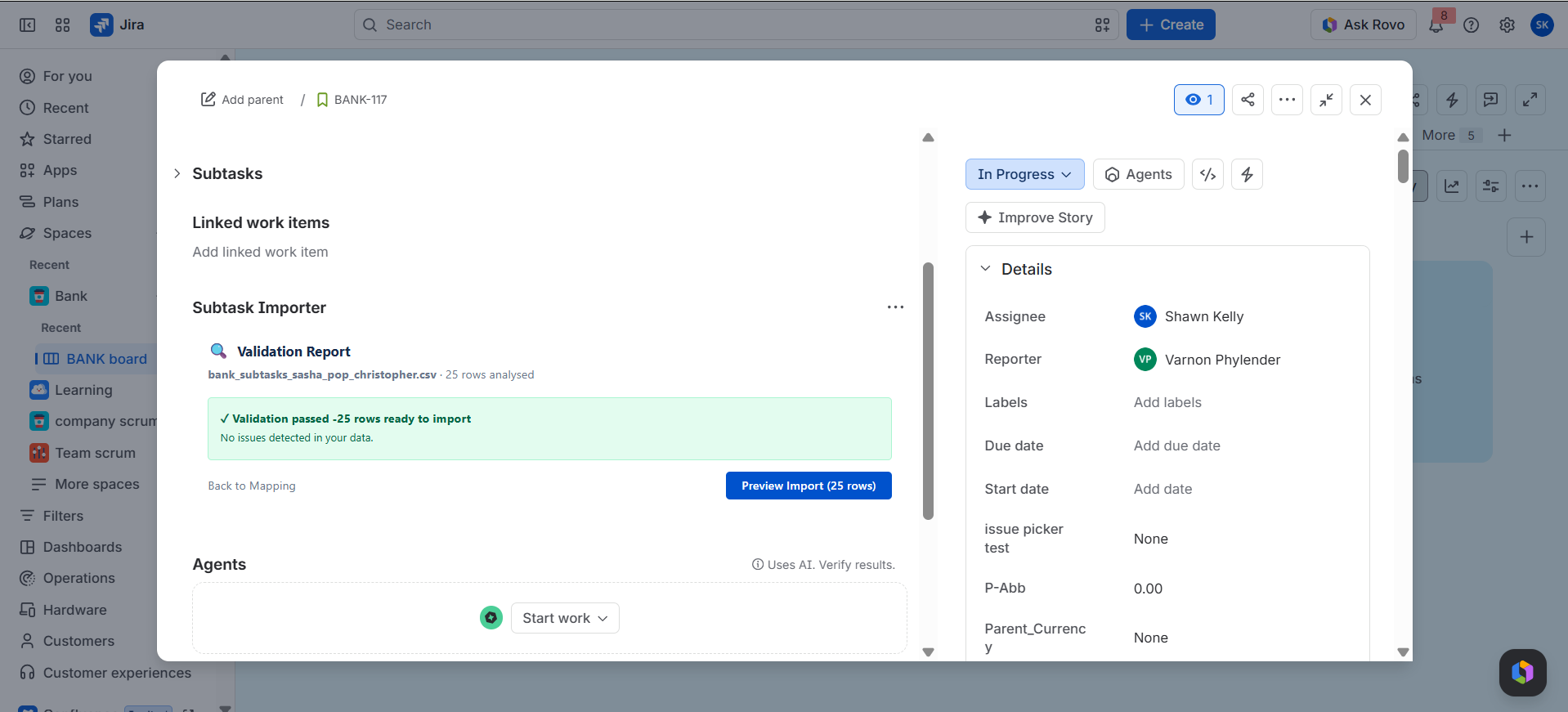
The app advertises three checks on the panel: AI Field Detection, Duplicate Checking, and Smart Validation.
What Gets Checked
| Check | What it catches |
|---|---|
| Duplicate detection | Rows that repeat another row. |
| Type mismatch warnings | Values that do not fit the target field, such as text in a story points column. |
| Row limit | Sheets larger than the project's limit (maximum 1,000). |
| Anomaly detection | Data that looks suspicious or inconsistent with the rest of the sheet. |
Import Preview
The Import Preview shows all rows in a spreadsheet-style editor, with the message "Review and edit your data below before importing." A badge shows how many rows are ready. Columns that use a default value are shown in purple.
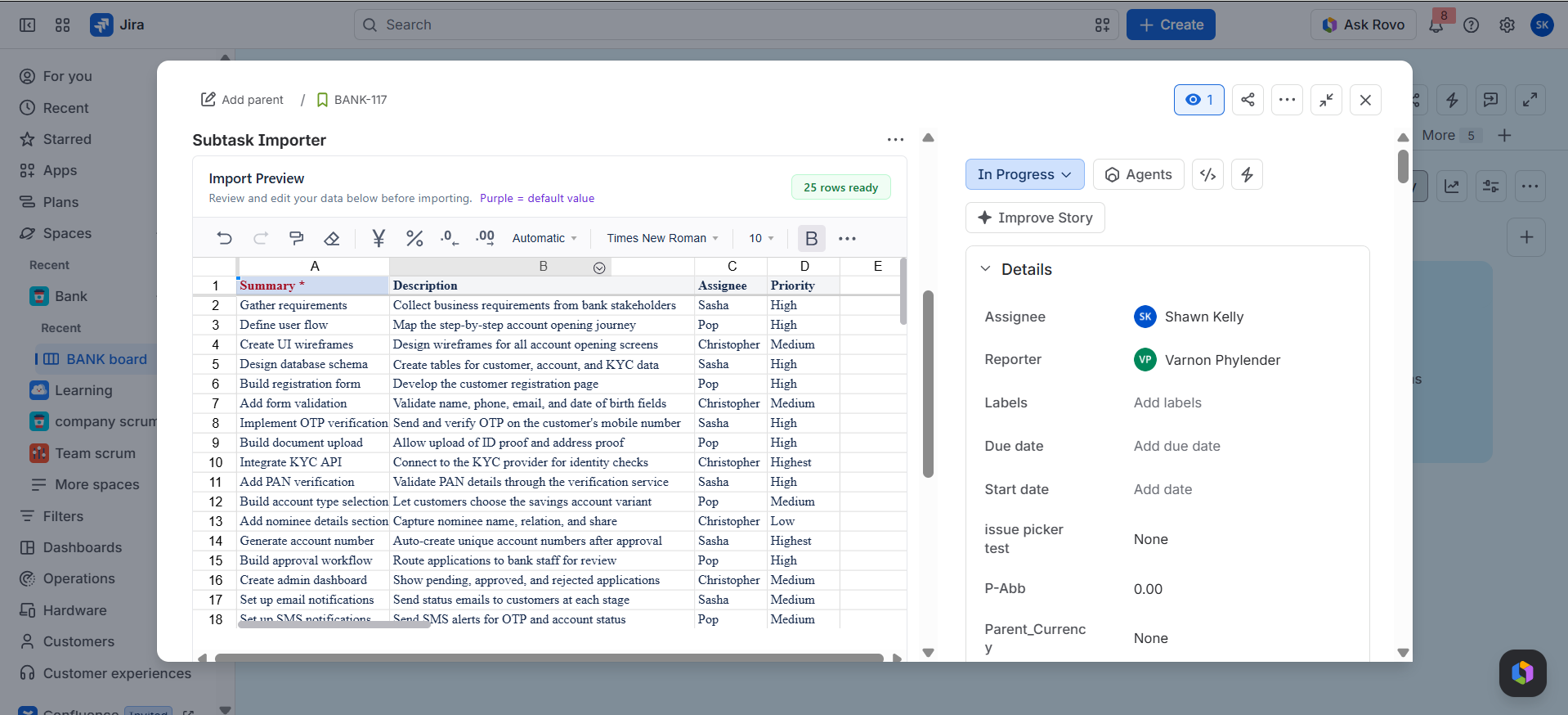
Working in the Preview Editor
- Scan for flagged rows.
- Click a cell to edit its value.
- Remove rows you do not want to import.
- Confirm the import when no flagged rows remain.
Common Fixes
| Flag | Likely cause | Fix |
|---|---|---|
| Type mismatch on story points | Text such as "3 pts" in a number column | Change the cell to 3 |
| Assignee not found | Nickname, misspelling, user not in the instance, or user not in the project | Use the person's email, and confirm the user exists in Jira and in the project |
| Duplicate row | Row pasted twice | Remove one copy |
| Unexpected value flagged | Typo or wrong column | Correct the value or the mapping |
When to Stop
If many rows are flagged, the problem is usually the mapping, not the rows. Go back and check the column mapping before you edit rows one by one.