Admin Settings
Per-Project Settings
Admins control where the app is used and how large an import can be. All settings are per project and are managed on one admin page.
Where to Find It
- In Jira, click the Settings (gear) icon and open Jira admin settings.
- Under Switch settings, choose Marketplace apps.
- In the Apps list, click Subtask Importer.
- The Enabled Projects page opens. Use Filter projects by name or key to find a project.
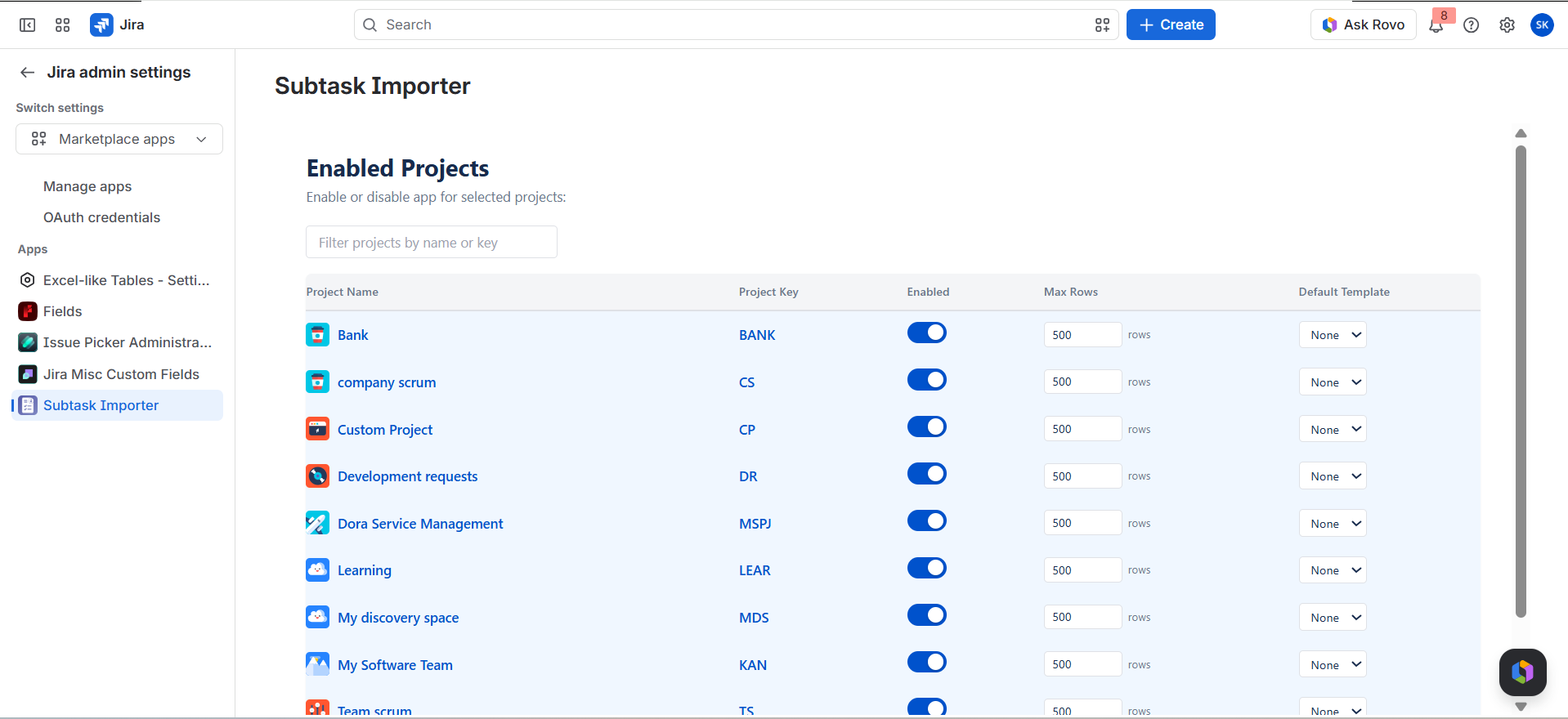
Available Settings
| Column | What it does |
|---|---|
| Project Name / Project Key | The project the row applies to |
| Enabled | Turns Subtask Importer on or off for the project |
| Max Rows | Sets the maximum rows allowed in one import. It shows 500 rows in the screenshot above. The upper limit is 1,000. |
| Default Template | The mapping template applied by default for the project (None if not set) |
Choosing a Row Limit
- Set a lower limit on projects where large imports would be unusual. A low limit catches a wrong file early.
- Set the maximum on projects that run big checklists or runbooks.
- If a sheet is larger than the limit, split it into smaller files.
Recommended Rollout
- Enable the app on one pilot project.
- Run a test import with 5 to 10 rows.
- Save a mapping template for that project.
- Enable the app on more projects.
Project Types
| Project type | Supported |
|---|---|
| Jira Software | Yes |
| Jira Service Management | Yes |
| Team-managed projects | Yes |