AI Field Mapping
After you upload a sheet, the app suggests which Jira field each column belongs to. Mapping is powered by GPT-4o. It uses two signals: the column header, and the values in the column.
Why Values Matter
A header like "Owner" is ambiguous. The AI also reads the values. If the cells hold names or email addresses, it suggests Assignee. If the cells hold dates, it suggests a date field. A header like "Col 4" can still be mapped correctly when the values make the meaning clear.
The Field Mapping Screen
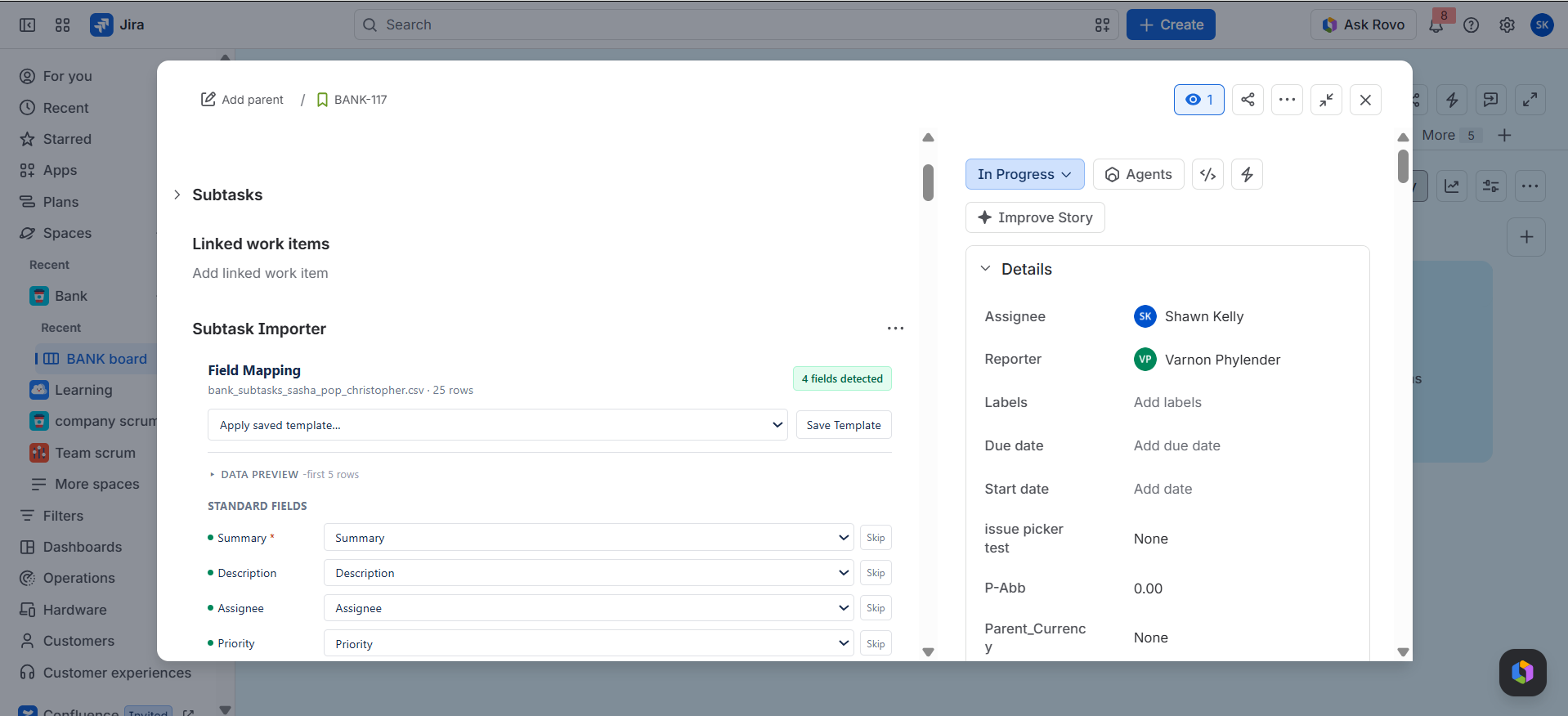
After you upload a file, the Field Mapping screen shows:
- The file name and row count
- A badge showing how many fields were detected
- Apply saved template... and Save Template controls
- A Data Preview of the first 5 rows
- Standard Fields (Summary, Description, Assignee, Priority, and others), each with a dropdown to pick the matching column and a Skip button
Summary is required and is marked with an asterisk.
What Can Be Mapped
- Summary
- Assignee
- Priority
- Due date
- Labels
- Story points
- Custom Jira fields available in the project
Custom Fields
The list of fields comes from the project's create metadata. That means any custom field your project allows on subtasks can be a mapping target. If a custom field is missing from the list, check that it is on the subtask create screen for that project.
Reviewing the Suggestions
- Check each suggested mapping against your sheet.
- Change any mapping that is wrong.
- Click Skip on a column you do not want to import.
Note: The AI suggests. You confirm. Nothing is created until you confirm the import.
AI Correction Memory
When you override a suggestion, the app remembers the correction and uses it to improve later suggestions. The more you use it, the fewer changes you make.
Assignees
Names and email addresses are resolved to Jira account IDs.
- Email addresses are the most reliable match.
- Names must be clear enough to match one person. Two people with the same name may need an email.
- Check any row where a user could not be matched before you import.
The Assignee Must Exist in Jira and in the Project
A name or email in the sheet only works if the person:
- Exists in your Jira instance as an active user, and
- Is a member of the project (or otherwise assignable in it), so Jira allows them as an assignee on that project's subtasks.
If either is missing, the row cannot be assigned to that person. Add the user to the site and to the project before you import, or correct the cell in the preview. Ask your Jira admin if you are not sure who is assignable in the project.
Dates
Dates can be in any common format. They are converted to ISO format (YYYY-MM-DD) before the subtask is created. Check ambiguous dates such as 04/05/2026, which can mean April 5 or May 4 depending on region. Use an unambiguous format in the source when accuracy matters.
Data and Privacy
Field mapping uses a GPT-4o model. Clovity's privacy policy applies to the app. If your sheet holds sensitive data, review the policy with your security team before you import.