Connecting a Repository (GitHub & GitLab)
This guide walks through connecting a GitHub or GitLab repository - cloud or self-hosted - to GitConnect for Jira using the Add Integration wizard. The wizard has the same four steps regardless of provider; where a step differs between GitHub and GitLab, it's called out below.
Step 1: Select Hosting
- Open Apps → GitConnect for Jira → Manage Integrations
- Click Add Integration
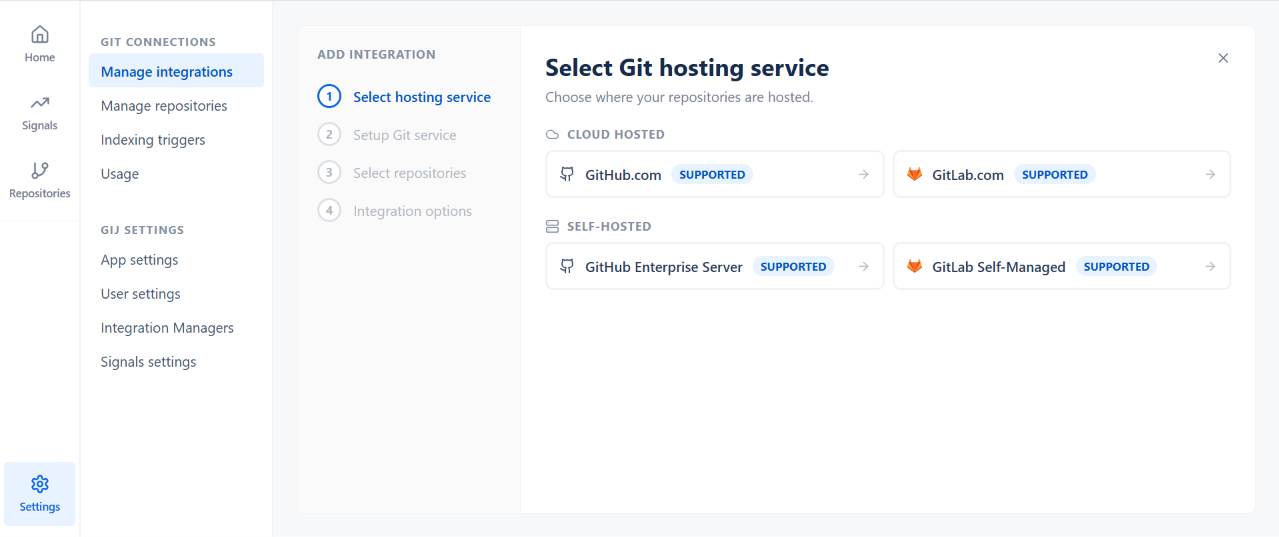
- Choose a hosting option:
- GitHub.com (cloud)
- GitLab.com (cloud)
- GitHub Enterprise Server (self-hosted) - enter your server's base URL
- GitLab Self-Managed (self-hosted) - enter your server's base URL
On Government Cloud or other restricted environments, your admin may need to approve network access to a self-hosted server before the connection can be completed.
Step 2: Authenticate
This step differs by provider.
For GitHub
- OAuth - sign in with your GitHub account and authorize GitConnect for Jira. Only available for GitHub.com.
- Personal access token (PAT) - required for GitHub Enterprise Server, and also available for GitHub.com. See Creating Personal Access Tokens for the scopes needed.
For GitLab
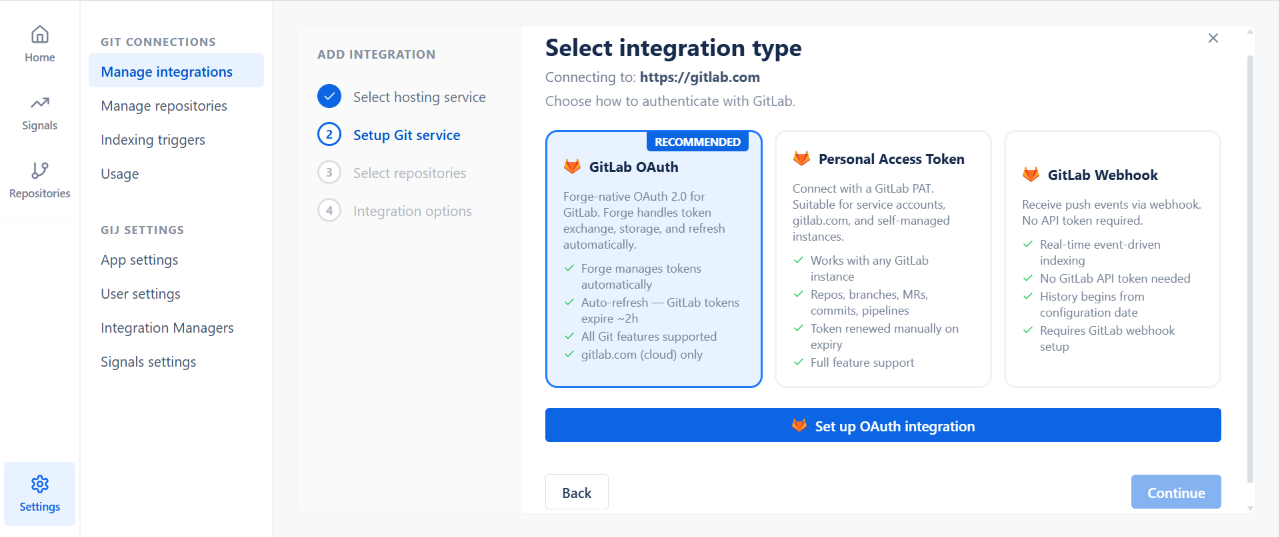
- GitLab OAuth (Recommended) - Forge-native OAuth 2.0. Forge handles token exchange, storage, and refresh automatically; GitLab tokens expire roughly every 2 hours and are refreshed automatically. All Git features are supported. Only available for GitLab.com (cloud).
- Personal access token (PAT) - works with any GitLab instance, including self-managed. Full feature support, but the token must be renewed manually before it expires. See Creating Personal Access Tokens for the scopes needed.
- GitLab Webhook - receives push events via webhook, with no GitLab API token needed. Indexing is real-time and event-driven, but history only begins from the date the webhook is configured - it does not back-fill past activity. Requires webhook setup on the GitLab side.
Note: OAuth availability can vary by Jira site depending on your organization's compliance configuration. If you don't see an OAuth option for GitHub, or your GitLab personal access token is about to expire, use or renew a personal access token instead - see Creating Personal Access Tokens.
Step 3: Select Repositories
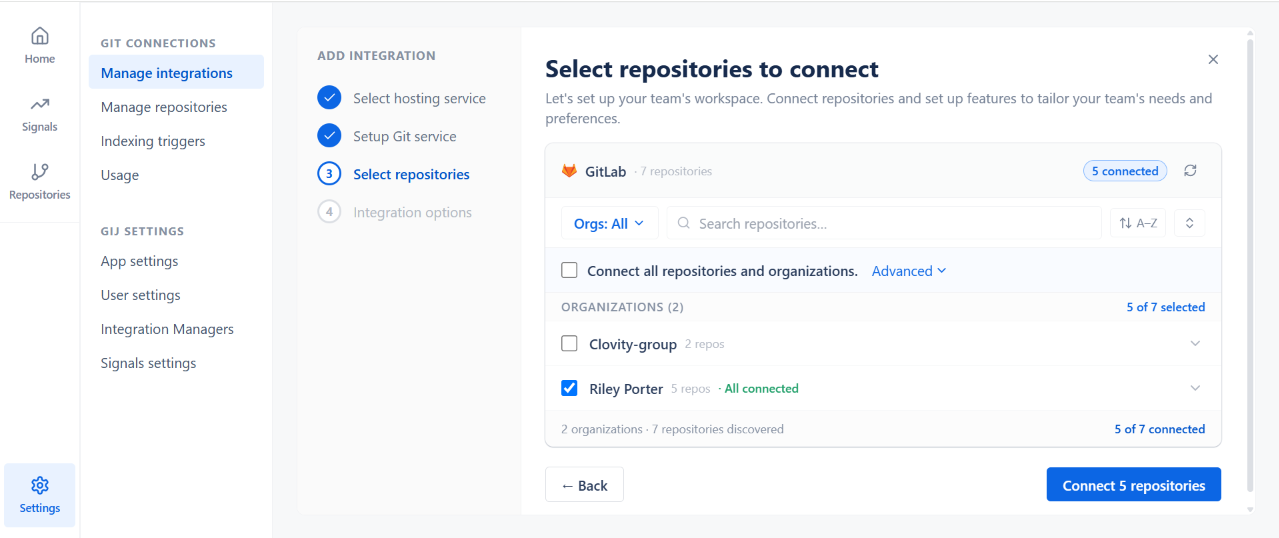
GitConnect for Jira lists the repositories or projects your account or token can access, grouped by organization/group. Select individual repositories, whole organizations, or use Connect all repositories and organizations to select everything at once, then continue. This screen looks the same for both providers - only the organizations and repositories listed differ.
Step 4: Options
Configure the integration before finishing. This screen is also the same for both providers:
| Option | Description |
|---|---|
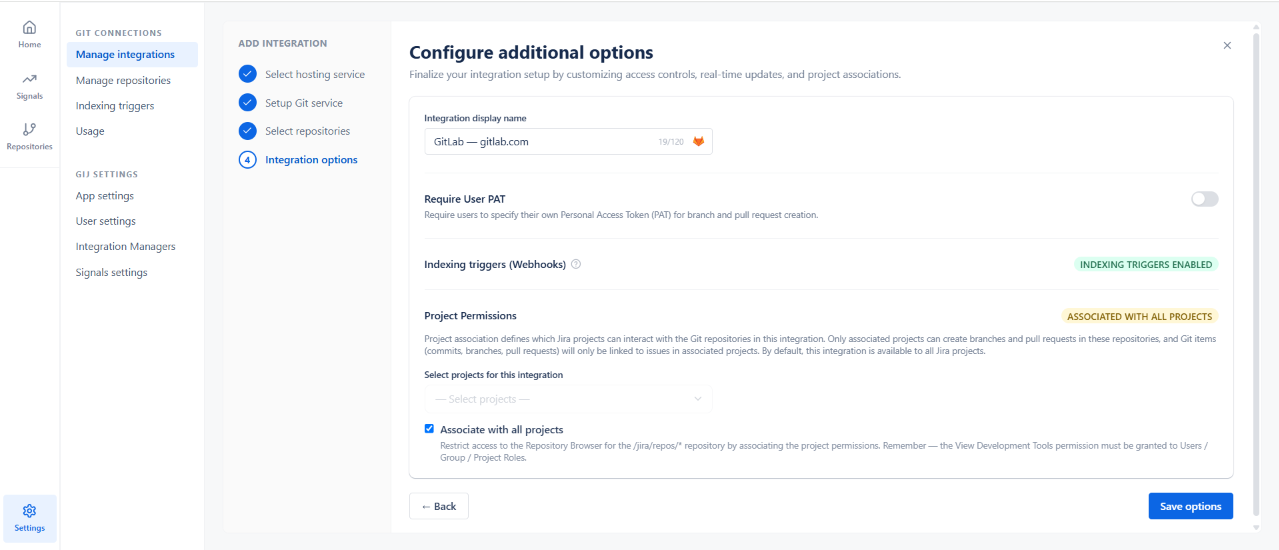
| Integration display name | Editable label for this integration (defaults to the provider and hosting URL, e.g. "GitLab — gitlab.com") |
| Require User PAT | When on, each user must supply their own personal access token to create branches or pull/merge requests from Jira, instead of using the integration's own credentials |
| Indexing Triggers (Webhooks) | Shows whether webhook-based indexing is enabled for this integration |
| Project Permissions | Controls which Jira projects can interact with this integration's repositories - see below |
Click Save options to finish and start the initial sync.
Project Permissions
By default, a new integration is associated with all projects, meaning every Jira project can link to and create branches/pull requests in its repositories. To restrict this:
- Uncheck Associate with all projects
- Use Select projects for this integration to choose specific Jira projects
Only associated projects can create branches and pull/merge requests in the integration's repositories, and Git activity (commits, branches, pull/merge requests) is only linked to issues in associated projects.
Note: Restricting an integration to specific projects also restricts access to the Repository Browser for that integration. The Jira View Development Tools permission must still be granted to the relevant users, groups, or project roles for them to see development activity at all - see Permissions.
Tip: For organization-owned repositories, consider using a service account or a token/OAuth grant created by someone with sufficient, durable access, so the integration doesn't break if an individual's access changes later.
Repository Permissions
| GitHub Access Level | What It Allows in GitConnect for Jira |
|---|---|
| Read | View commits, branches, pull requests, pipelines, and deployments on Jira issues |
| Write | Also required if developers will create branches or pull requests from Jira |
| GitLab Role | What It Allows in GitConnect for Jira |
|---|---|
| Reporter | View commits, branches, merge requests, pipelines, and deployments on Jira issues |
| Developer | Also required if developers will create branches or merge requests from Jira |
Once connected, see Managing Connected Repositories for reindexing, updating credentials, and disconnecting.