User Guide
Creating Branches, Pull & Merge Requests
Developers with write access can create a branch or a pull/merge request directly from a Jira issue, without switching to GitHub or GitLab first.
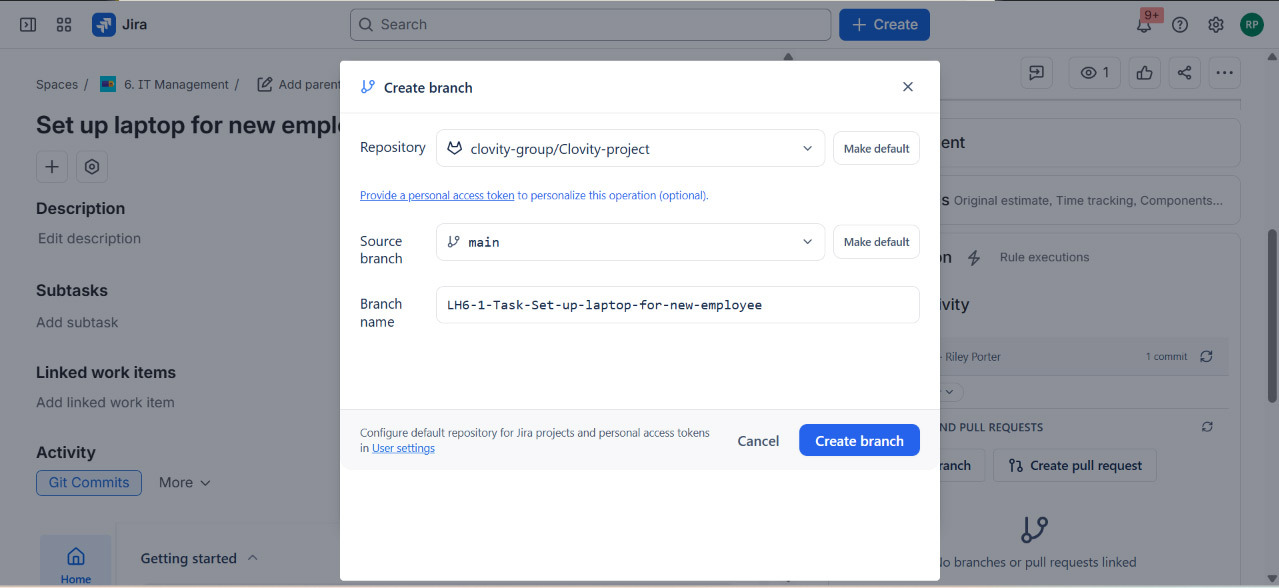
Creating a Branch
- Open a Jira issue
- In the Issue Activity panel, click Create branch
- Select the Repository to branch in - use Make default to remember it for next time
- Optionally, click Provide a personal access token to use your own PAT for this operation instead of the integration's credentials
- Select the Source branch to branch from (defaults to
main) - use Make default to remember it - Confirm or edit the suggested Branch name (pre-filled from the issue key and summary, e.g.
LH6-1-Task-Set-up-laptop-for-new-employee) - Click Create branch
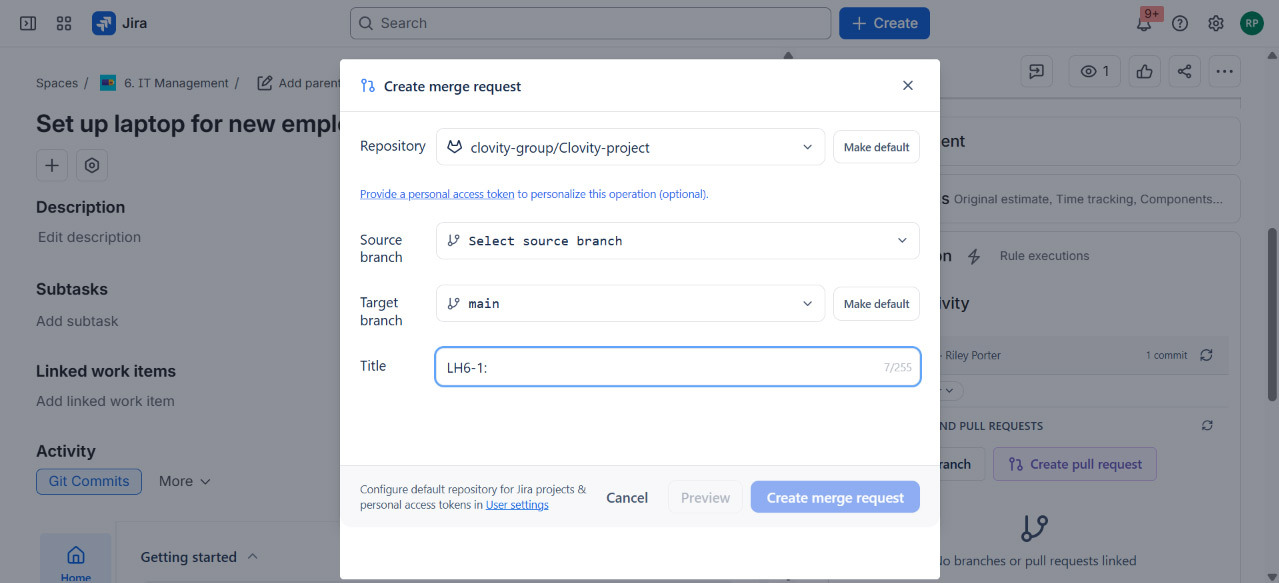
Creating a Pull or Merge Request
- After committing to a branch linked to the issue, open the Issue Activity panel
- Click Create pull request (GitHub) or Create merge request (GitLab)
- Select the Repository, Source branch (your working branch), and Target branch (defaults to
main) - Enter a Title (pre-filled with the issue key, e.g.
LH6-1:, up to 255 characters) and description - Click Create pull request / Create merge request
Tip: The Repository, Source branch, and Target branch you select can each be set as the default for the current Jira project from within the dialog, or configured directly from User settings, along with your personal access token.
Note: Creating branches and pull/merge requests requires Write access on GitHub or Developer access on GitLab for the connected repository. Read-only connections can view activity but cannot create branches or pull/merge requests.
Naming and Linking
- Branches are linked to an issue when the issue key appears anywhere in the branch name
- Pull/merge requests are linked when the issue key appears in the title, or when they are created from a branch that is already linked to the issue