Display & Export
More Settings Tab
"DONE" MEANS
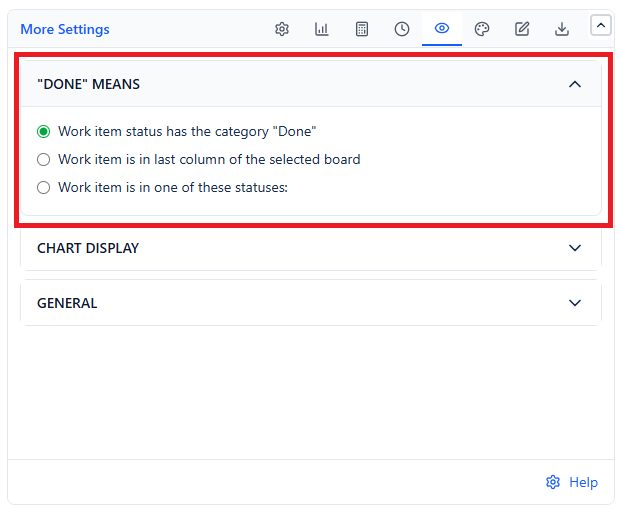
| Option | A Work Item Is Done When |
|---|---|
| Work item status has the category "Done" (default) | It reaches any status in the Done category |
| Work item is in last column of the selected board | It is in the last column of the board you pick here - this board does not have to be the data source |
| Work item is in one of these statuses: | It reaches one of the statuses you select |
If you choose a board or status option but leave it empty, the gadget asks you to complete the setting before it draws the chart.
CHART DISPLAY
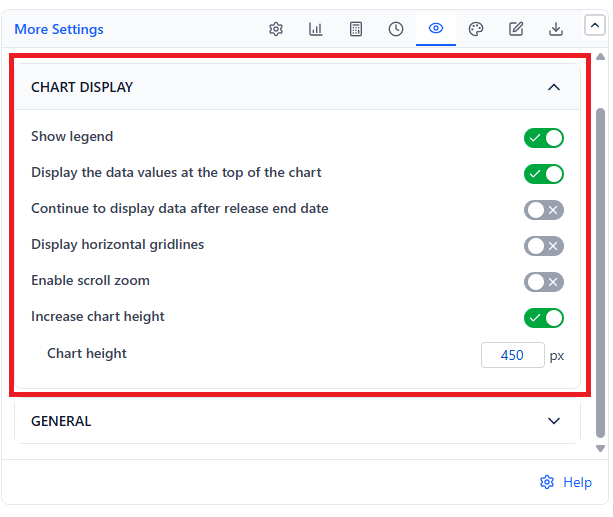
| Setting | What It Does | Default |
|---|---|---|
| Show legend | A color legend below the chart | On |
| Display the data values at the top of the chart | Shows each series' value above every data point | On |
| Continue to display data after release end date | Once the release end date has passed, keeps extending the chart with real data through today | Off |
| Display horizontal gridlines | Horizontal reference lines across the chart | Off |
| Enable scroll zoom | Zoom the chart with the mouse wheel | Off |
| Increase chart height | Sets a fixed Chart height in pixels instead of the gadget's default height | Off |
GENERAL
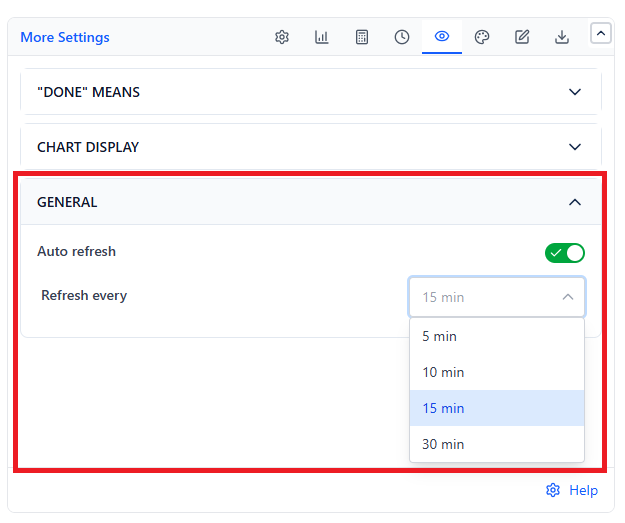
| Setting | What It Does | Default |
|---|---|---|
| Auto refresh | Re-fetches release data while the gadget is open. Refresh every 5, 10, 15, or 30 min | Off (15 min) |
Colour Tab
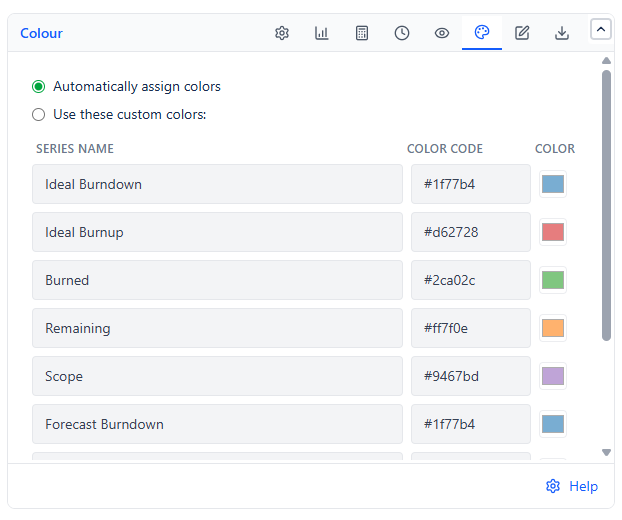
Automatically assign colors is the default. Choose Use these custom colors to set each series yourself.
| Series | Default |
|---|---|
| Ideal Burndown | Blue |
| Ideal Burnup | Red |
| Burned | Green |
| Remaining | Orange |
| Scope | Purple |
Each forecast series uses the same color as its solid counterpart - Forecast Burndown matches Ideal Burndown, and so on. Forecast lines are always dashed.
Export
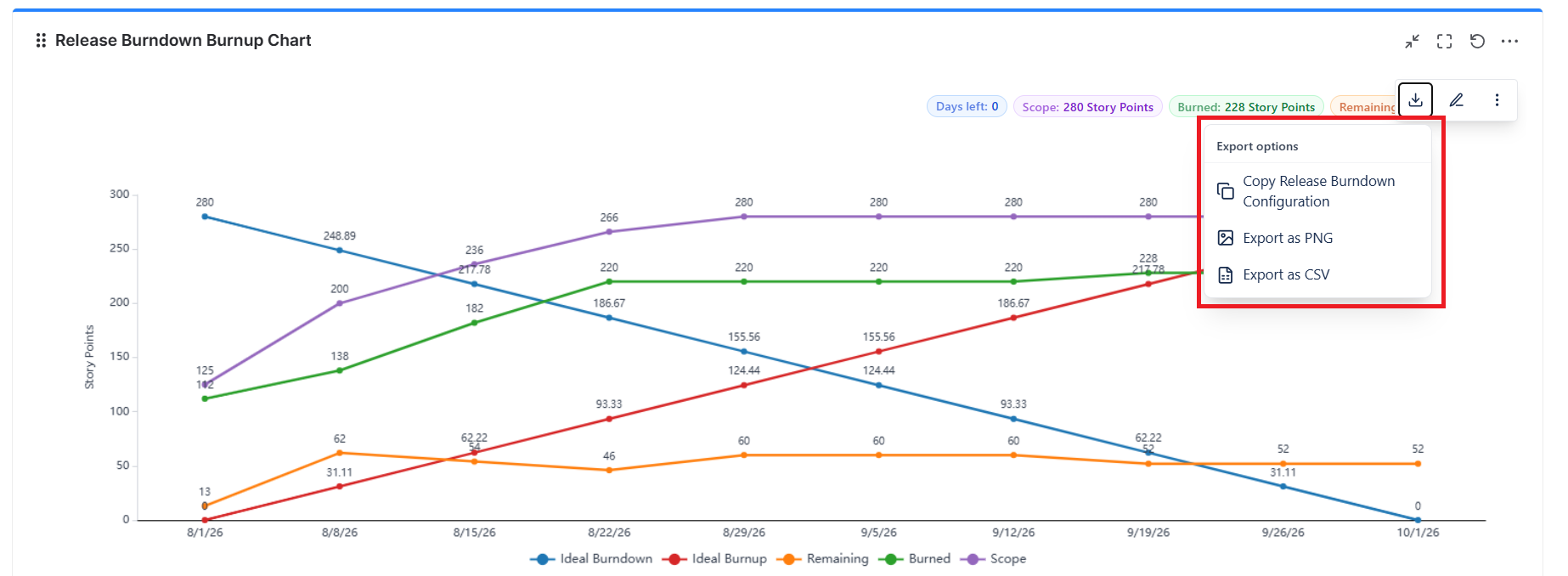
| Option | Contains |
|---|---|
| Copy Release Burndown Configuration | The gadget's settings, copied to your clipboard |
| Export as PNG | The chart as displayed |
| Export as CSV | One row per date, with one column for each series shown on the chart |
PNG and CSV are hidden when your Jira admin turns off Allow direct export to PNG, PDF & CSV.
The Description and Import/Export tabs work the same as in every other gadget.
If the data source matches more than 350,000 work items, the gadget loads nothing and shows a Too many issues warning. Narrow the data source to continue.
Common Use Cases
Release readiness reviews. Pick the project release under Dates of a project release, turn on Forecast Remaining, and read the ETA badge against the release end date. If the ETA is later, the forecast sentence tells you what velocity the date assumes.
Scope creep conversations. Show Scope with Forecast Scope and turn on Consider the scope forecast when making the end date forecast. A rising Scope line explains a slipping ETA more often than slow delivery does.
Epic delivery tracking. Use the Epics source to follow one or more large epics across several sprints, with Intervals of set to your sprint length.
Milestone check-ins. Add Timeline percentage milestones at 25, 50, and 75. Each past milestone turns red or green, so a stakeholder can see at a glance whether the release was on pace at each checkpoint.