Admin Settings
Control global app behavior for all nineteen gadgets - Custom Charts, Issue List, Dynamic Filter Controller, Time in Status, Pivot Table, Cumulative Flow Diagram, WIP Aging Charts, Control Chart, Histogram Chart, Cycle Time Trend, WIP Run Chart, Sprint Burndown & Burnup, Release Burndown & Burnup, Team Wallboard, Issue Filter Formula, Work Breakdown Structure, Kanban Velocity, Regional Clock, and Countdown. Use Admin Settings to decide whether gadgets can export, set the display defaults new gadgets start with, turn gadgets and data sources on or off, and reach support.
Where to find it
- Open Jira and go to Apps.
- Open Dashboard Templates, Charts, Graphs & Reports for Jira.
- Open the Admin page. It is visible only to users with the global Administer Jira permission.
- Use the tabs at the top: Customization Options, Features, Data Sources, and Support. The Documentation link at the top right opens this user guide.
Saving changes
Changes are not applied until you save. A bar at the bottom of the page shows You have unsaved changes. with two buttons:
| Button | What it does |
|---|---|
| Save changes | Saves every change on every tab. The bar then shows Changes saved |
| Discard | Throws away the unsaved changes and reloads the saved settings |
Gadgets that are already open pick up a saved change without a manual refresh.
Admin Settings tabs
| Tab | What it does |
|---|---|
| Customization Options | Decide whether gadgets can export, and choose the display options that new gadgets start with |
| Features | Turn each gadget, and Templates, on or off for every user |
| Data Sources | Choose which data sources people can pick when they set up a gadget |
| Support | Contact support, book a training session, or read the documentation |
Each settings table shows the setting, What it does, Used by (the gadgets the setting applies to), and its control.
Customization Options
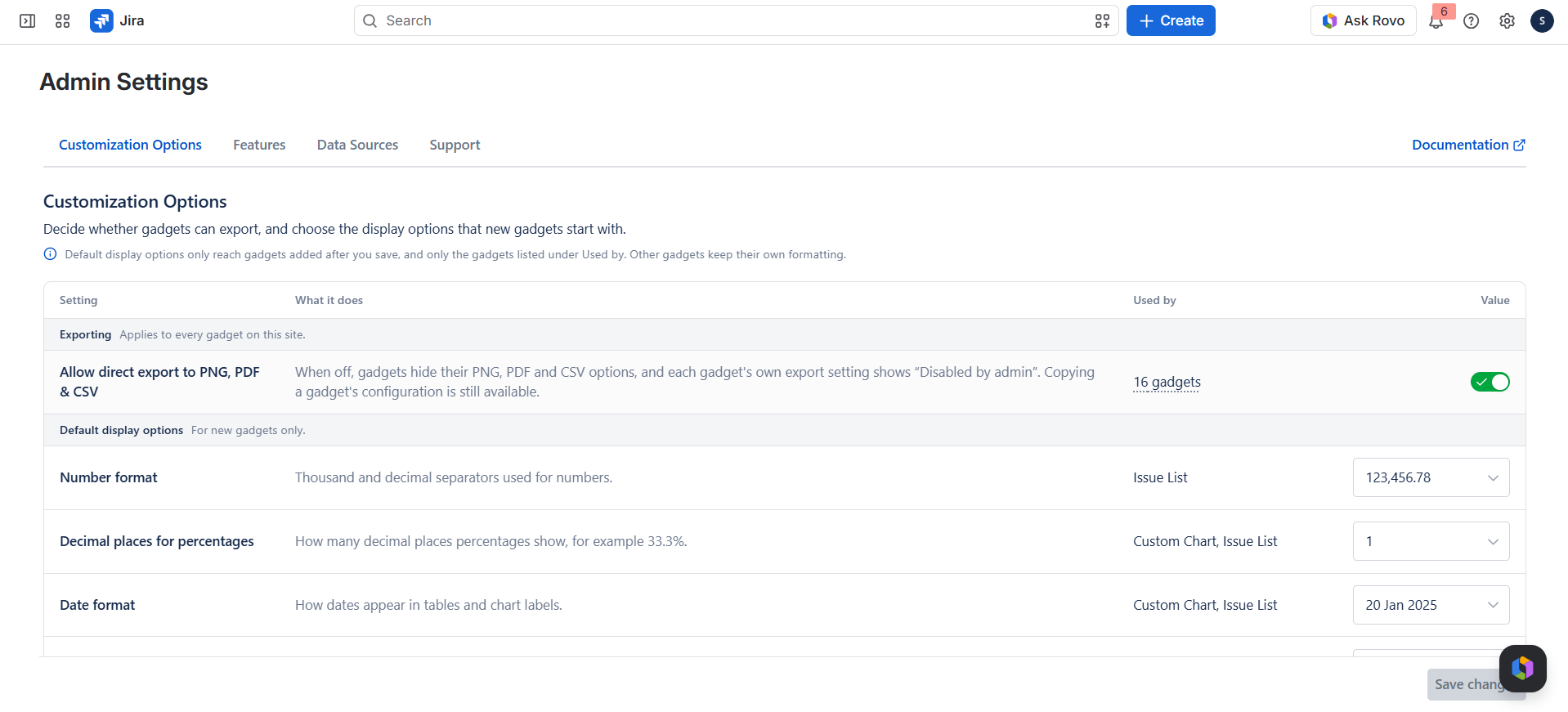
Decide whether gadgets can export, and choose the display options that new gadgets start with.
Exporting
Applies to every gadget on this site.
| Setting | What it does | Used by | Default |
|---|---|---|---|
| Allow direct export to PNG, PDF & CSV | When off, gadgets hide their PNG, PDF and CSV options, and each gadget's own export setting shows "Disabled by admin". Copying a gadget's configuration is still available. | Every gadget except Dynamic Filter Controller, Regional Clock, and Countdown | On |
Default display options
For new gadgets only.
| Setting | What it does | Used by | Options | Default |
|---|---|---|---|---|
| Number format | Thousand and decimal separators used for numbers. | Issue List | 123,456.78 · 123.456,78 · 123'456.78 · 123'456,78 · 123456.78 | 123,456.78 |
| Decimal places for percentages | How many decimal places percentages show, for example 33.3%. | Custom Chart, Issue List | 1 · 2 · 3 · 4 | 1 |
| Date format | How dates appear in tables and chart labels. | Custom Chart, Issue List | 20 Jan 2025 · 20 January 2025 · Jan 20, 2025 · 20/1/2025 · 20-1-2025 · 20.1.2025 · 1/20/2025 · 1-20-2025 · 1.20.2025 · 2025-1-20 | 20 Jan 2025 |
| Time unit | Unit for durations such as time spent, estimates, cycle time and item age. Dates and calendar axes are not affected. | Control Chart, Custom Chart, Cycle Time Trend, Histogram Chart, Issue List, WIP Aging Chart | Hours · Minutes · Days | Hours |
Note: Default display options only reach gadgets added after you save, and only the gadgets listed under Used by. Other gadgets keep their own formatting, and a user can still change these values inside each gadget.
Features
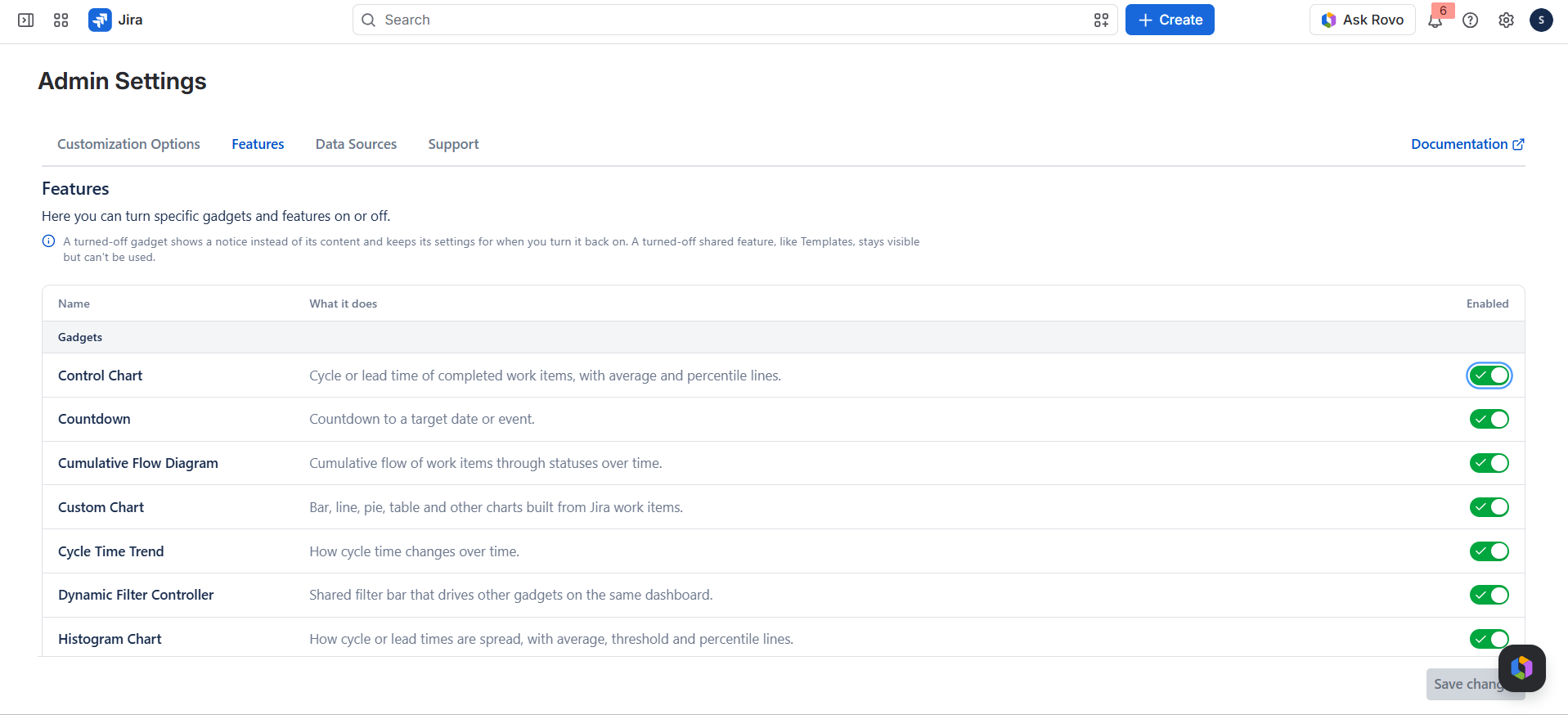
Turn specific features on or off. Turning a feature off restricts access for every user in your environment.
A turned-off gadget shows a notice in its place, and its saved settings are kept for when you turn it back on. Jira still lists it under Add gadget.
Gadgets
All gadgets are Enabled by default.
| Name | What it does |
|---|---|
| Control Chart | Cycle or lead time of completed work items, with average and percentile lines. |
| Countdown | Countdown to a target date or event. |
| Cumulative Flow Diagram | Cumulative flow of work items through statuses over time. |
| Custom Chart | Bar, line, pie, table and other charts built from Jira work items. |
| Cycle Time Trend | How cycle time changes over time. |
| Dynamic Filter Controller | Shared filter bar that drives other gadgets on the same dashboard. |
| Histogram Chart | How cycle or lead times are spread, with average, threshold and percentile lines. |
| Issue Filter Formula | KPI numbers, gauges and cards calculated from up to nine work-item counts or totals. |
| Issue List | Paginated table of work items with configurable columns. |
| Kanban Velocity / Throughput | Work completed per interval, for Kanban teams. |
| Pivot Table | Pivot table and chart that totals work items across two fields. |
| Regional Clock | Clocks for the time zones your team works in. |
| Release Burndown Burnup Chart | Burndown or burnup of a release, with forecast and milestones. |
| Sprint Burndown Burnup Chart | Burndown or burnup of one sprint: remaining, burned and ideal work. |
| Team Wallboard | Wallboard of work items grouped by board column or status category. |
| Time in Status | How long work items spend in each status. |
| WIP Aging Chart | Age of in-progress work items, with average, threshold and percentile lines. |
| WIP Run Chart | Work in progress over time. |
| Work Breakdown Structure | Tree view of work items and the work under them. |
Shared features
| Name | What it does |
|---|---|
| Templates | Template picker in Custom Chart, Issue List and Dynamic Filter Controller. |
When a gadget is turned off, it shows This feature is currently disabled with the message that a Jira administrator can enable it on the Features tab in the Admin settings.
Data Sources
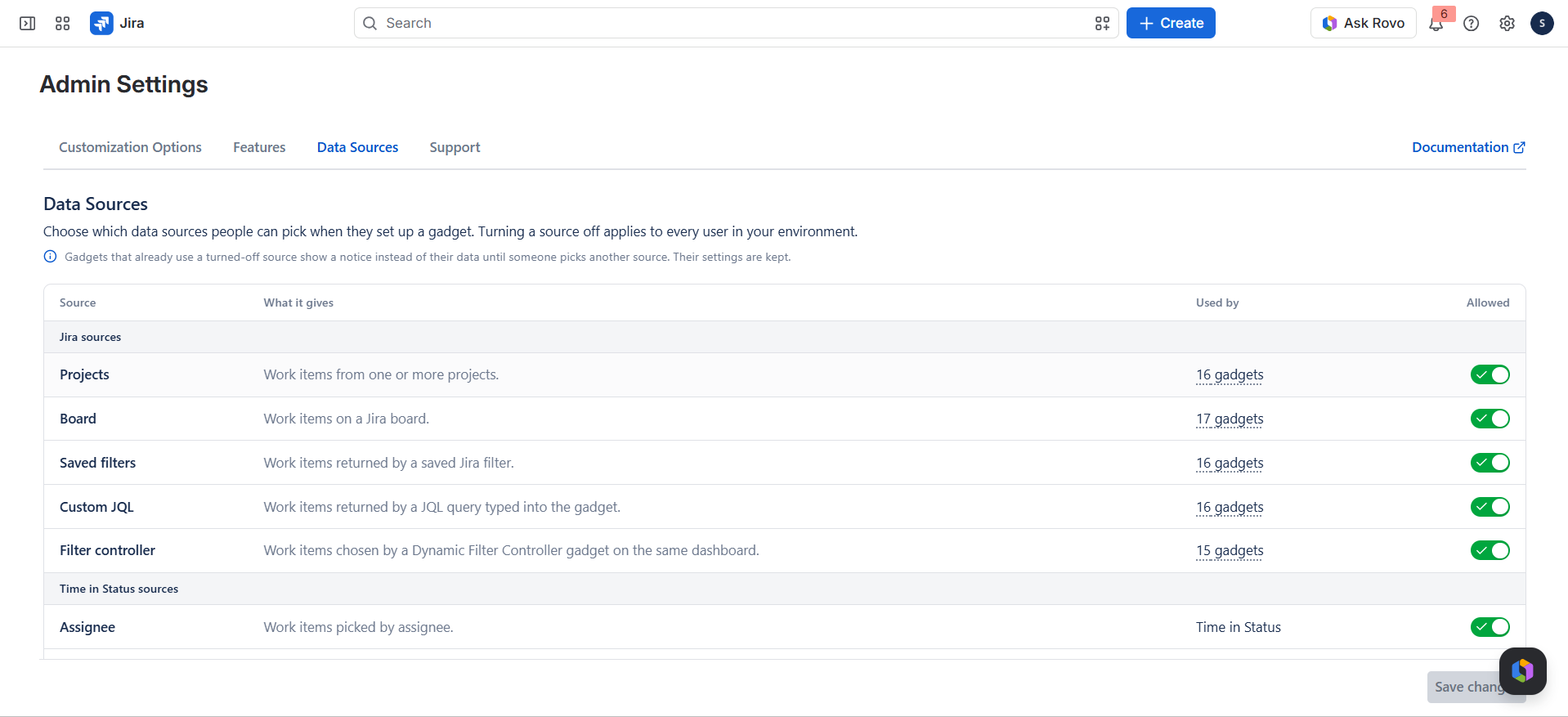
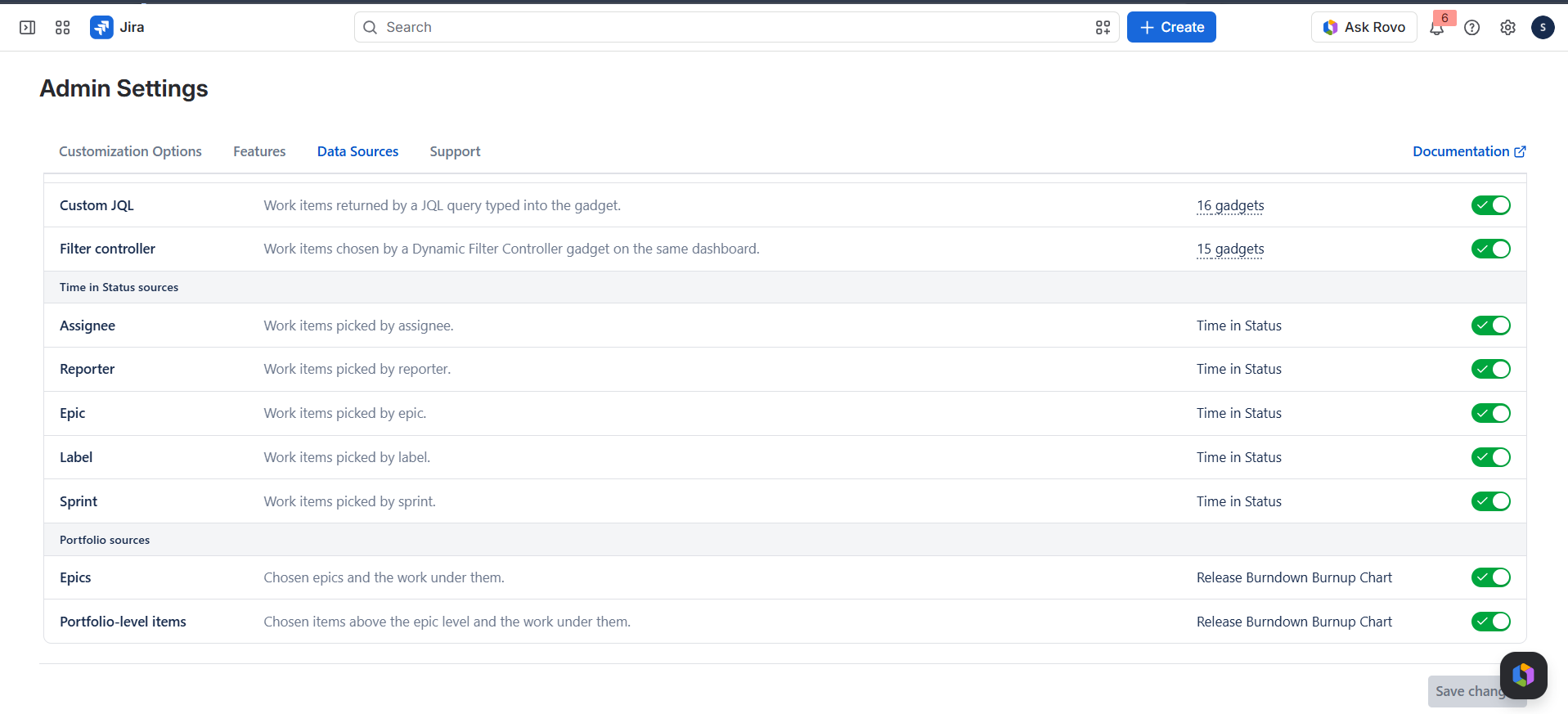
Choose which data sources people can pick when they set up a gadget. Turning a source off applies to every user in your environment. All sources are Allowed by default.
Jira sources
| Source | What it gives | Used by |
|---|---|---|
| Projects | Work items from one or more projects. | Every gadget that reads Jira data, except Sprint Burndown & Burnup |
| Board | Work items on a Jira board. | Every gadget that reads Jira data |
| Saved filters | Work items returned by a saved Jira filter. | Every gadget that reads Jira data, except Sprint Burndown & Burnup |
| Custom JQL | Work items returned by a JQL query typed into the gadget. | Every gadget that reads Jira data, except Sprint Burndown & Burnup |
| Filter controller | Work items chosen by a Dynamic Filter Controller gadget on the same dashboard. | Every gadget that reads Jira data, except Sprint Burndown & Burnup and the Dynamic Filter Controller itself |
Time in Status sources
Used by Time in Status only.
| Source | What it gives |
|---|---|
| Assignee | Work items picked by assignee. |
| Reporter | Work items picked by reporter. |
| Epic | Work items picked by epic. |
| Label | Work items picked by label. |
| Sprint | Work items picked by sprint. |
Portfolio sources
Used by Release Burndown & Burnup only.
| Source | What it gives |
|---|---|
| Epics | Chosen epics and the work under them. |
| Portfolio-level items | Chosen items above the epic level and the work under them. |
What users see when a source is turned off
- The source can no longer be picked in a gadget's source selector.
- A gadget that already uses it shows This data source is turned off in view mode instead of its data, and loads nothing from that source. Its settings are kept, and it shows again when the source is allowed.
- In edit mode the gadget shows that the data source is disabled by your admin, and Save stays disabled until someone picks another source.
Sprint Burndown & Burnup can only use a board, so it cannot be set up while Board is turned off.
Support
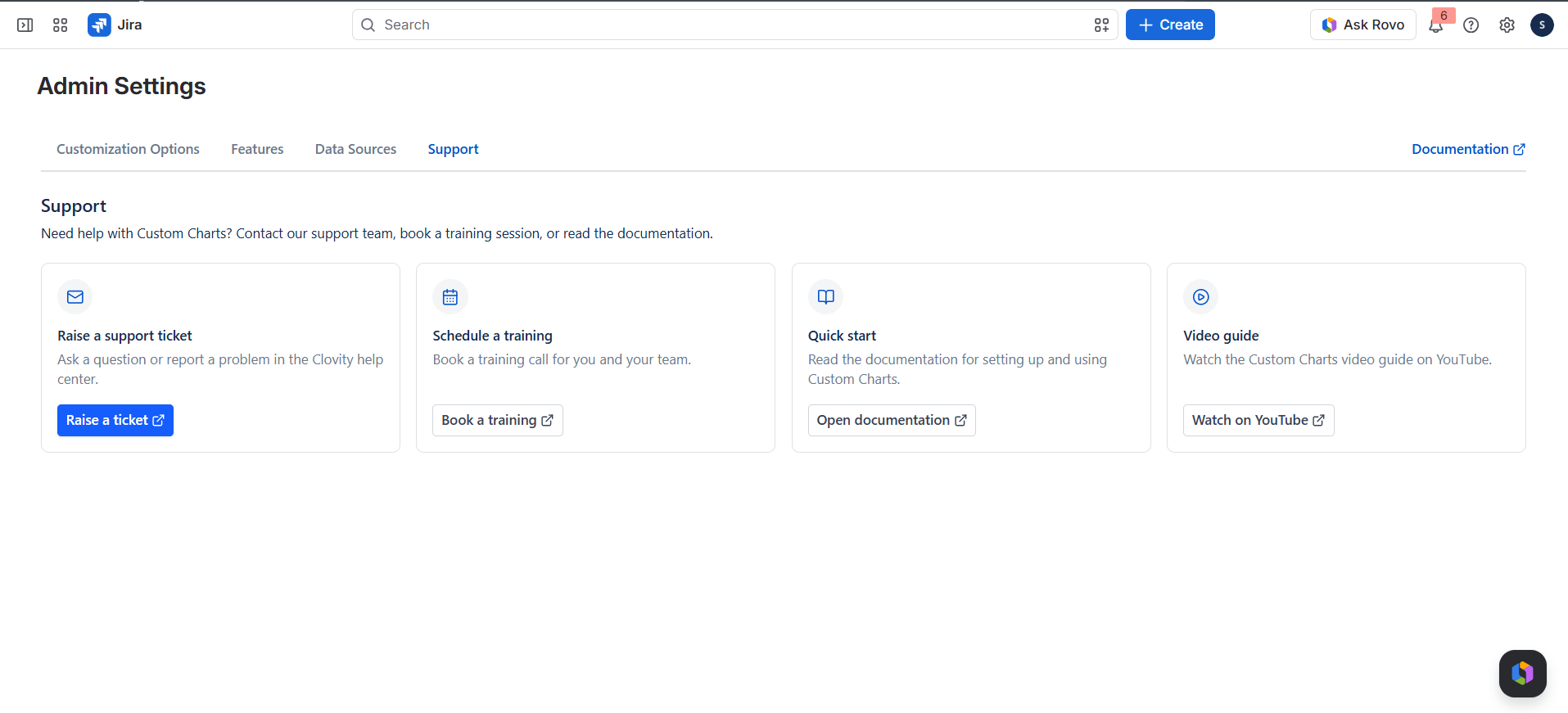
The Support tab has nothing to save. It offers four shortcuts:
| Card | What it does | Button |
|---|---|---|
| Raise a support ticket | Ask a question or report a problem in the Clovity help center. | Raise a ticket |
| Schedule a training | Book a training call for you and your team. | Book a training |
| Quick start | Read the documentation for setting up and using Custom Charts. | Open documentation |
| Video guide | Watch the Custom Charts video guide on YouTube. | Watch on YouTube |
How Admin Settings apply in the app
| Area | How settings are used | Important detail |
|---|---|---|
| Every gadget | Its Features toggle decides whether the gadget can be used at all. Turning it off replaces the gadget with a notice - nothing is deleted. | Turning it back on restores the gadget with its configuration intact. |
| Gadgets with a data source | Data Sources decides which sources appear in the source selector. A gadget already using a turned-off source shows a notice instead of its data. | Sprint Burndown & Burnup cannot be set up while Board is turned off, because it is board-scoped by design. |
| Gadgets that export | Allow direct export to PNG, PDF & CSV decides whether PNG, PDF and CSV are offered. | Copying a gadget's configuration always stays available. |
| New gadgets | Default display options set the starting number format, decimal places, date format, and time unit - only for the gadgets listed under Used by. | Existing gadgets keep their own formatting. |
| Regional Clock and Countdown | Only the Features toggle applies. | They read no Jira data and have no export, so the other settings do not affect them. |
| Templates | Controlled by the Templates toggle under Shared features. | Admins can turn template access on or off, but cannot manage template content from Admin Settings. |
Recommended admin practice
- Set the default display options before people start adding gadgets - they only reach gadgets added after you save.
- Turn off sources your team should not use, especially Custom JQL if you want a simpler setup flow.
- Use the Templates toggle if you want to allow or block template use across gadgets.