Reference Lines & Scale
Reference lines are horizontal markers drawn across all status groups on the chart. They give your team a visual benchmark - immediately showing which dots are within normal range and which need attention.
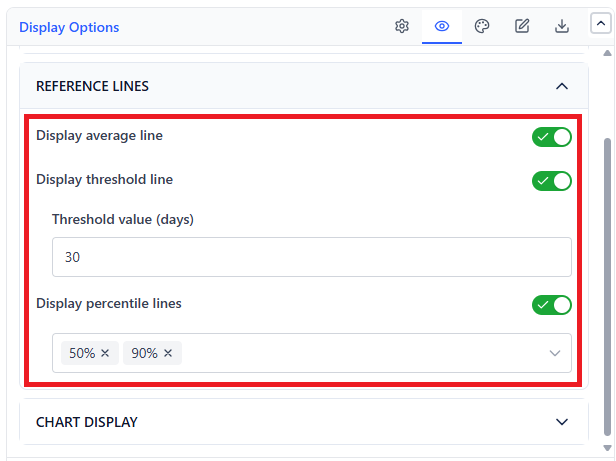
Average Line
Shows the mean age across all currently in-progress issues.
- What it tells you: What is normal for your team right now
- How to use it: Any dot significantly above the average is an outlier worth discussing
- Enable: Toggle Display average line in the configuration panel
Threshold Line
A fixed value you set - your team's SLA limit or internal policy.
Example: Your team commits to resolving P1 bugs within 5 business days. Set the threshold to 5. Any dot above this line is a potential SLA breach.
- Enable: Toggle Display threshold line and enter the value, in the unit set under Calculate age in
- Typical values:
- 5 days - tactical / short SLA
- 10 days - strategic / medium SLA
- 20 days - escalation trigger
Action pattern: In every standup, any dot past the threshold line gets a discussion. Ask: "What is blocking this? Can it be cleared today?"
Percentile Line
Shows a statistical percentile of the current age distribution.
What 85th percentile means: 85% of your current in-progress work is younger than this line. Only 15% is older.
This is the standard metric for a Kanban Service Level Expectation (SLE) - a data-driven commitment: "85% of our work completes within X days."
- Enable: Toggle Display percentile lines and pick one or more percentiles (5% to 99%)
- Common values: 50 (median), 85 (standard SLE), 95 (stricter commitment)
Using All Three Lines Together
A common professional setup:
| Line | Value | Purpose |
|---|---|---|
| Average | Calculated automatically | Internal baseline - "what's normal" |
| Percentile 85 | Calculated automatically | Your public SLE commitment to stakeholders |
| Threshold | Your SLA limit, in the chart's time unit | Escalation trigger - anything past this needs action now |
Scale Options
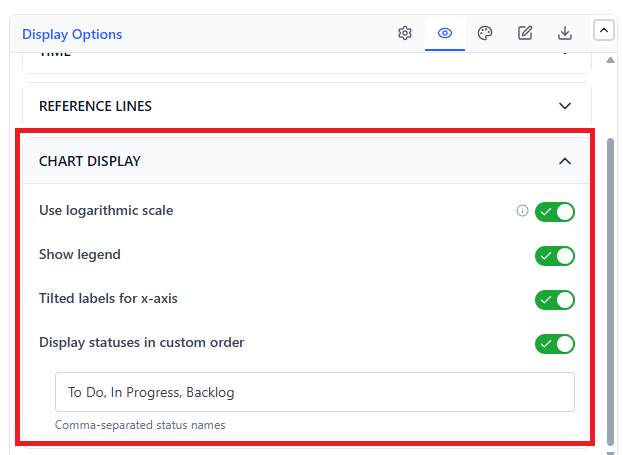
Linear Scale (default)
Standard Y-axis (age). Best when most issues cluster in a similar age range (e.g., 0–30 days).
Logarithmic Scale
A log Y-axis compresses the top of the chart. Useful when a few very old issues stretch the axis so far that the normal-age items are all crammed into the bottom 10%.
- Enable: Toggle Use logarithmic scale
- When to use: When outliers are 10× older than typical items
Display Statuses in Custom Order
Turn on Display statuses in custom order and enter a comma-separated list of status names to set the left-to-right order on the X-axis.
Example: To Do, In Progress, In Review, QA, Done
Typical practice: list statuses from earliest to latest so the chart reads left-to-right like a workflow board.