Overview
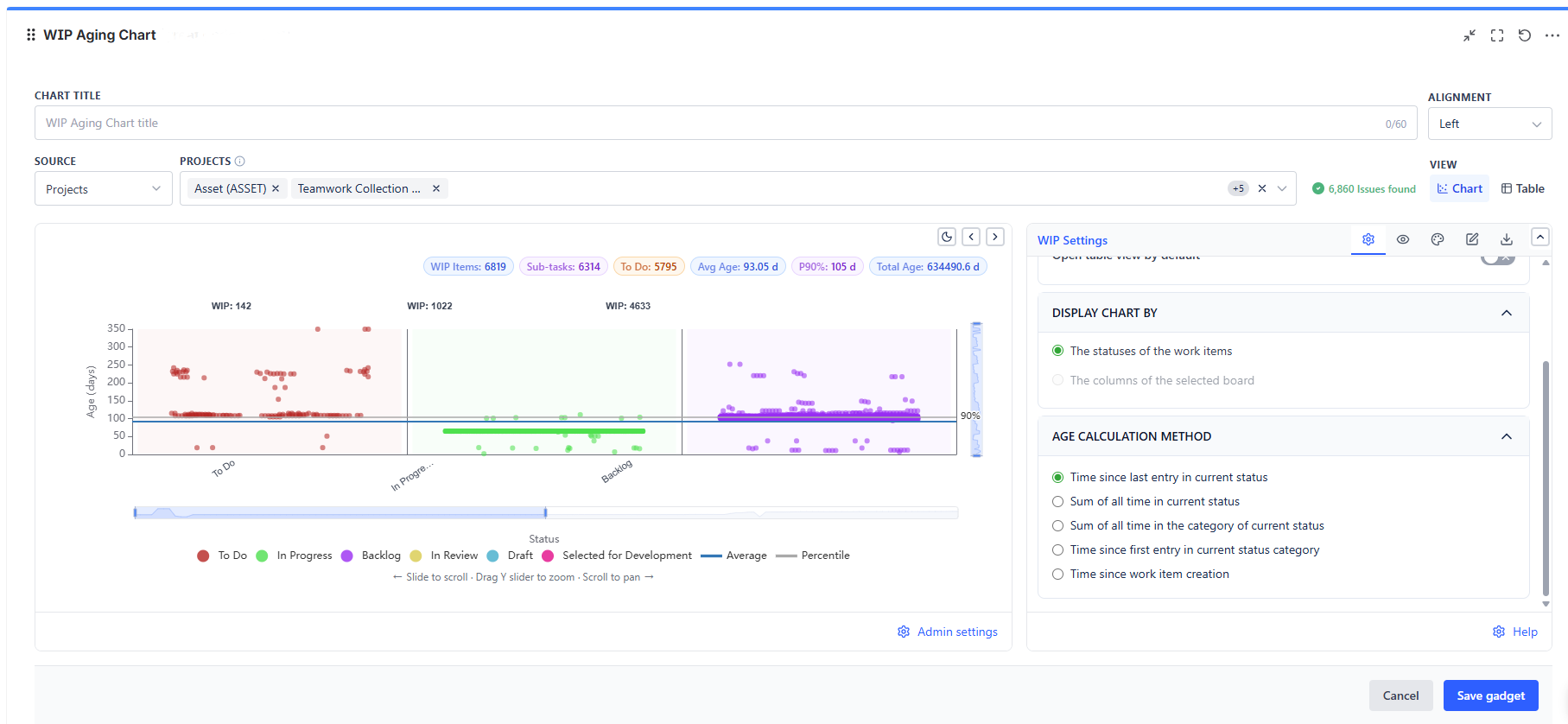
The WIP Aging Charts gadget plots each in-progress issue as a point on a scatter chart. The X-axis groups issues by status or board column; the Y-axis shows how long each issue has been in its current state. Reference lines mark your average, SLA threshold, and statistical percentiles so outliers are immediately visible.
Overview
| Feature | Description |
|---|---|
| Scatter Plot | One dot per issue - X-axis = status or board column, Y-axis = age |
| 5 Age Calculation Methods | Time since last entry, sum of all occurrences, category sum, category first entry, time since creation |
| Three Reference Lines | Average, Threshold (with configurable value), and Percentile lines (5% to 99%) |
| Data Table View | Switch from scatter plot to a tabular view of all WIP items with age details |
| Log Scale Option | Compress wide age ranges for better readability |
| Status Ordering | Custom left-to-right status order via comma-separated list |
How to Read the Chart
- Each dot = one WIP issue
- X position = which status it is in
- Y position = how long it has been in its current status
- Dots above the threshold line = SLA risk - these need attention
- Clusters near the bottom = normal, healthy WIP
- Sparse dots high up = stalled or forgotten work
Action pattern: Review dots above your threshold line in each daily standup. Ask "what is blocking this?" for anything past the line.
Data Sources
| Source Type | When to Use |
|---|---|
| Projects | Analyze all WIP issues in one or more Jira projects |
| Board | Scope to a Jira Software board - the board's own filter is applied automatically |
| Saved Filter | Use a pre-saved filter to scope which issues appear |
| Custom JQL | Write precise JQL (e.g., status not in (Done, Closed, Cancelled)) |
| Dynamic Filter Controller | Connect to a shared filter bar for interactive slicing |
Display Configuration
Chart By
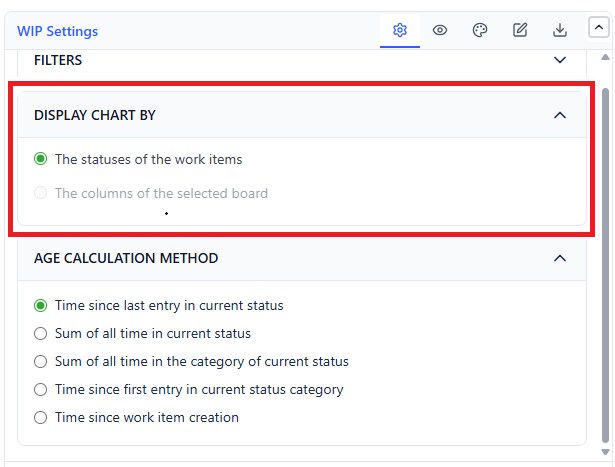
Choose how the X-axis groups issues:
| Option | X-Axis Groups |
|---|---|
| The statuses of the work items (default) | One column per workflow status - shows age per stage |
| The columns of the selected board | Groups issues by the board column they belong to - useful when multiple statuses map to the same board column |
Age Calculation Methods
The Age Calculation Method controls what "age" means for each issue - this is the most important config decision for WIP Aging.
| Method | What It Measures | Best For |
|---|---|---|
| Time since last entry in current status | How long the issue has been in its current status continuously | Standard "how long in this status now" |
| Sum of all time in current status | Total accumulated time ever spent in this status, across all visits | Issues that bounce back - counts re-entry time too |
| Sum of all time in the category of current status | Total time across all statuses in the same category (e.g., all "In Progress" statuses) | Category-level aging (Cycle Time proxy) |
| Time since first entry in current status category | Clock starts from the first time the issue entered this category | Lead time measurement from category start |
| Time since work item creation | How long since the issue was created - regardless of current status | Total issue age / oldest backlog items |
Age Display Options
| Option | What It Controls | Default |
|---|---|---|
| Calculate age in | Unit for age display: Hours, Days, or Minutes | Hours |
| Don't count weekends | Skip Saturday and Sunday when counting age | Off |
| Include sub-tasks | Whether sub-tasks appear as dots on the chart | On |
| Include "To Do" category items | Include statuses in the "To Do" workflow category | Off |
Calendar vs. Working Time
By default, age is measured in calendar time - every hour counts from when the issue entered its current status, including nights and weekends.
Enable Don't count weekends to skip Saturday and Sunday when calculating age. An issue that sat over a 3-day weekend will then not accrue those days against its age.
Use this setting when your SLA commitments are stated in business days (e.g., "resolve P1 bugs within 2 business days").
Reference Lines
Reference lines are horizontal markers drawn across all status groups. They help you immediately identify outliers.
Average Line
Shows the mean age across all plotted issues.
- Useful for: "What is normal for this stage?" - dots above the average are above-average aging
- Enable: Toggle Display average line in the configuration panel
Threshold Line
A fixed value you set - your team's SLA limit or internal policy.
Example: If your team commits to resolving critical bugs within 5 business days, set the threshold at 5. Any dot above it immediately flags a policy breach.
- Enable: Toggle Display threshold line and enter the value, in the unit set under Calculate age in
- Typical values: 5 days (tactical), 10 days (strategic), 20 days (escalation trigger)
Percentile Line
Shows a statistical percentile of the current age distribution (e.g., 85th percentile means 85% of issues are younger than this line).
- 85th percentile is the most common Kanban SLE (Service Level Expectation) - "85% of issues are resolved within X days"
- 95th percentile is a stricter commitment
- Enable: Toggle Display percentile lines and pick one or more percentiles (5% to 99%)
Common setup: Use all three lines together - Average (internal baseline), Percentile 85 (SLE commitment), Threshold (escalation trigger). Issues above the threshold need immediate action.
Scale Options
Linear Scale (default)
Standard linear Y-axis (age). Best when most issues cluster within a similar age range (e.g., all within 0–30 days).
Log Scale
A logarithmic Y-axis compresses the top of the chart, making it easier to see clusters when ages span a wide range (e.g., 0–200 days with most items below 20 days).
- Enable: Toggle Use logarithmic scale
- When to use: When a few very old issues stretch the axis so far that normal-age items are all crammed into the bottom 10% of the chart
Display Statuses in Custom Order
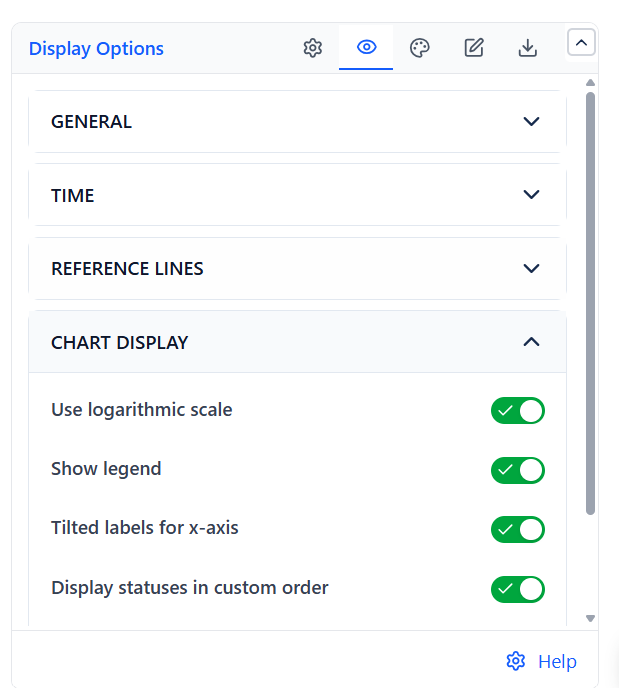
Turn on Display statuses in custom order and enter a comma-separated list of status names to set their left-to-right order on the X-axis. Statuses you don't list follow alphabetically. Typical practice: list statuses from earliest workflow stage to latest, so the chart reads left-to-right like a workflow board (e.g., "To Do, In Progress, In Review, Done").
Data Table View
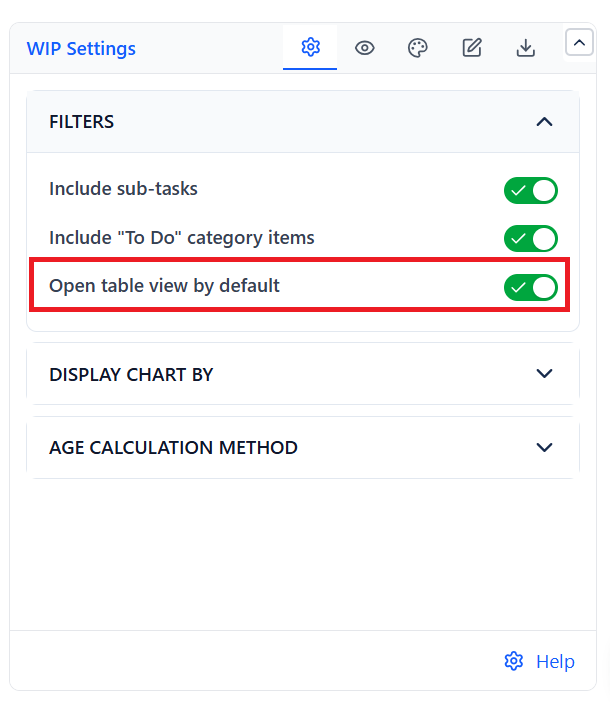
Switch from the scatter plot to a tabular list of all WIP items with their age details. This is useful for sharing exact numbers or drilling into specific issues.
- Toggle the view using the Chart / Table buttons next to the data source while editing - view mode shows the view you saved
- Open table by default: enable "Open table view by default" in WIP Settings → Filters so the gadget always starts in table mode
Display Settings
 |  |
| Setting | What It Does |
|---|---|
| Show legend | Toggle legend visibility |
| Tilted labels for x-axis | Angle status labels on the X-axis to prevent overlap when there are many statuses |
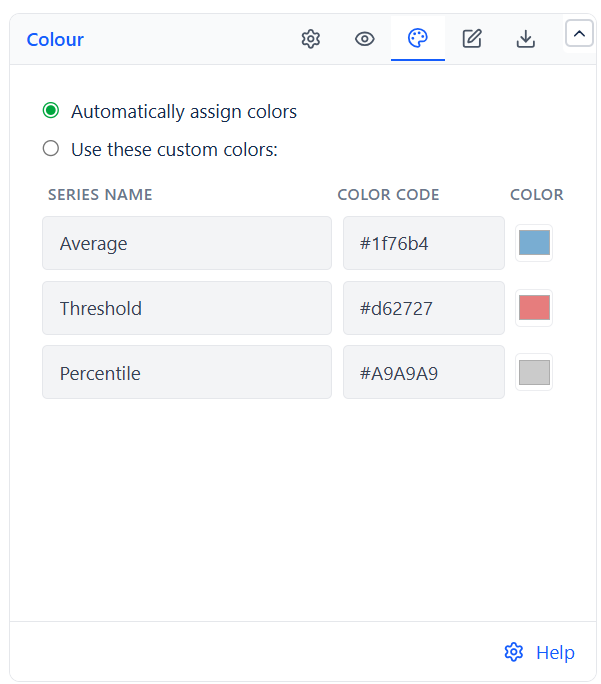
| Colors | Automatic colors, or custom colors for the Average, Threshold and Percentile lines |
| Auto refresh every 10 minutes | Refresh the chart automatically every 10 minutes in view mode |
Export
| Format | What Is Exported |
|---|---|
| CSV | Raw WIP data with one row per issue - key, summary, type, assignee, status, and age in the unit set under Calculate age in |
| PNG | Image snapshot of the current view - the chart with its reference lines, or the table |
| Configuration | Configuration code of all settings, copied to your clipboard for reuse or backup |
Common Use Cases
Daily Standup WIP Review
Set threshold to your team's SLA (e.g., 10 days). During standup, the chart immediately shows which items need discussion - no sorting or filtering required.
Kanban SLE Tracking (85th Percentile)
Enable the percentile line at 85. The line value tells you: "85% of our in-progress work resolves within X days." Track this number over time to improve predictability.
Sprint Retrospective
Run the WIP Aging report at the end of a sprint. Issues with high age that did not complete are candidates for retrospective discussion - were they blocked? Under-specified? Too large?
SLA Breach Prevention
Set the threshold at your SLA boundary (e.g., 5 business days for P1 bugs). Run the chart daily and escalate any dot above the threshold before it becomes a formal breach.