Display Options
Define Completed Work Items
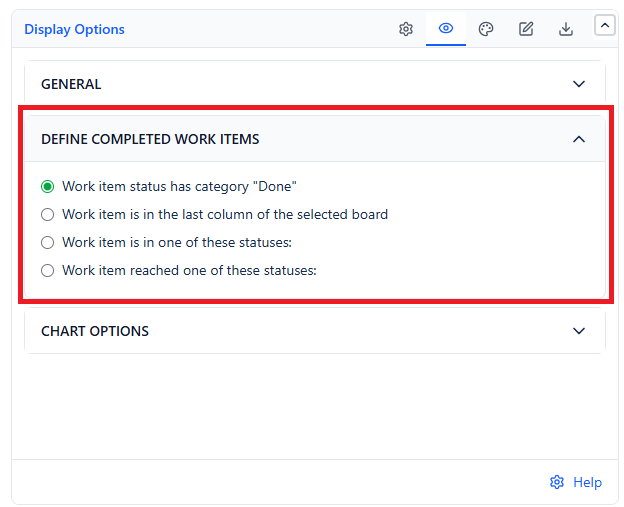
Controls what "done" means for the purpose of this chart - this decision affects every bar, the average line, and the Backlog forecast.
| Option | How It Counts | When to Use |
|---|---|---|
| Work item status has category "Done" (default) | Every time an item enters the Done category | Works out of the box on any board, no extra setup |
| Work item is in the last column of the selected board | Board sources only | Your board's last column is the real finish line, even if its status name doesn't map cleanly to "Done" |
| Work item is in one of these statuses | Every time an item enters a status you list | Your definition of "complete" is a specific status (or set of statuses) that isn't simply the last column |
| Work item reached one of these statuses | Every visit to a status you list, including repeat visits | Items are legitimately reopened and completed more than once, and you want every completion to count |
The first three options count an item the moment it enters that state - so an item sitting in Done the whole interval is only credited once. The last option credits every visit, which matters for workflows where rework is common.
Chart Display
| Setting | What It Does | Default |
|---|---|---|
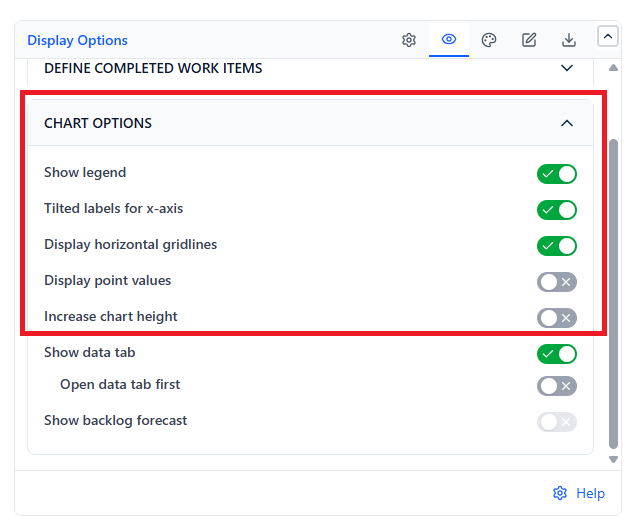
| Show legend | Labels the bars and the Average Velocity line | On |
| Tilted labels for x-axis | Angles interval labels so longer date ranges or interval names don't overlap | On |
| Display horizontal gridlines | Adds reference lines behind the bars, making bar heights easier to compare | On |
| Display point values | Prints the exact completed-work number above each bar | Off |
| Increase chart height | Gives the chart more vertical room (adjustable 320-600px) instead of fitting the gadget's default size | Off |
Show Backlog Forecast
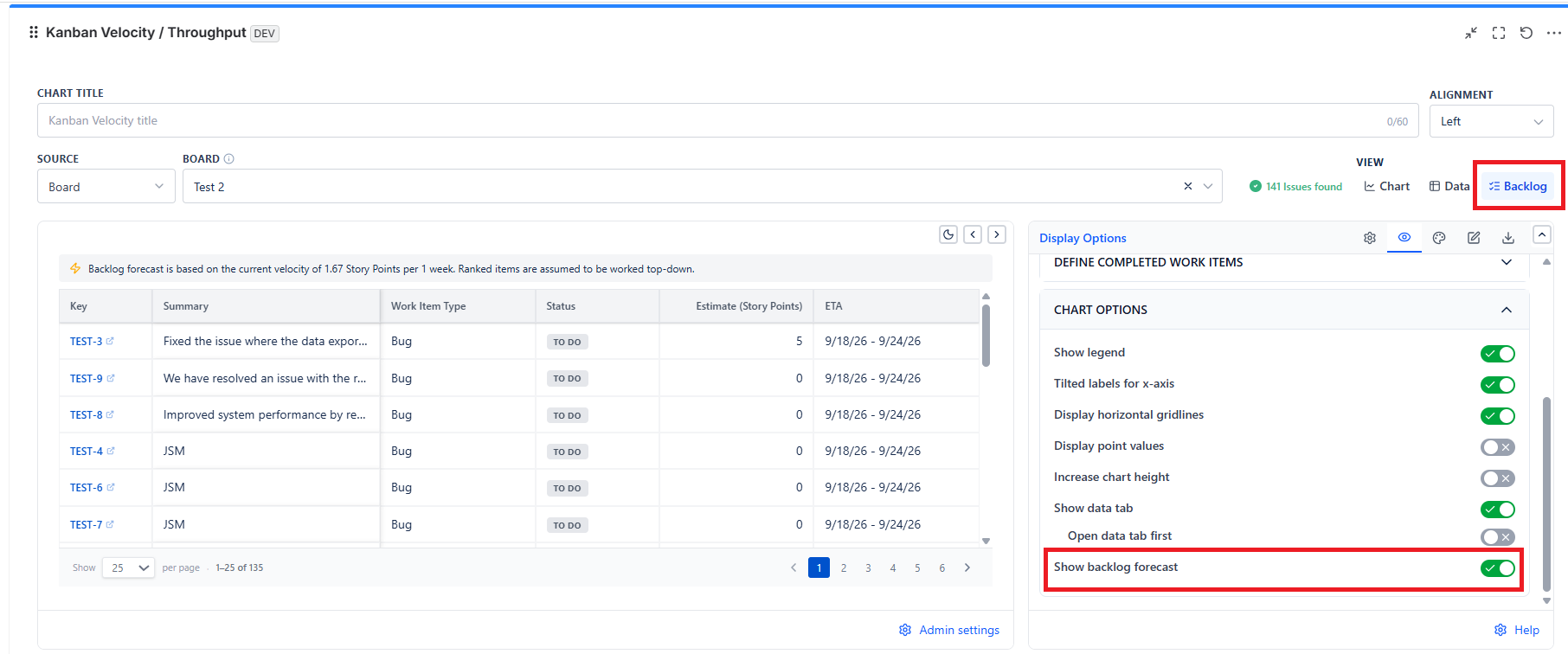
Turn this on (Board sources only) to add a Backlog view that projects an ETA - the interval it is expected to land in - for every item not yet done, ranked exactly as it sits on your board - useful for answering "when will this ship?" without a separate spreadsheet.
Working down the backlog in board-rank order, the gadget keeps a running total of each item's estimate and divides it by your average velocity to project how many intervals out it will land. Items near the top of a well-ranked backlog get realistic, near-term dates; items further down inherit the delay of everything ranked above them. Each row shows Key, Summary, Work Item Type, Status, Estimate, and ETA.
Turn on "Include the current (incomplete) interval" (Settings tab, shown only with Most recent intervals) to fold the still-in-progress interval into both the chart and the Backlog forecast, rather than only counting fully-completed intervals - useful when you want the freshest possible velocity number even before the current interval closes.
Data View
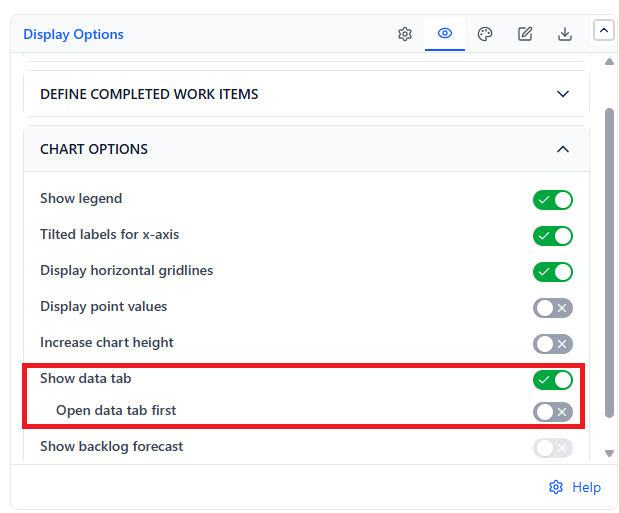
Lists every configured interval as a row, including ones with zero completed work, so you always see the full picture rather than a filtered "good news only" list. Expand any row to see the individual items that contributed to that interval's total - handy for double-checking an unusually high or low bar before presenting it in a meeting.