Columns
Columns are the foundation of the Issue List. You choose which Jira fields appear as columns, what order they appear in, and what labels to show.
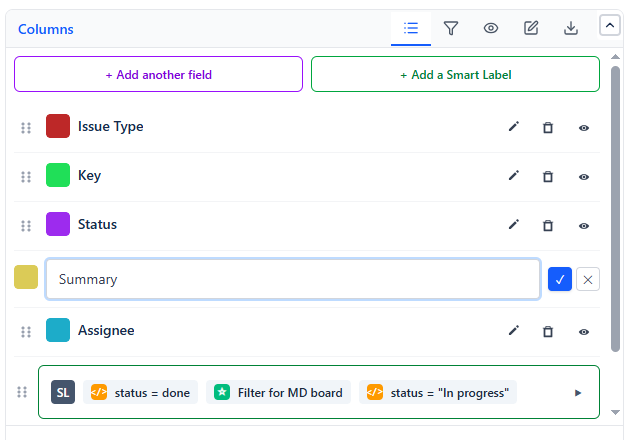
Every column action lives on its row: the drag handle reorders, the pencil renames, the trash removes, and the eye hides. Smart Labels sit below the column list, added with the button beside + Add another field.
Adding Columns
- Open the Issue List gadget in edit mode
- In the Columns section, click + Add another field
- Search for the field you want (e.g., "Story Points", "Due Date", "Component")
- Click the field to add it as a column
- Repeat to add more columns
Any Jira field is available - standard fields and custom fields.
Reordering Columns
Drag the handle icon next to a column up or down to change its position. The top of the list = leftmost column in the table.
Renaming Columns
Click the pencil icon next to a column name and enter a new label. The rename only affects the column header in the table - the underlying Jira field is unchanged.
Removing Columns
Click the trash icon next to a column to remove it.
Recommended Column Sets
Start with one of these proven combinations for common use cases:
Sprint Report Key · Summary · Status · Assignee · Story Points · Priority
Bug List Key · Summary · Priority · Status · Assignee · Created · Component
Team Workload Assignee · Key · Summary · Status · Priority · Due Date
Release Tracking Key · Summary · Priority · Status · Assignee · Fix Version · Updated
Triage Queue Key · Summary · Priority · Status · Assignee · Created · Reporter
Tip: Add the Issue Type column to any set - it helps distinguish Stories, Bugs, Tasks, and Epics at a glance without needing to click into each issue.