Field Segments
The "Chart By" setting determines how your data is grouped and displayed. This is the most important configuration for any chart.
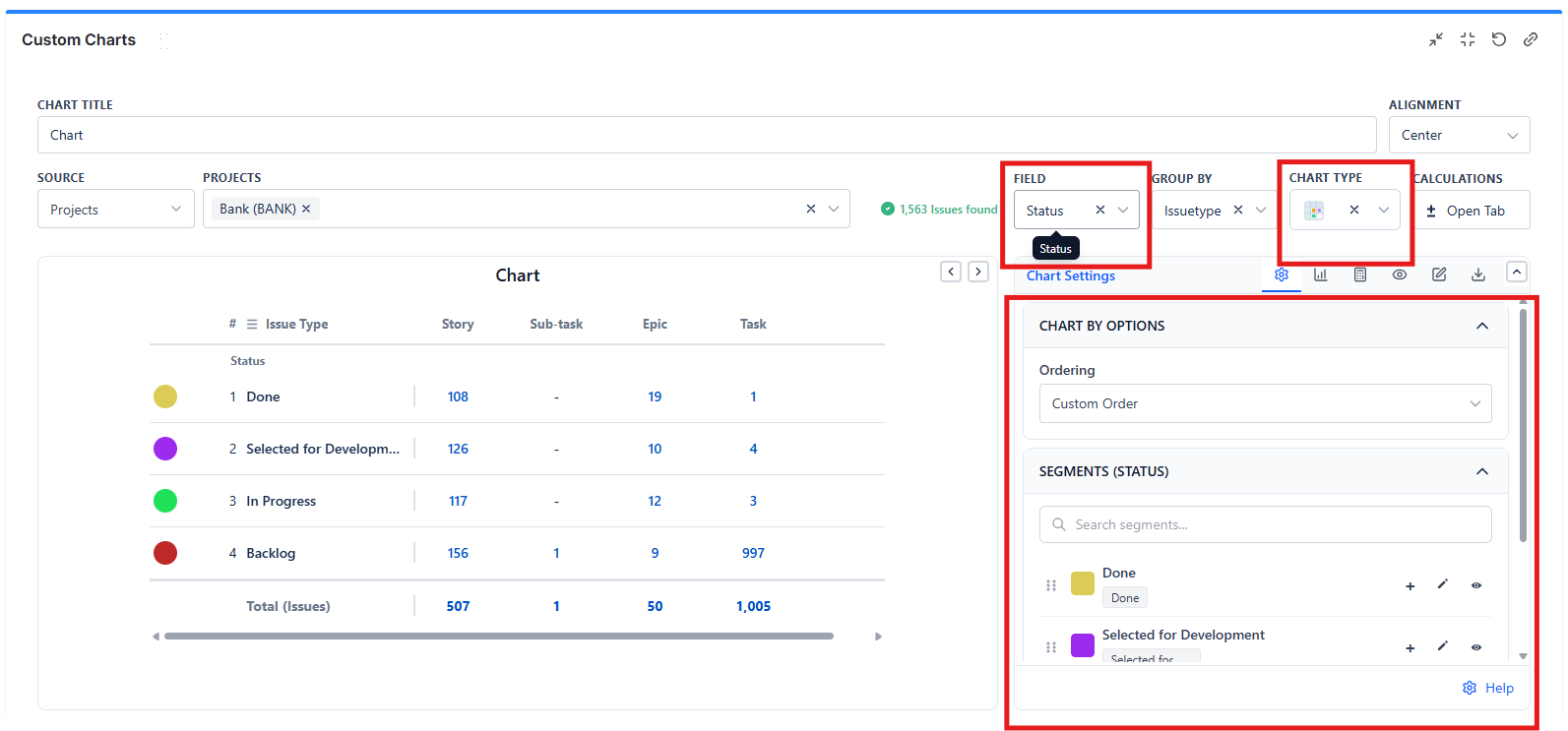
What is "Field"?
"Field" defines how your issues are categorized into segments (slices, bars, lines, or rows depending on chart type).
| Chart Type | Field Creates |
|---|---|
| Pie | Slices |
| Bar | Bars |
| Line | Points on the line |
| Table | Rows |
| Funnel | Funnel stages |
| Tile | Single value |
Chart By Options
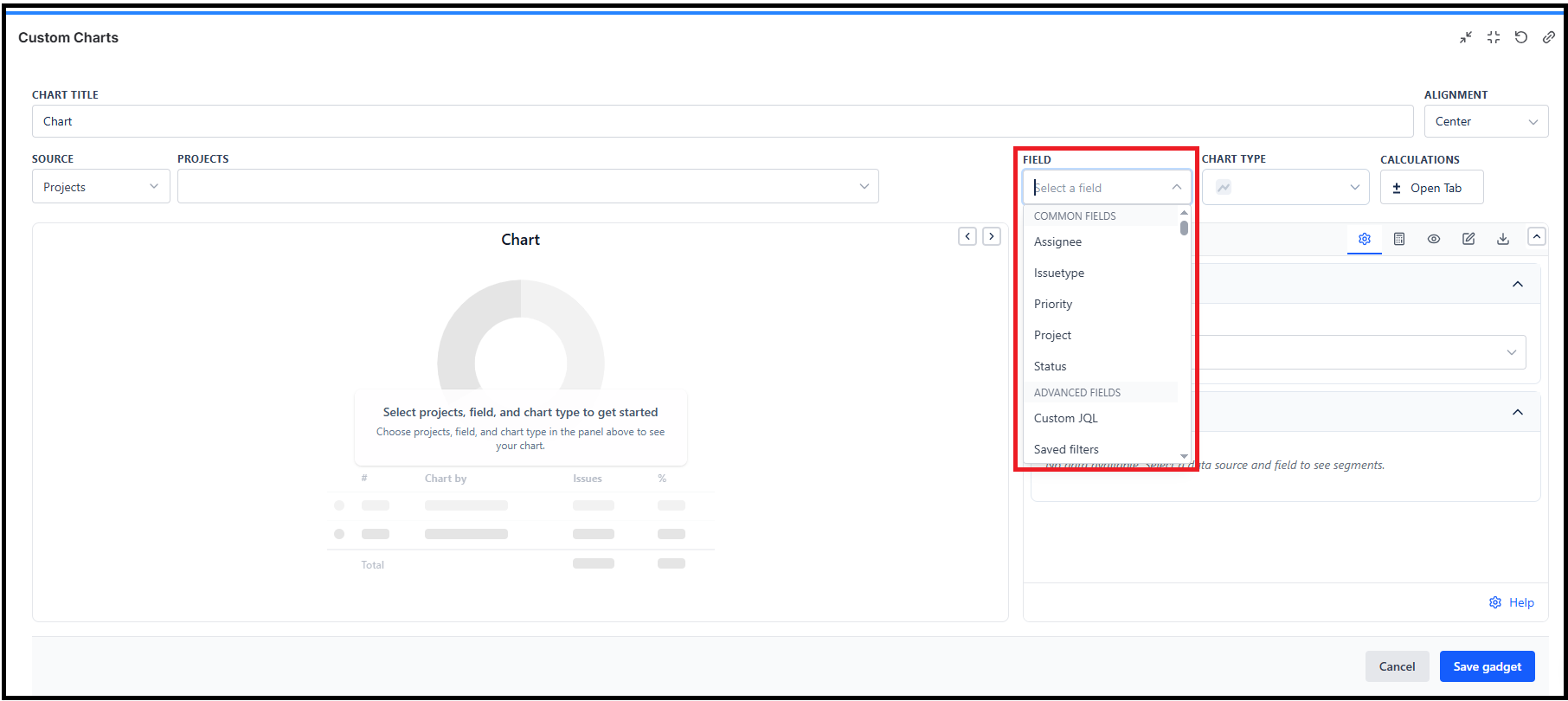
You have three ways to define segments, plus the Dates option for charts over time:
| Option | Description | Best For |
|---|---|---|
| Jira Fields | Group by any Jira field | Simple field-based grouping |
| Custom JQL | Define segments with JQL queries | Complex, custom groupings |
| Saved Filters | Use existing filters as segments | Reusing filter definitions |
| Dates | Plot one or more date fields over time - see The Dates Field | Created vs Resolved and other trend charts |
Option 1: Grouping by Jira Fields
Select any Jira field to group your data. Segments are automatically created for each unique value.
Common Fields
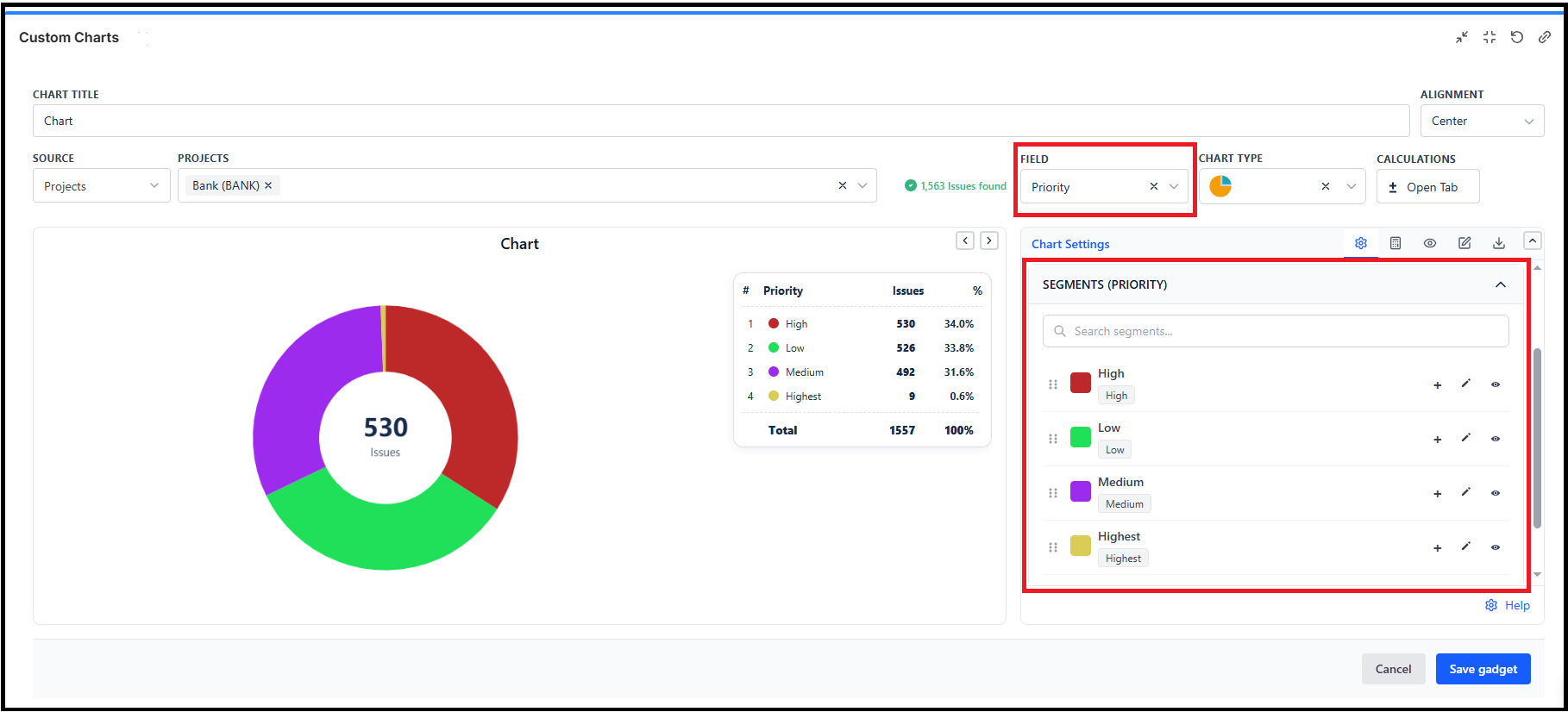
| Field | Creates Segments For |
|---|---|
| Status | Each workflow status |
| Assignee | Each team member + Unassigned |
| Priority | Highest, High, Medium, Low, Lowest |
| Issue Type | Story, Bug, Task, Epic, etc. |
| Component | Each component in the project |
| Labels | Each label applied to issues |
| Sprint | Each sprint (active, future, closed) |
Option 2: Grouping by Custom JQL
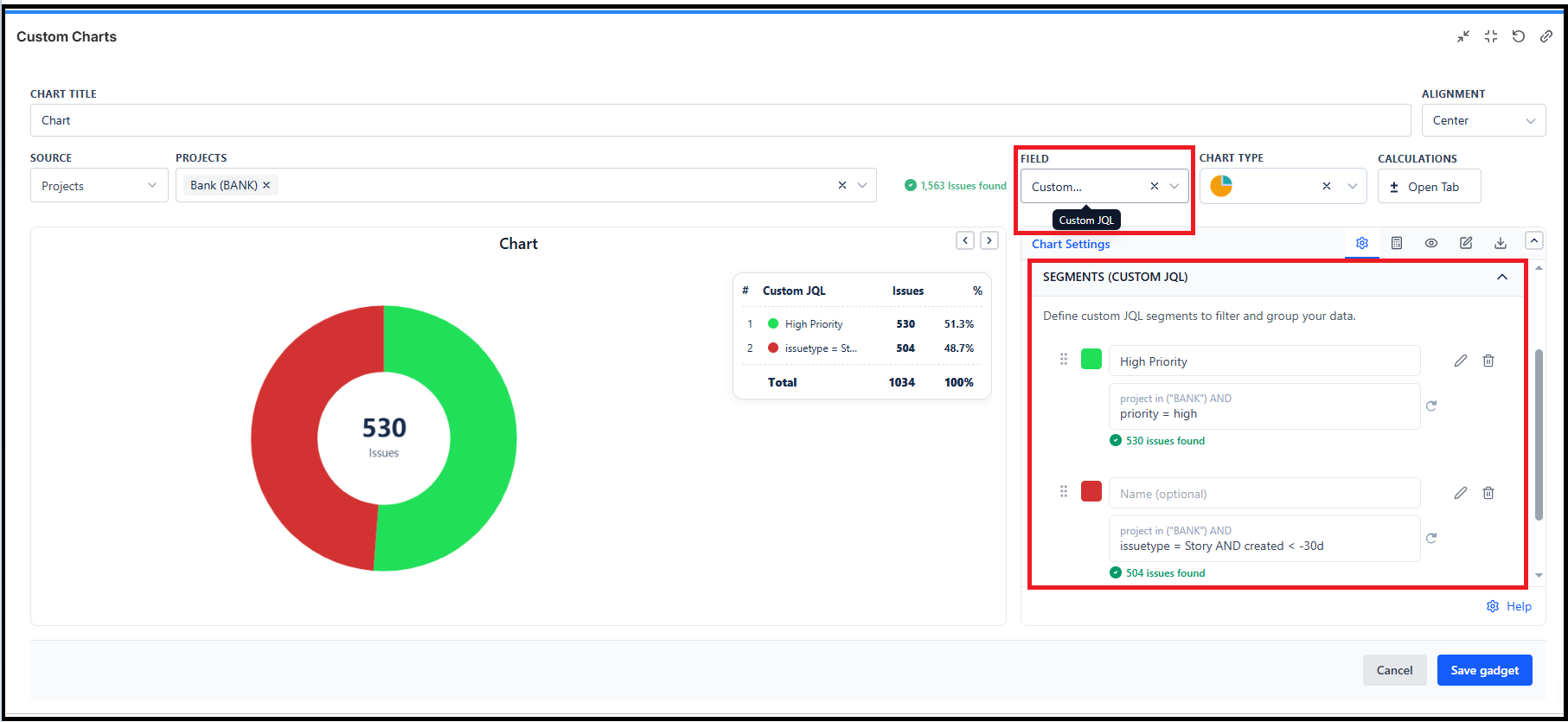
Define your own segments using JQL queries. This gives you complete control over how data is grouped.
Example: Bug Age Groupings
| Segment Name | JQL Condition |
|---|---|
| New (< 7 days) | issuetype = Bug AND created >= -7d |
| Aging (7-30 days) | issuetype = Bug AND created >= -30d AND created < -7d |
| Old (> 30 days) | issuetype = Bug AND created < -30d |
Tip: Each issue appears only in the FIRST matching segment. Order your segments carefully if conditions might overlap.
Working with Segments
Renaming Segments
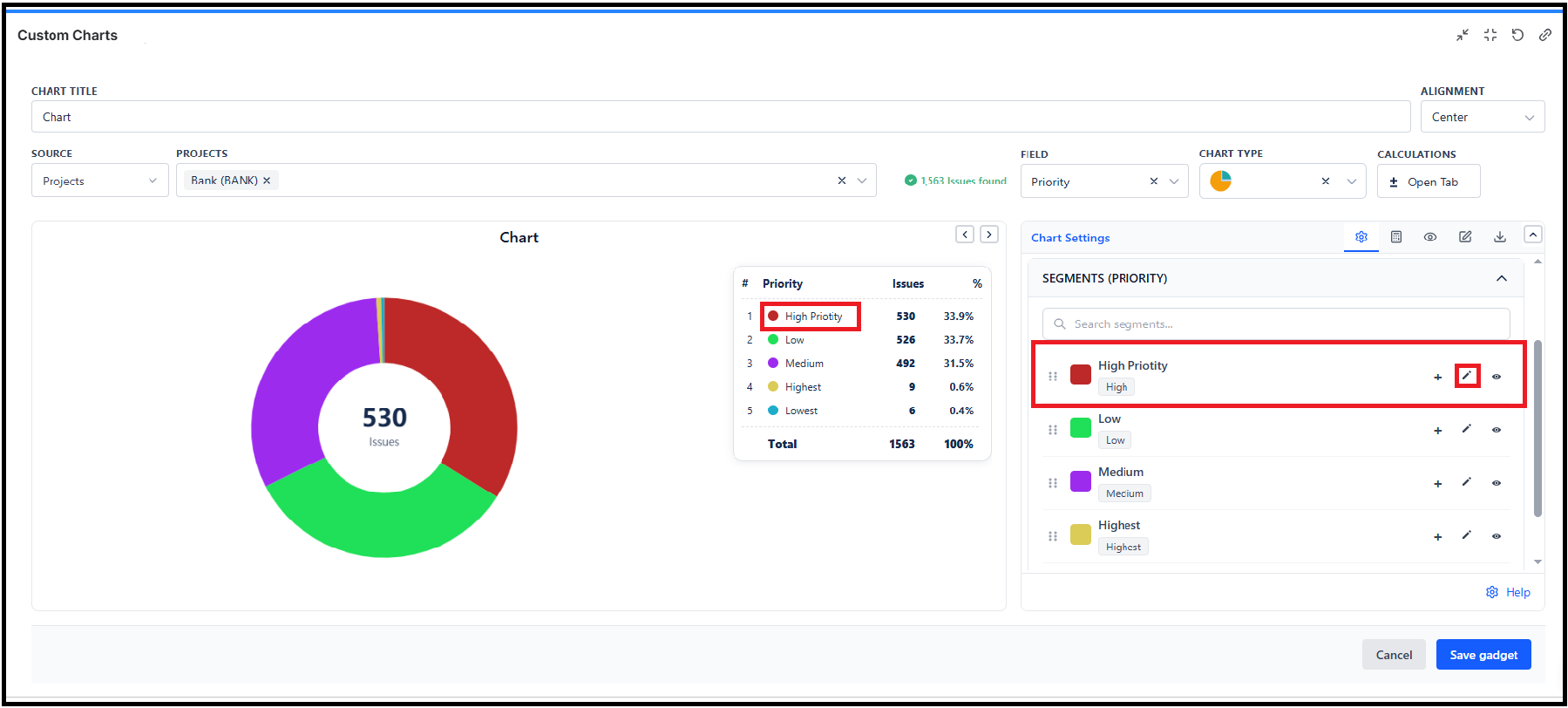
Click on the segment name to edit it. This changes the label shown in the chart without affecting the data.
Reordering Segments
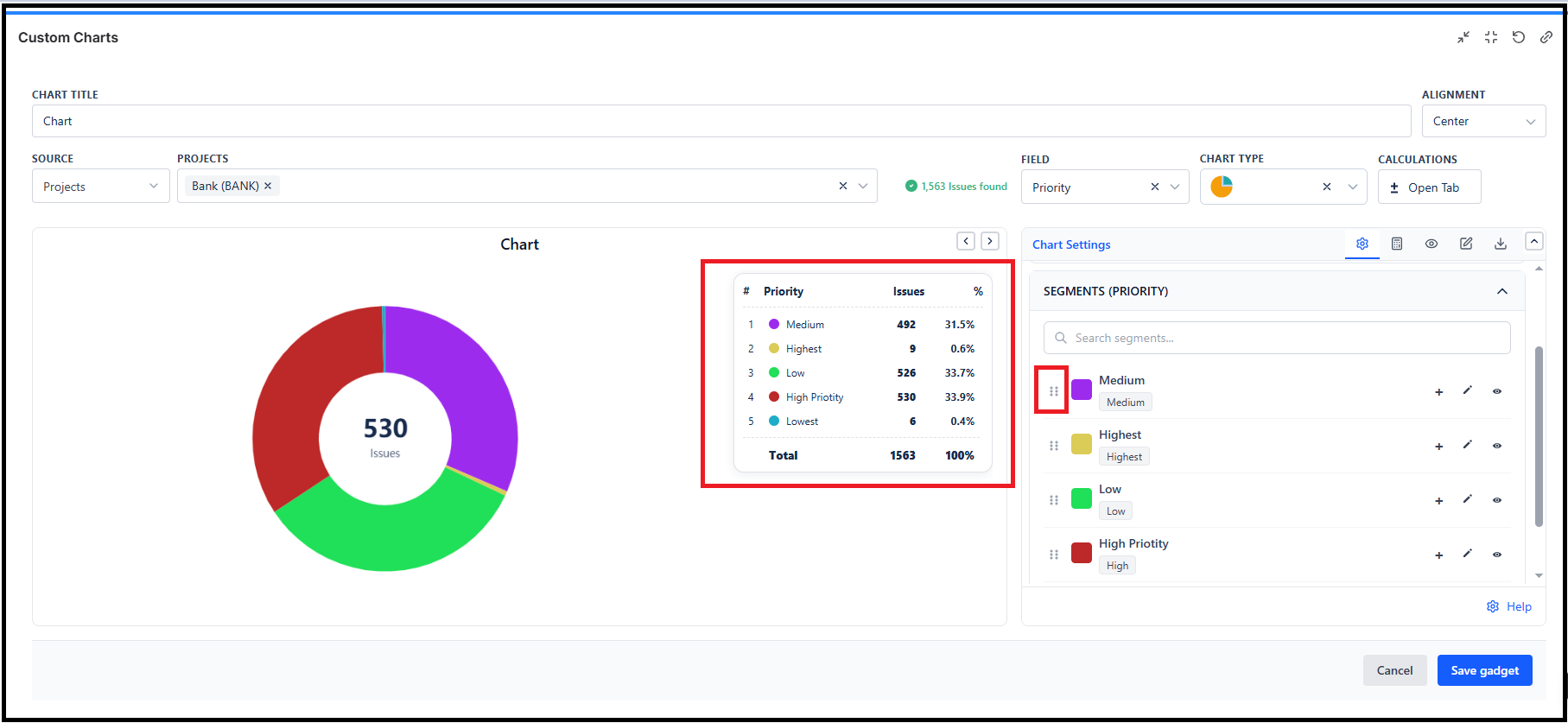
Drag and drop segments to change their order in the chart.
Showing/Hiding Segments
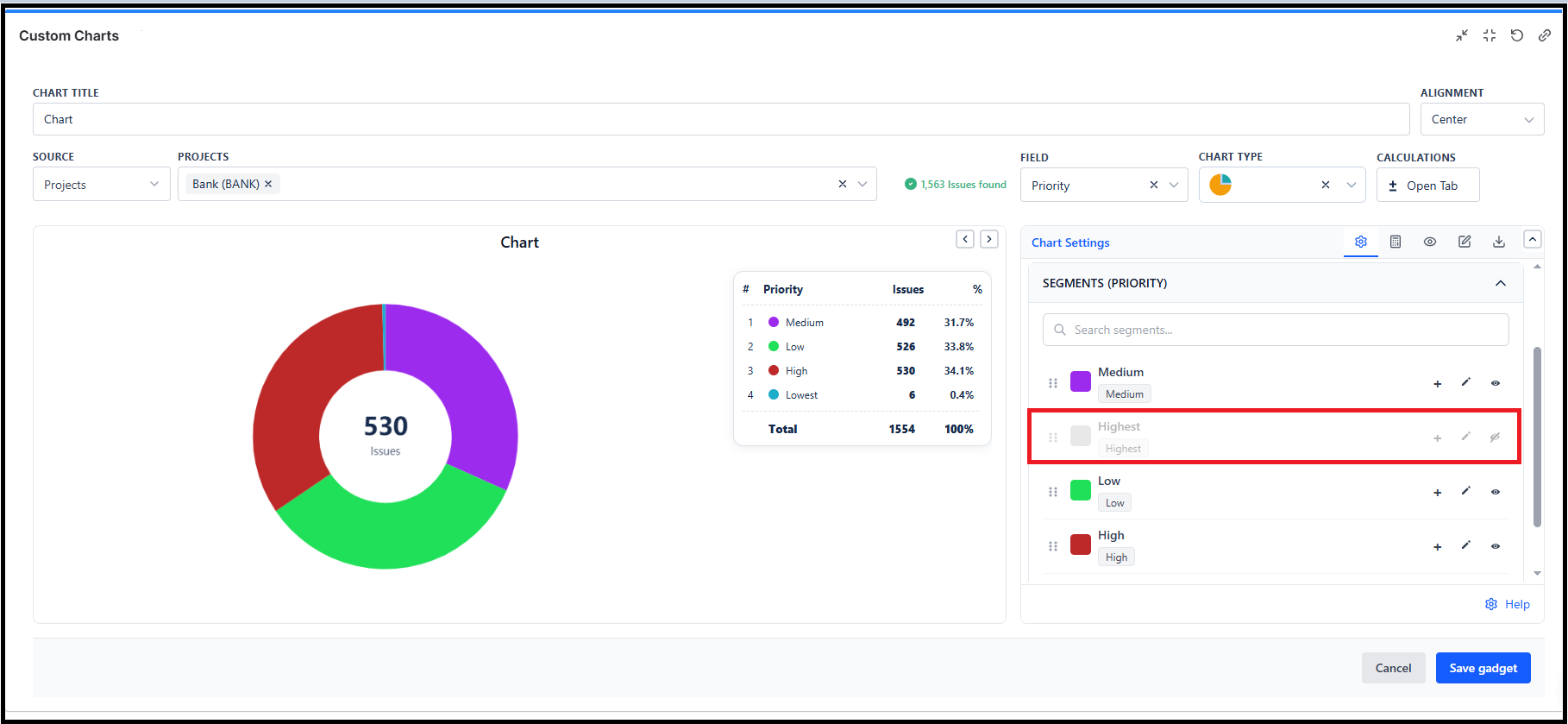
Toggle the visibility icon to show or hide segments. Hidden segments are not included in calculations.
Changing Segment Colors
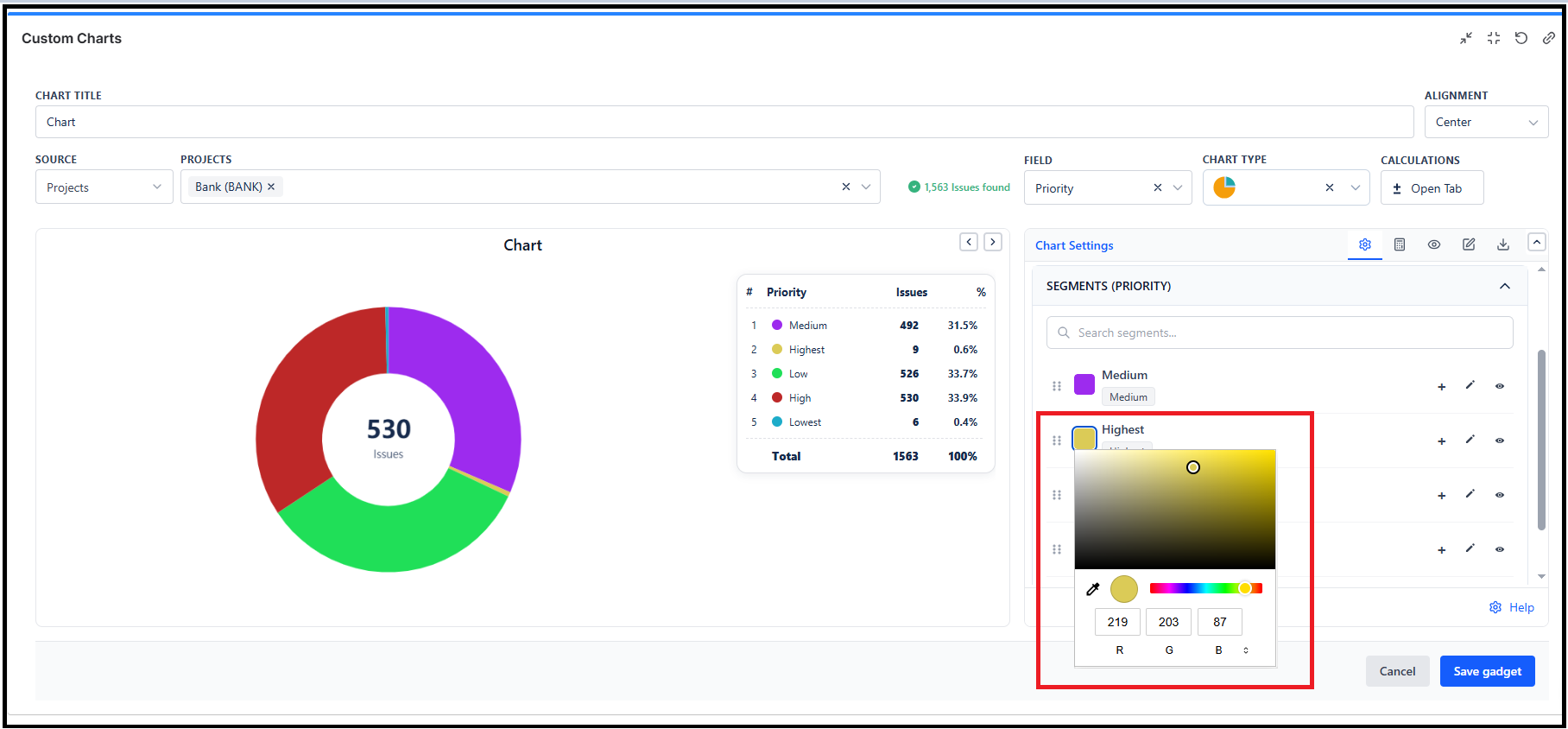
Click the color swatch to open the color picker.
Ordering Options
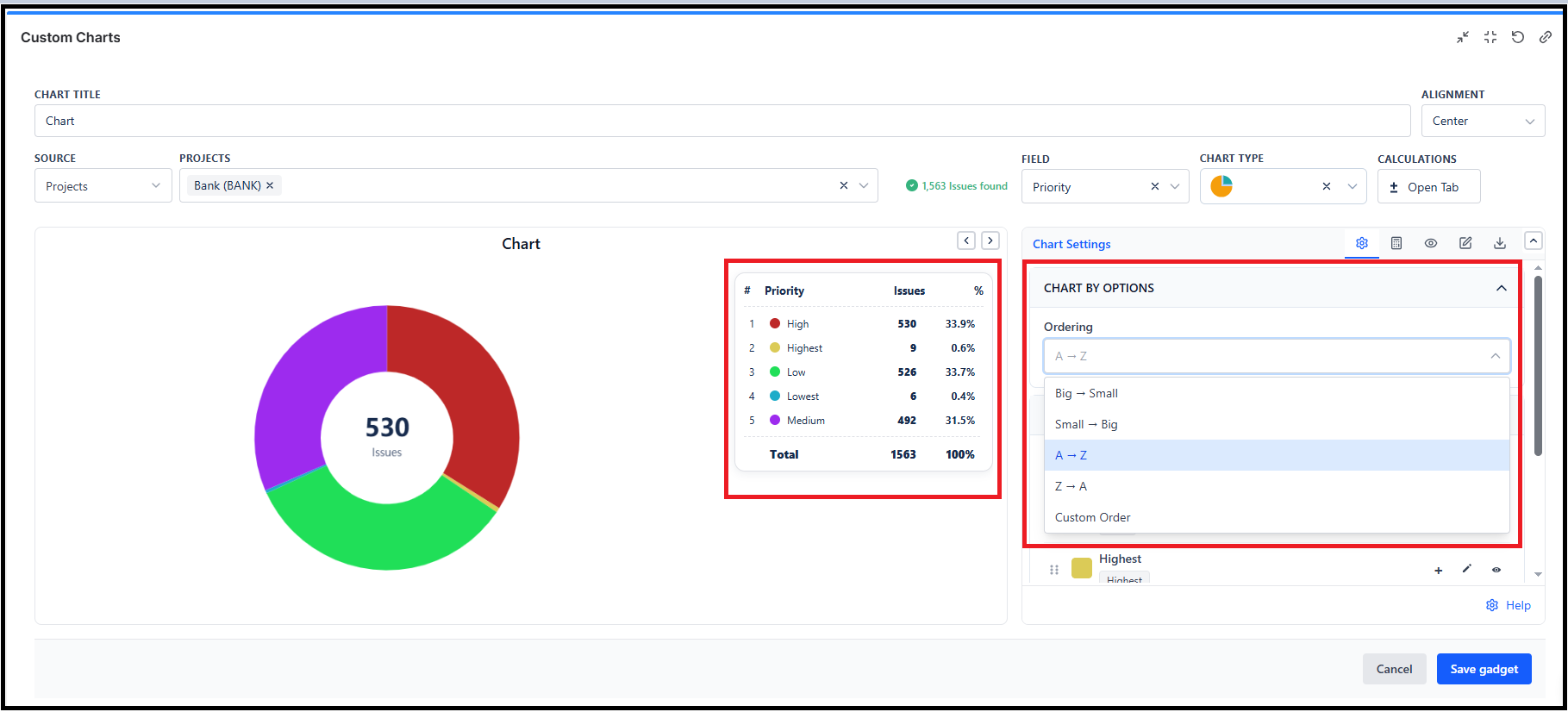
| Option | Sorts By |
|---|---|
| Big → Small | Largest segments first |
| Small → Big | Smallest segments first |
| A → Z | Alphabetical ascending |
| Z → A | Alphabetical descending |
| Custom Order | Your manual drag order |
Ordering lives in the Chart Settings tab, under Chart By Options.
Hiding Small or Large Segments
Also in Chart Settings → Minimum and Maximum. Turn on Set minimum/maximum values and the chart filters segments by their count:
| Field | Effect |
|---|---|
| Minimum value | Segments with a count below this are hidden |
| Maximum value | Segments with a count above this are hidden |
This is the cleanest way to deal with a long tail. A status field with forty values, most of them holding one or two issues, becomes readable by setting a minimum of 5 - without editing the data source or hiding each segment by hand.
Hidden segments are removed from the chart, so they do not appear in the legend or the total either.