Calculations Lines
The Calculations tab controls what number your chart actually plots, and what comparison lines are drawn over it.
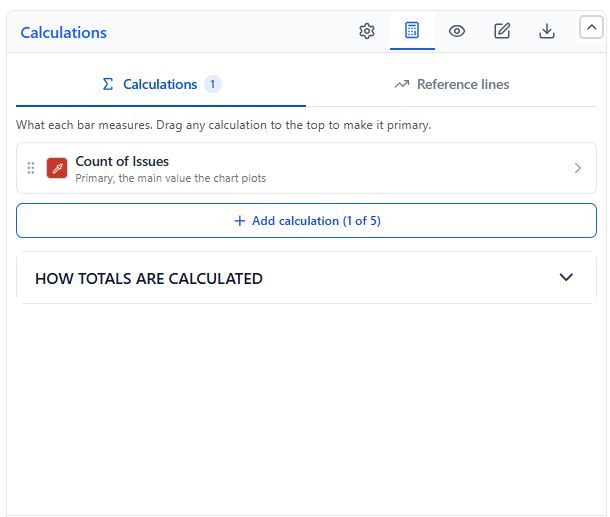
It has two panes, each showing a count of what you have configured:
| Pane | What it holds |
|---|---|
| Calculations | The values the chart plots, plus how they are totalled |
| Reference lines | Average, trend, and goal lines drawn over those values |
Calculation Families
By default a chart plots Count of Issues. Click the family you want instead:
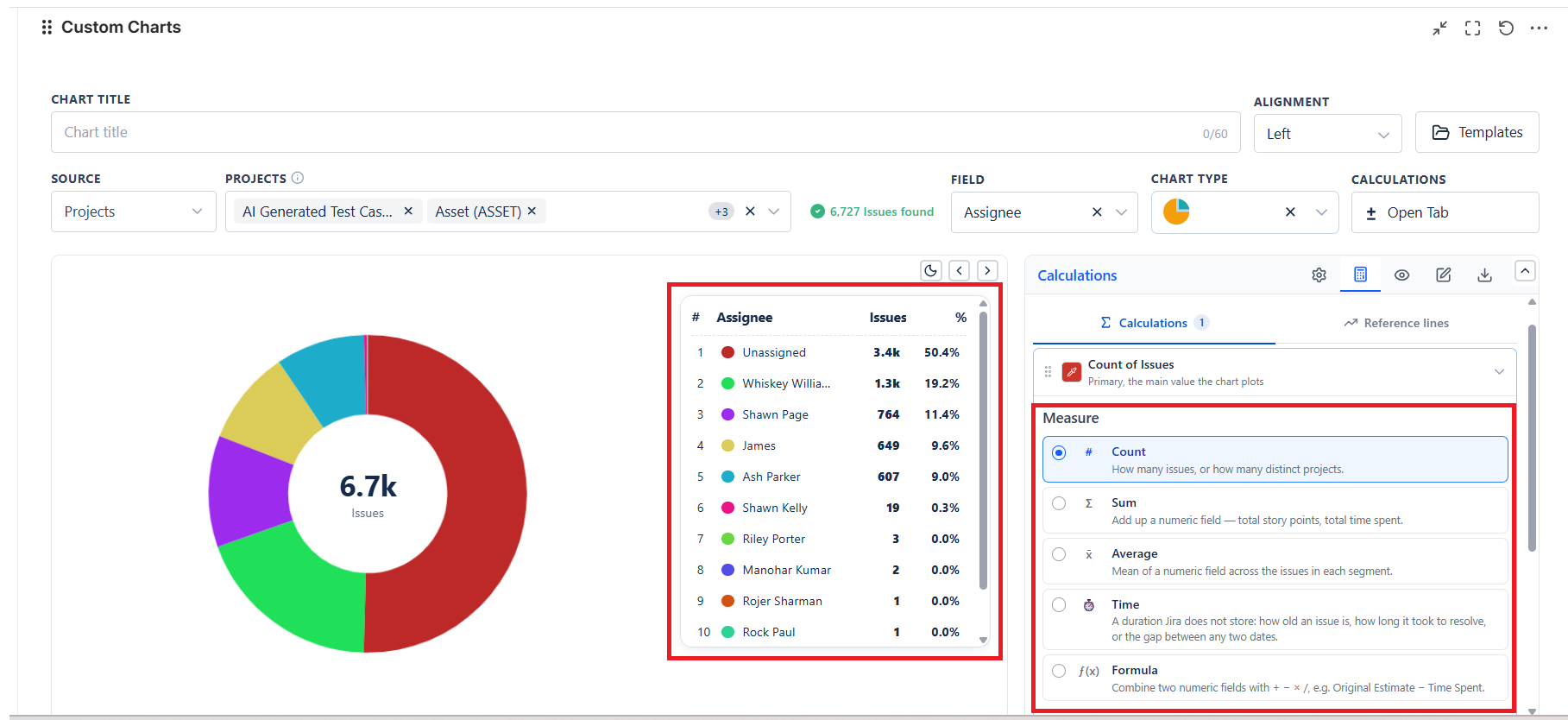
| Family | Symbol | What it measures | Needs an operation? |
|---|---|---|---|
| Count | # | How many issues, or how many distinct projects | No |
| Sum | Σ | Add up a numeric field - total story points, total time spent | No |
| Average | x̄ | Mean of a numeric field across the issues in each segment | No |
| Time | ⏱ | A duration Jira does not store | Yes - Average (default) or Sum |
| Formula | ƒ(x) | Combine two numeric fields with an operator | Yes - Sum (default) or Average |
Count
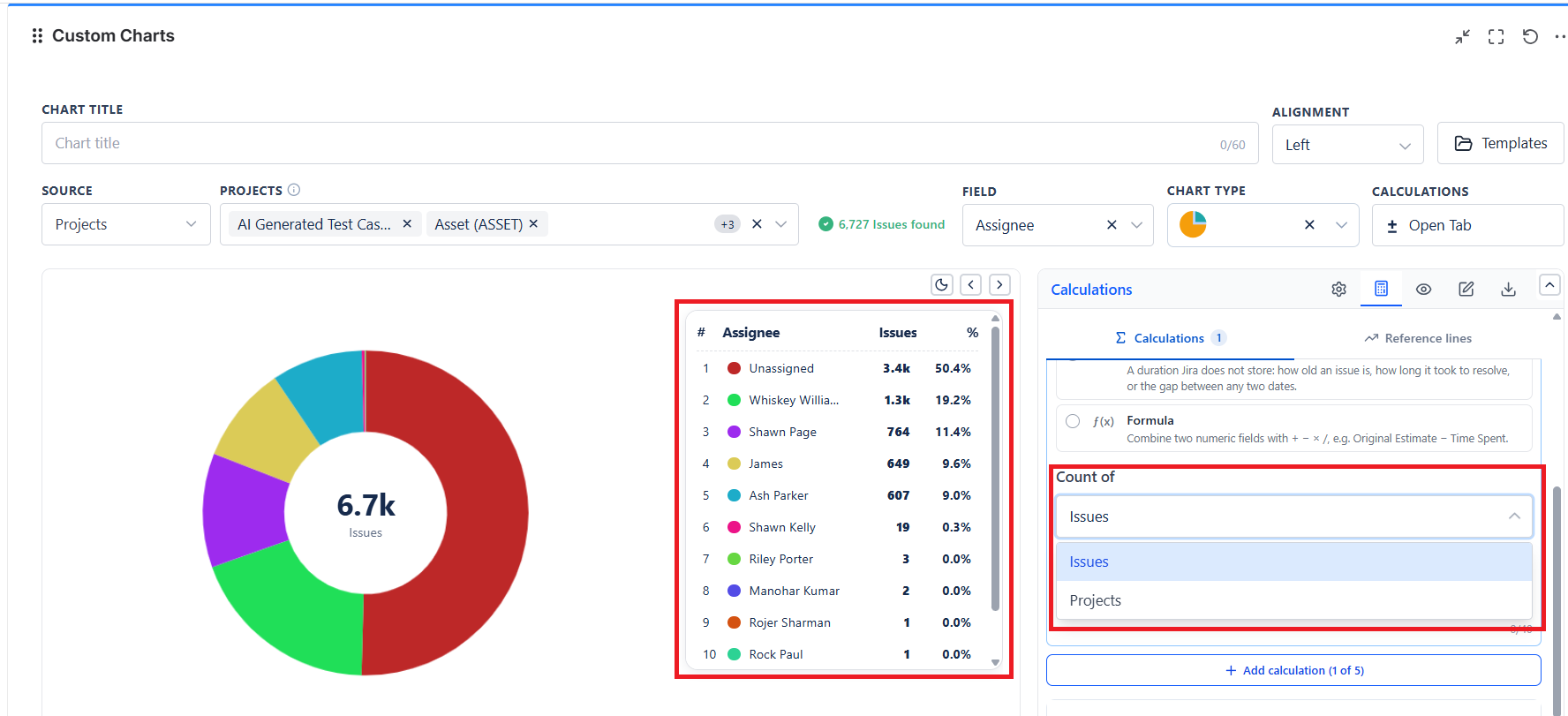
Choose what is counted:
| Count of | Result |
|---|---|
| Issues | Number of issues in each segment (the default) |
| Projects | Number of distinct projects in each segment |
Sum and Average
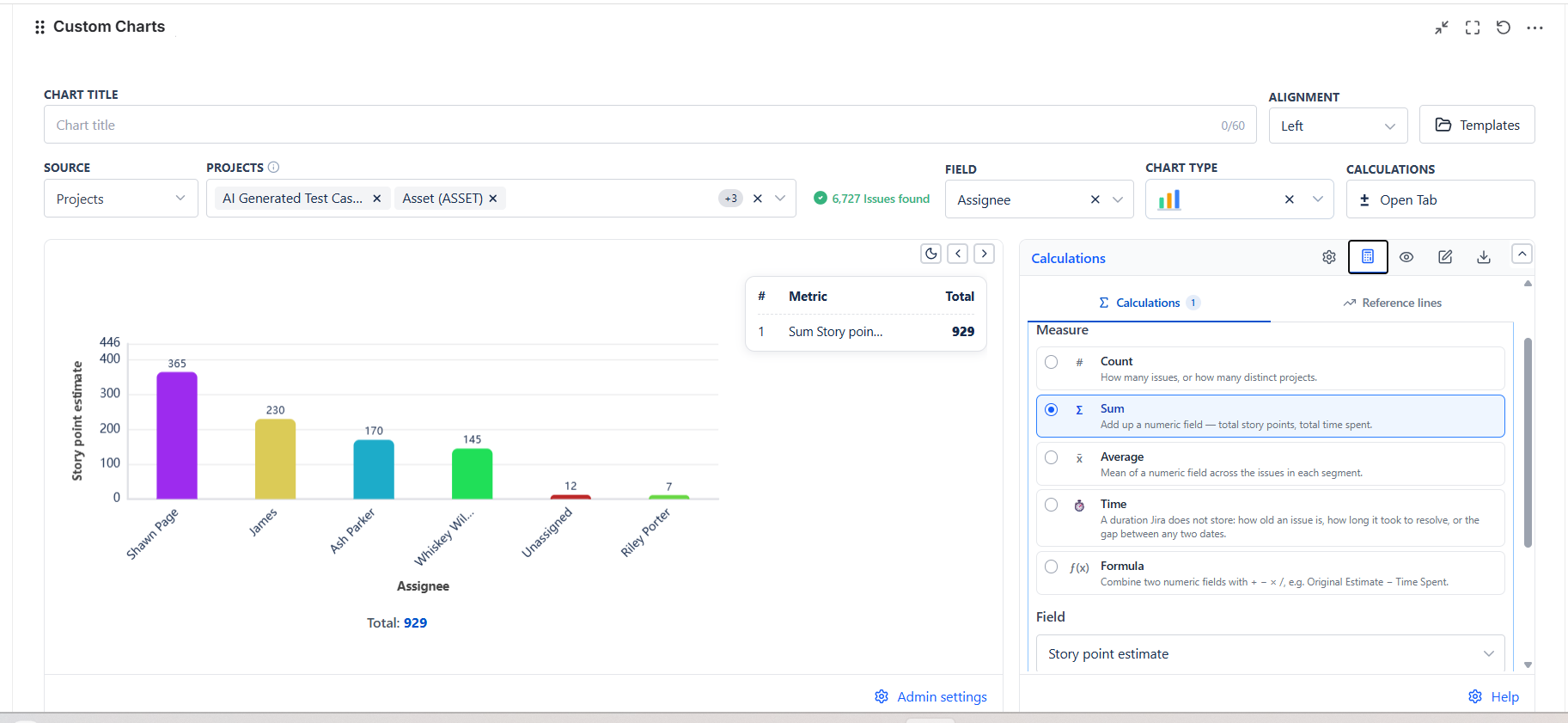
Both take one numeric field. The field picker splits into COMMON FIELDS and CUSTOM FIELDS. Story Points is preselected where your site has it, otherwise the first numeric field.
Time
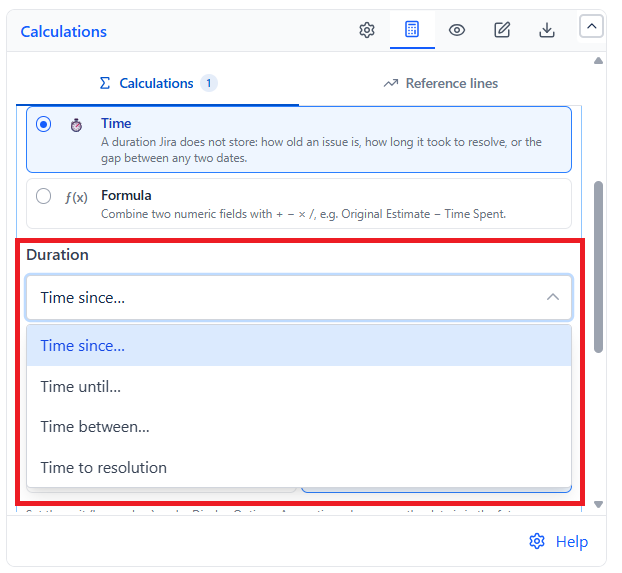
Durations Jira does not store as a field. Pick the kind, then its date operands:
| Kind | Operands | Measures |
|---|---|---|
| Time since… | One date field | How long since that date - issue age, time since last update |
| Time until… | One date field | How long until that date. A negative result means it has passed, which is what you want for an overdue due date |
| Time between… | Two date fields | The gap between them |
| Time to resolution | None | How long the issue took to resolve |
Then choose whether the durations are averaged or summed across each segment.
Created is not offered for "Time until". Time until is date minus now, so Created could only ever come back negative - that is issue age with the sign flipped, which "Time since" already gives you properly.
Formula
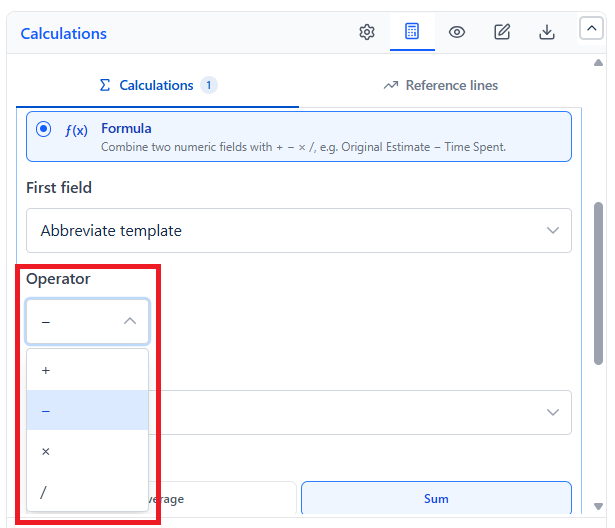
An ad-hoc metric built from two numeric fields and an operator:
| Operator | Symbol |
|---|---|
| Add | + |
| Subtract (default) | − |
| Multiply | × |
| Divide | / |
Examples: Original Estimate − Time Spent, Time Spent / Story Points.
Like Time, a formula still has to be rolled up - choose Sum (default) or Average.
Several Calculations on One Chart
You can add up to five calculations per chart, and the chart plots each as its own series. The Add button shows how many you have used - "Add calculation (1 of 5)".
The first row is the primary calculation - the main value the chart plots. It cannot be deleted. Drag any other calculation to the top to make it primary instead.
Additional calculations can only be added to pie, funnel, bar, line and 1D table charts. The 2D types and Tile take one calculation.
Each calculation row carries:
| Control | What it does |
|---|---|
| Colour | The series colour on the chart and in the legend. Unset rows fall back to a fixed palette |
| Label | Overrides the auto-generated name (e.g. "Count of Issues"). Maximum 40 characters |
| Drag handle | Reorders the series |
How Totals Are Calculated
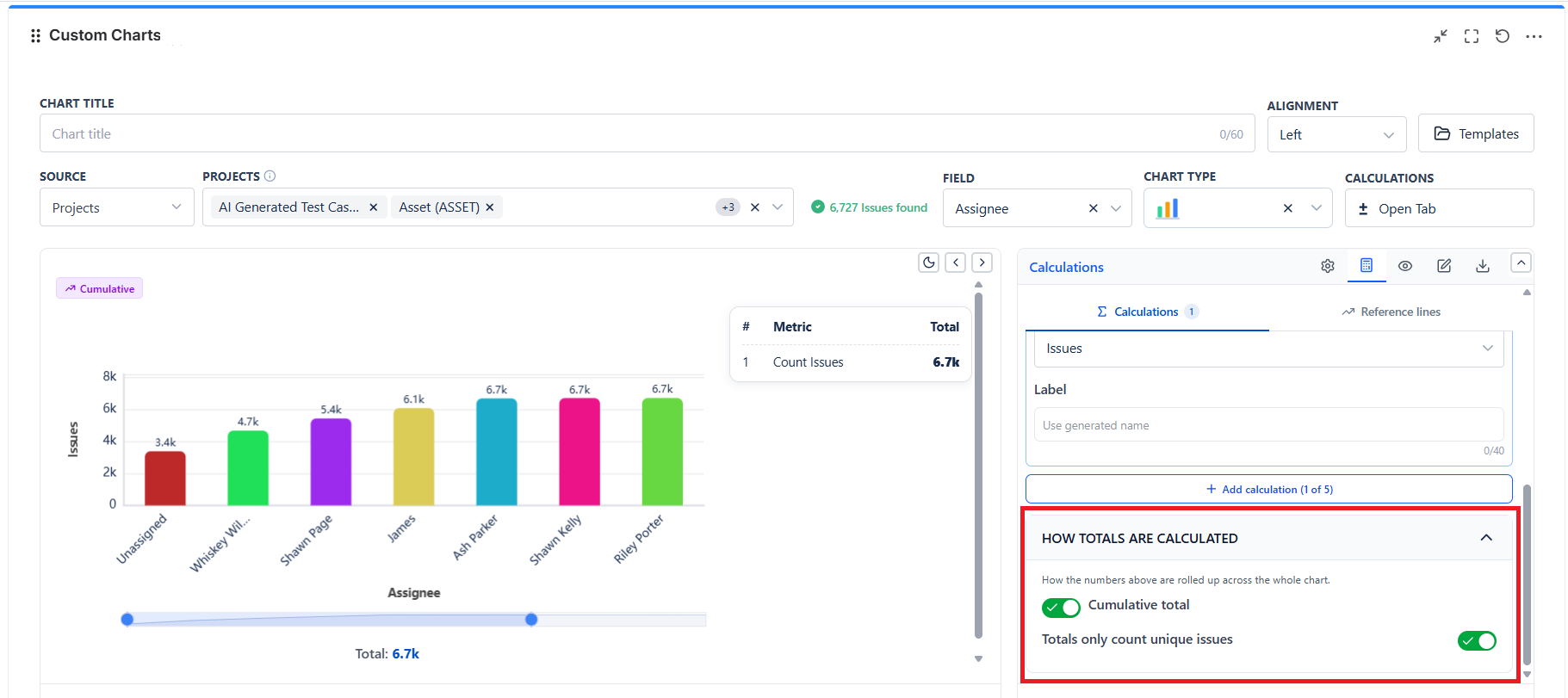
An accordion inside the Calculations pane, governing how the numbers above roll up across the whole chart.
| Setting | What it does | Default |
|---|---|---|
| Cumulative total | Each bar or line value adds all previous values - a running total. Useful for progress over time | Off |
| Cumulative total of | On 2D charts only: whether the running total accumulates across Chart By or Group By | Chart By |
| Totals only count unique issues | When on, the Total counts each issue once. When off, the Total is the sum of every segment, so an issue carrying several values of a multi-value field (labels, components, sprints) is counted once per value and the Total can exceed the issue count | - |
Cumulative Total Example
| Week | Normal | Cumulative |
|---|---|---|
| Week 1 | 10 | 10 |
| Week 2 | 15 | 25 |
| Week 3 | 12 | 37 |
| Week 4 | 8 | 45 |
Reference Lines
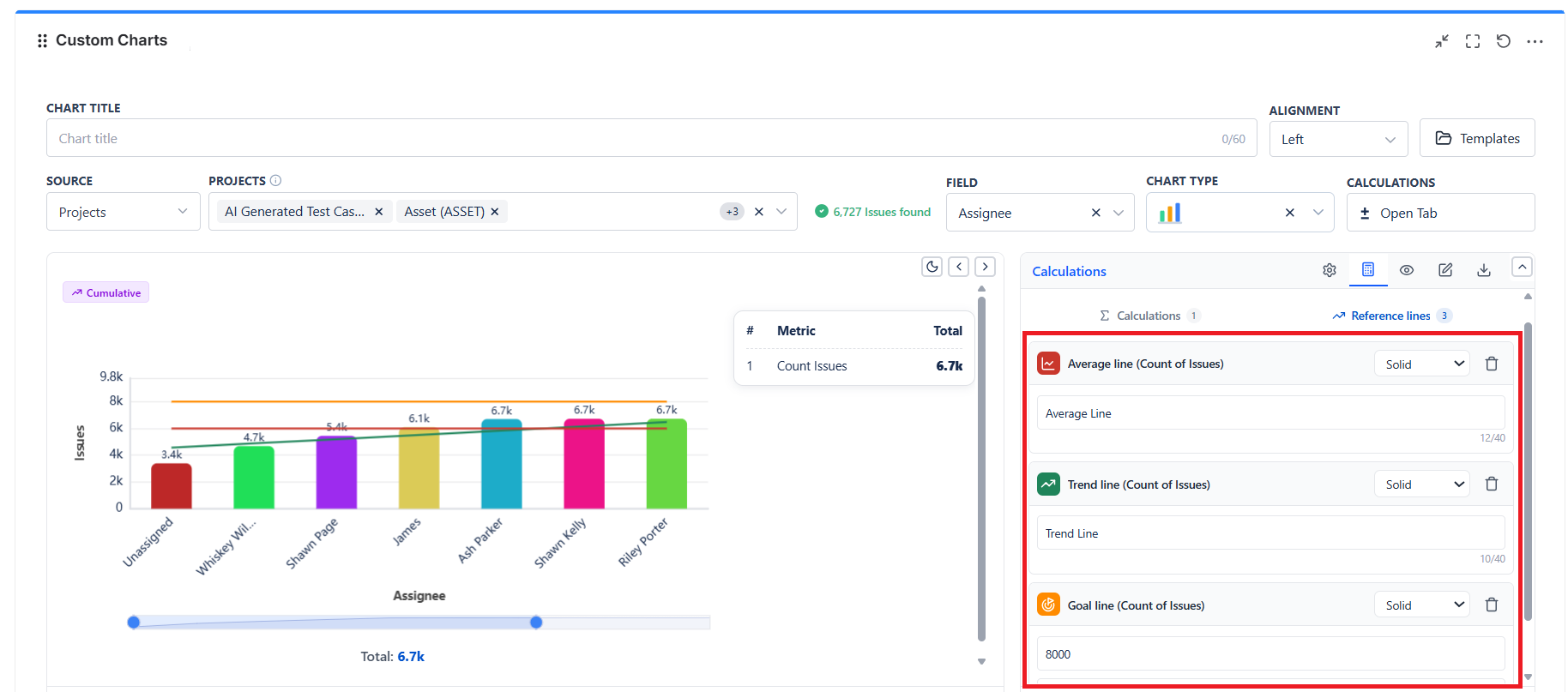
Comparison guides drawn over the plotted values. All three take a label and a line style (Solid or Dashed).
| Line | What it draws |
|---|---|
| Average line | A flat line at the mean of the plotted values |
| Trend line | A straight best-fit line showing the direction of travel. Needs at least two bars |
| Goal line | A flat line at a fixed target you type in |
Reference lines based on
When a chart has more than one calculation, a Reference lines based on dropdown appears. A reference line can only describe one series, so you choose which.
Picking anything other than the primary calculation gives that calculation its own axis on the right, so the lines stay visible instead of sitting flat on the bottom of the chart.
Which Charts Support Reference Lines?
Reference lines need a value axis to sit against, so they are available on bar and line charts only.
| Chart Type | Reference Lines |
|---|---|
| Bar | Average, Trend, Goal |
| Grouped Bar | Average, Trend, Goal |
| Stacked Bar | Average, Trend, Goal |
| Line | Average, Trend, Goal |
| 2D Line | Average, Trend, Goal |
| Pie | Not available |
| Table / 2D Table | Not available |
| Funnel | Not available |
| Tile | Not available |