Custom Charts Gadget
Overview
The Custom Charts gadget lets you create beautiful, informative visualizations from your Jira data.
The Custom Charts gadget supports 10 chart types across 5 categories:
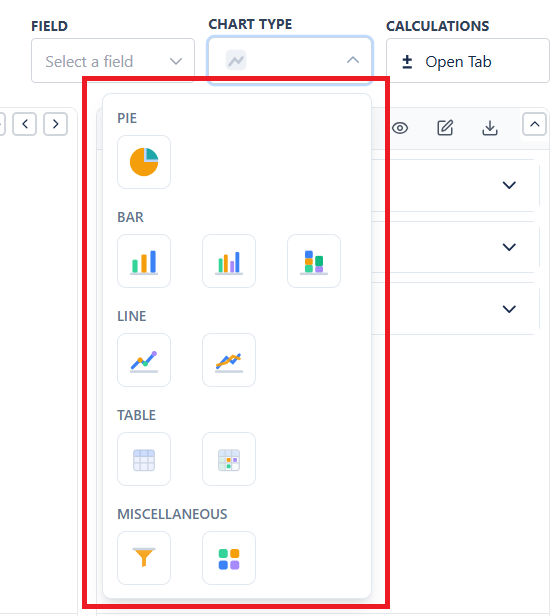
| Category | Chart Types |
|---|---|
| Pie | Pie Chart |
| Bar | Bar, Grouped Bar, Stacked Bar |
| Line | Line, 2D Line |
| Table | Table, 2D Table |
| Miscellaneous | Funnel, Tile |
Quick Start: Create Your First Chart
- Add "Custom Charts" to your dashboard
- Pick a data source - a project, a board, a saved filter, custom JQL, or a Dynamic Filter Controller
- Click on the chart type you want (default is Pie)
- Select how to group your data (e.g., Status, Assignee)
- Click "Save gadget"
Done! Your chart is live.
Where Each Setting Lives
The edit screen has two areas. The controls that decide what the chart plots sit in the bar across the top. The tabs on the right control how it is calculated and how it looks.
Top bar
| Control | What It Controls |
|---|---|
| Data source | Which issues the chart reads - a project, board, saved filter, custom JQL, or a Dynamic Filter Controller |
| Field | The main grouping - what becomes your slices, bars, or rows |
| Group by | The second dimension. Appears only when the chart type is 2D: Grouped Bar, Stacked Bar, 2D Line, or 2D Table |
| Chart Type | Visual format - pie, bar, line, table, funnel, tile |
Configuration tabs
| Tab | What It Controls |
|---|---|
| Chart Settings | Segment ordering, date grouping and date range, minimum and maximum values, and the segment list itself |
| Calculations | What the chart measures, plus average, trend and goal reference lines |
| Display Options | Visual options and formatting |
| Description | Explanatory text |
| Import/Export | Configuration sharing |
Quick Reference: Chart Type Selection
| If You Want To... | Use This Chart |
|---|---|
| Show percentages/proportions | Pie |
| Compare values across categories | Bar |
| Compare with sub-categories | Grouped Bar |
| Show composition within categories | Stacked Bar |
| Show trends over time | Line |
| Compare multiple trends | 2D Line |
| Show exact numbers | Table |
| Show a data matrix | 2D Table |
| Show stage progression | Funnel |
| Show single KPIs | Tile |
Tips for Effective Charts
Do
- Choose the right chart type for your data
- Limit segments to 10 or fewer for readability
- Use meaningful colors (red for bugs, green for done)
- Add descriptions to explain what the chart shows
Don't
- Don't use pie charts with too many segments
- Don't use line charts for non-sequential data
- Don't forget to set a clear title