Date Range for Custom Charts
Use date fields to group Jira issues into clear time periods, build trend charts, and control how dates appear in labels and tooltips.
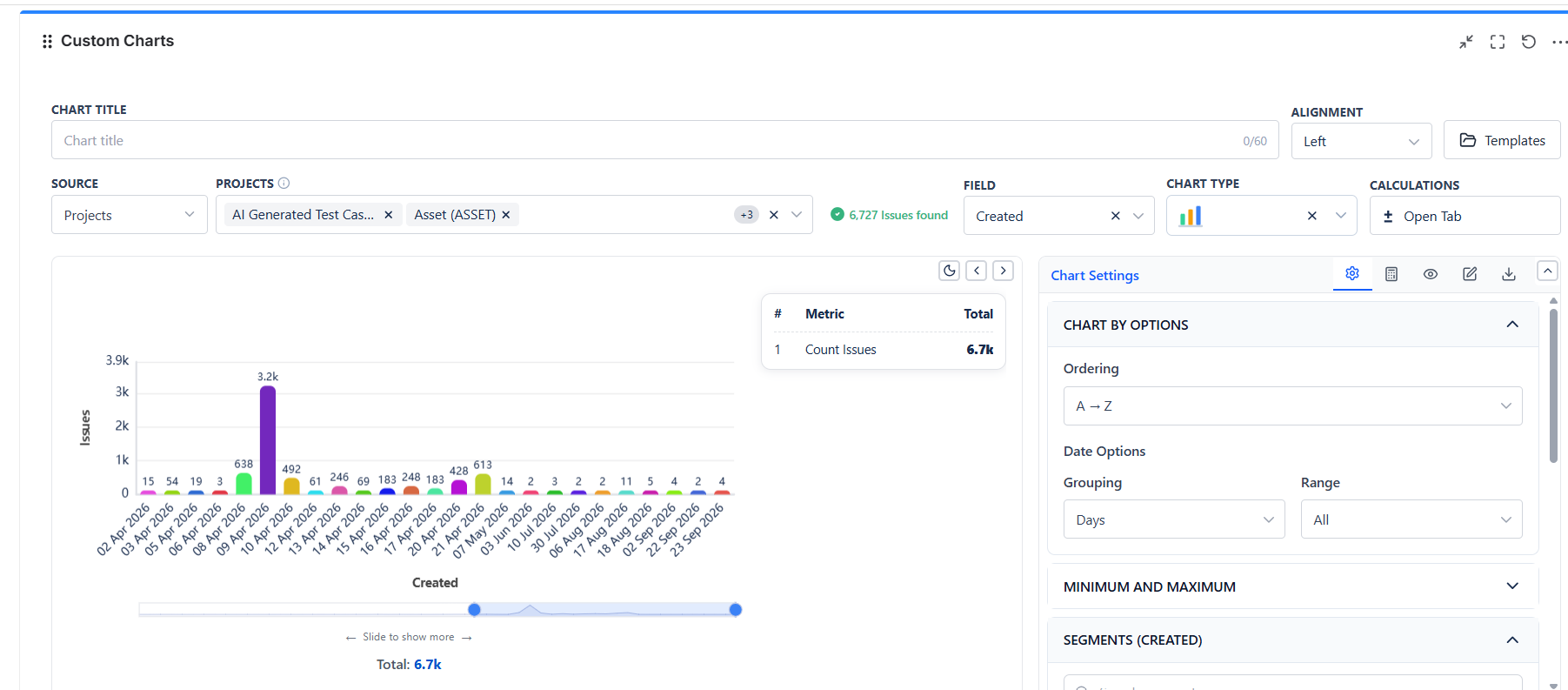
Where to find it
- Open a Custom Chart gadget.
- Click Edit.
- In the bar across the top, set Field to a date field such as Created, Updated, Due date, Resolved, or a custom date field.
- Date grouping and Date range then appear in the Chart Settings tab, under Chart By Options.
- Date formatting lives separately, in the Display Options tab.
What the date feature does
- Recognizes when the selected field is a date or date-time field.
- Groups raw dates into reporting buckets - day, week, month, or year.
- Lets you choose a date range such as all dates, recent rolling periods, or a custom between-dates range.
- Formats date labels in a readable way across the chart, legend, labels, and tooltips.
- Keeps date-based charts in chronological order so trends are easier to read.
When it appears: The date feature becomes important when your Chart By field or Group By field is a date field. In that case, the gadget stops treating the values like normal categories and starts treating them as time-based data.
Main date controls
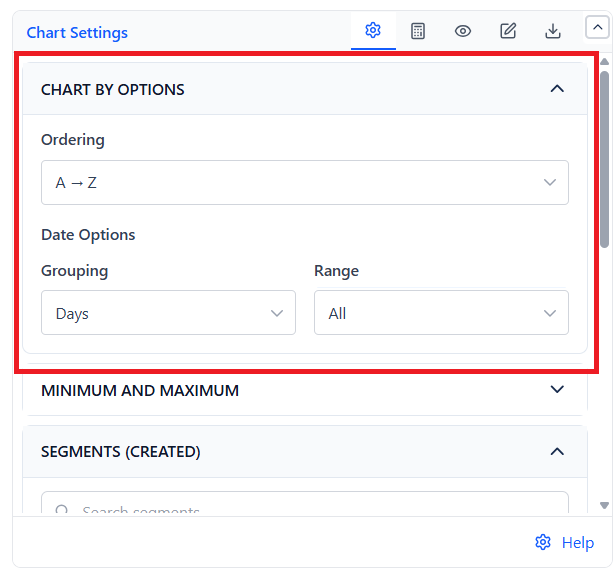
| Control | What it does | Common values |
|---|---|---|
| Date grouping | Controls how dates are bucketed for reporting. | Days, Weeks, Months, Years |
| Date range | Limits which period is included in the chart. | All, Past 3 Days, Past 7 Days, Past 30 Days, Past 90 Days, This Week, Last Week, This Month, Last Month, This Year, Last Year, Between dates |
| Custom from / to dates | Appears when Between dates is selected so the user can define an exact window. | Manual date entry |
| Date format | Controls how the final date labels appear to users. | Examples include DD Mon YYYY, Mon DD, YYYY, or YYYY-M-DD |
| Ordering | Keeps date charts in time order instead of alphabetical order. | Chronological by default for date fields |
Note: When a date field is selected, the gadget automatically prefers chronological ordering. This makes trend charts easier to read.
Date grouping options
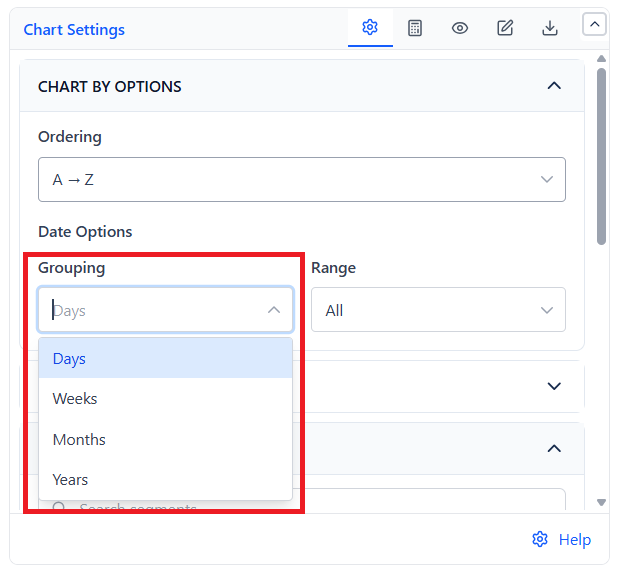
| Grouping option | Best use |
|---|---|
| Days | Shows each day as its own point or segment. Best for short time windows and detailed monitoring. |
| Weeks | Groups issues into weekly buckets. Useful for sprint-level and weekly trend reporting. |
| Months | Groups issues by calendar month. Good for management reporting and longer trend views. |
| Years | Groups issues by year. Best for long-term summaries with a broad time span. |
Date range options
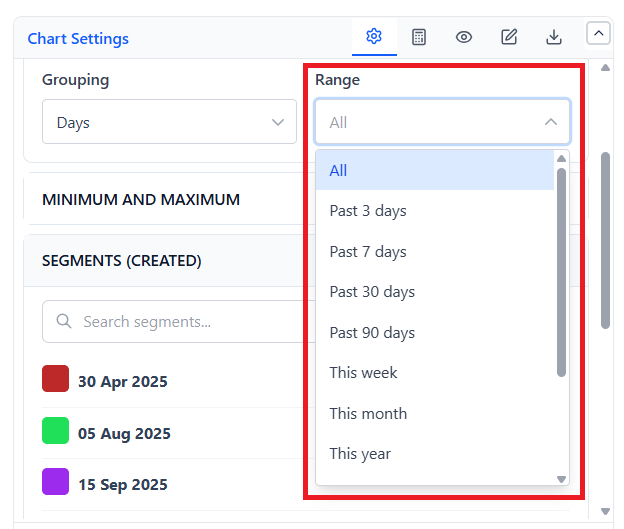
| Range option | When to use it |
|---|---|
| All | Shows all available dates in the result set. |
| Past 3 / 7 / 30 / 90 Days | Rolling time windows for short- or medium-term trend analysis. |
| This Week / Last Week | Calendar-based weekly windows. |
| This Month / Last Month | Calendar-based monthly windows. |
| This Year / Last Year | Year-based reporting windows. |
| Between dates | Lets the user choose an exact from-date and to-date for a custom report window. |
The Dates Field
Dates is a special option in the Field and Group by dropdowns, next to Custom JQL and Saved filters. It lets one chart show several date fields over time - for example, how many work items were created and how many were resolved each day.
| Where You Pick Dates | What the Chart Shows |
|---|---|
| Field | Date buckets along the axis, using the Date grouping and Date range in the Chart Settings tab |
| Group by | One series per date field - for example a Created line and a Resolved line |
| Both | Date buckets along the axis, with one series per date field. This is the Created vs Resolved chart |
Choosing the date fields
When Group by is Dates, open the Group Settings tab. It lists the date fields on your site. Tick each one you want as a series, then give it a label and a colour. Created and Resolved are ticked to start with.
A work item is counted once for each ticked date field, in the bucket where that field's date falls - so Created and Resolved can land on different days for the same work item.
Quick start: the Created vs Resolved template builds this chart in one click - a 2D Line chart of created and resolved work items per day over the past 30 days.
Examples
- Created by Month: shows how many issues were created in each month.
- Resolved by Week: shows weekly completion trend.
- Due Date by Month: groups upcoming work by month.
- Updated by Day for the Past 7 Days: useful for operational monitoring and daily activity checks.
Best practices
- Use Days for short ranges and Months or Years for long ranges.
- Use line charts when you want to show a clear trend over time.
- Use a custom Between dates range when you need a precise reporting window.
- Keep the selected date format simple and consistent across dashboards.
- If the chart feels crowded, widen the range grouping from Days to Weeks or Months.