Installation & Setup
Prerequisites
Before installing, confirm:
- Your instance is Jira Cloud - the Sprint & Delivery Agent is listed on the Marketplace for Jira Cloud only. It does not support Jira Server, Data Center, or Atlassian Government Cloud.
- You are a Jira site administrator - only site admins can install Marketplace apps.
- Pulse AI for Jira is installed and licensed on the same site, or you plan to install it - the agent does its work inside Pulse AI. See Pulse AI Installation & Setup →.
For Site Admins - Installing the App
Step 1 - Find the App on the Marketplace
| Step | Action |
|---|---|
| 1 | Go to marketplace.atlassian.com and search for "Sprint & Delivery Agent" |
| 2 | Click Try it free or Buy now |
Step 2 - Connect to Your Site
- Select your Atlassian Cloud site when prompted - the same site where Pulse AI is installed
- Sign in if needed
- Choose Jira
Step 3 - Review & Confirm
- Review the app details and click Accept
- The app installs automatically - no restart required
Step 4 - Install Pulse AI (If Not Already Installed)
- Install Pulse AI for Jira on the same site
- In Pulse AI, complete Connect with OAuth 2.0 (3LO) and Run Full Sync - the agent needs that data before it can work. See First Launch & OAuth Authorization →
Step 5 - Manage the Installed App
- Go to admin.atlassian.com → Apps → Manage Apps to manage the license or uninstall
For End Users - Requesting the App
If you don't have site admin access, you can still request the app:
- Find the Sprint & Delivery Agent on marketplace.atlassian.com
- Click Try it free to send a request to your site admin, with justification if prompted
- Your admin approves or denies the request - you're notified once it's approved
How Activation Works
Once both apps are installed, the agent switches on by itself - no separate configuration is required.
| Step | What Happens |
|---|---|
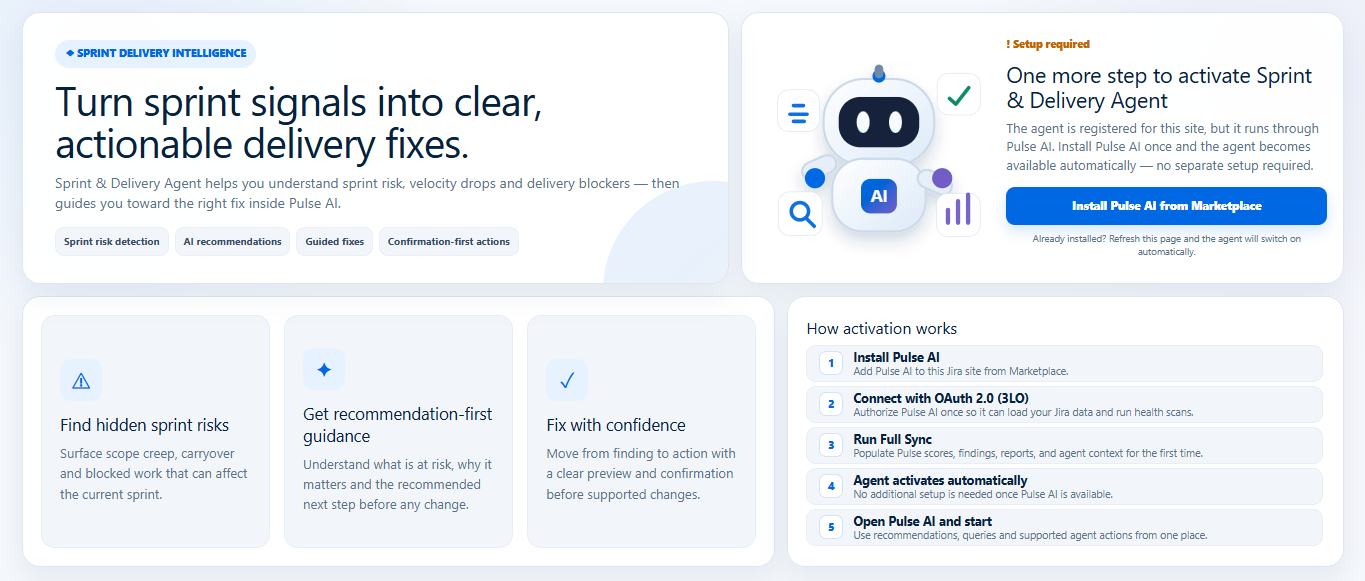
| 1. Install Pulse AI | Add Pulse AI to your Jira site from the Atlassian Marketplace. |
| 2. Connect with OAuth 2.0 (3LO) | Authorize Pulse AI once so it can load your Jira data and run health scans. |
| 3. Run Full Sync | Populates Pulse scores, findings, reports, and agent context for the first time. |
| 4. Agent activates automatically | No additional setup is needed once Pulse AI is available. |
| 5. Open Pulse AI and start | Use recommendations, queries, and supported agent actions from one place. |
Behind the scenes, a Forge lifecycle trigger registers the site by its cloud ID with the Pulse AI backend on install. This can take a few minutes to arrive, so the agent also registers itself the moment you first open its page - whichever happens first.
Verify Installation
Open the agent from the Jira Apps menu. You'll see one of two screens:
Setup required - the agent is installed, but Pulse AI isn't installed or licensed yet. Install Pulse AI, then refresh the page.
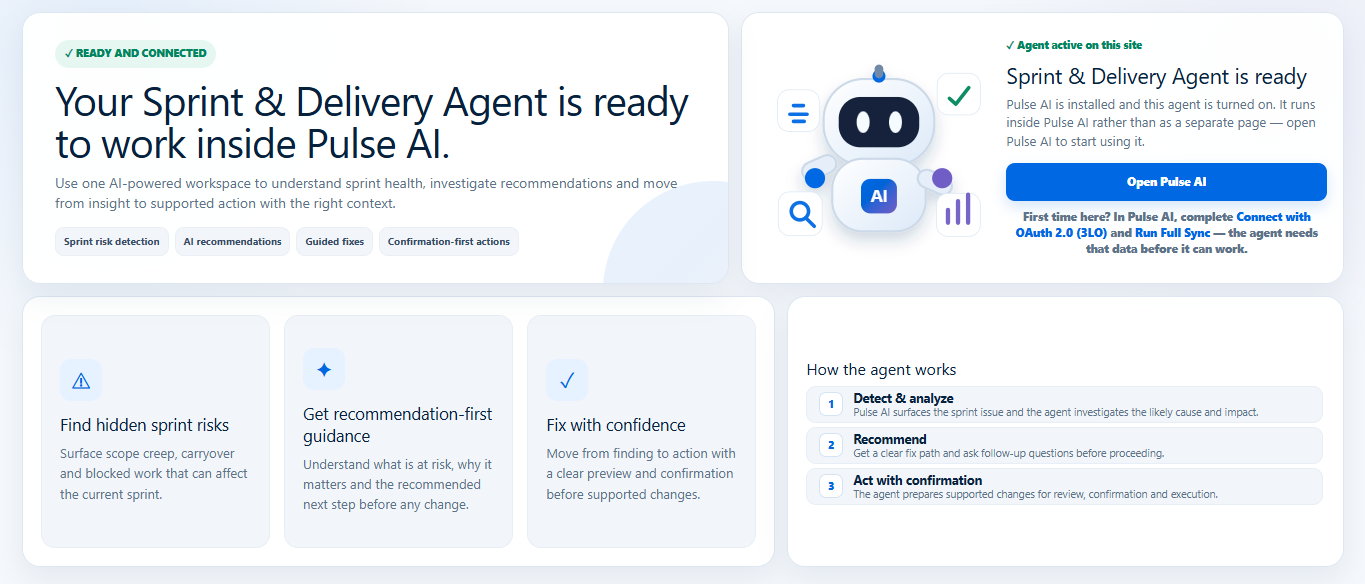
Ready and connected - installation is complete. Select Open Pulse AI to start using the agent.
See Understanding the Status Screen → for every state.
Permissions
The agent requests no Jira API permissions of its own. It works through Pulse AI, which holds the Jira permissions - see Pulse AI Installation & Setup →.
Pricing
The Sprint & Delivery Agent is paid via Atlassian, with a free trial available before purchase. Billing is handled through your Atlassian account settings - see the Marketplace listing for current pricing.
First Steps After Install
- Open Pulse AI and find the agent under Pulse AI Agents in the sidebar - see Using the Agent in Pulse AI →
- Try one of the suggested prompts in the Chat tab
- Ask an admin to confirm the agent is turned on in Pulse AI Settings → Agents
Uninstalling
To uninstall: Go to admin.atlassian.com → Apps → Manage Apps → click Sprint & Delivery Agent → Uninstall. The site is unregistered from Pulse AI's backend automatically. Uninstalling the agent does not uninstall Pulse AI.