Getting Started
Understanding the Status Screen
Opening the agent from Jira shows a short status screen before handing off to Pulse AI. It runs on every page load.
Status States
| State | What It Means | What To Do |
|---|---|---|
| CHECKING | The agent is confirming whether Pulse AI is installed and licensed on this site. | Wait a moment - this runs on every page load. |
| SETUP REQUIRED | The agent is registered for this site, but Pulse AI isn't installed yet (or isn't licensed). | Install Pulse AI from the Marketplace, then refresh. |
| READY | Pulse AI is installed and licensed. The agent is live. | Select Open Pulse AI to start using it. |
| ERROR | The status check itself failed - a connectivity issue, not a sign the agent is misconfigured. | Select Try again. If it persists, confirm the app is still installed on the site. |
Setup Required
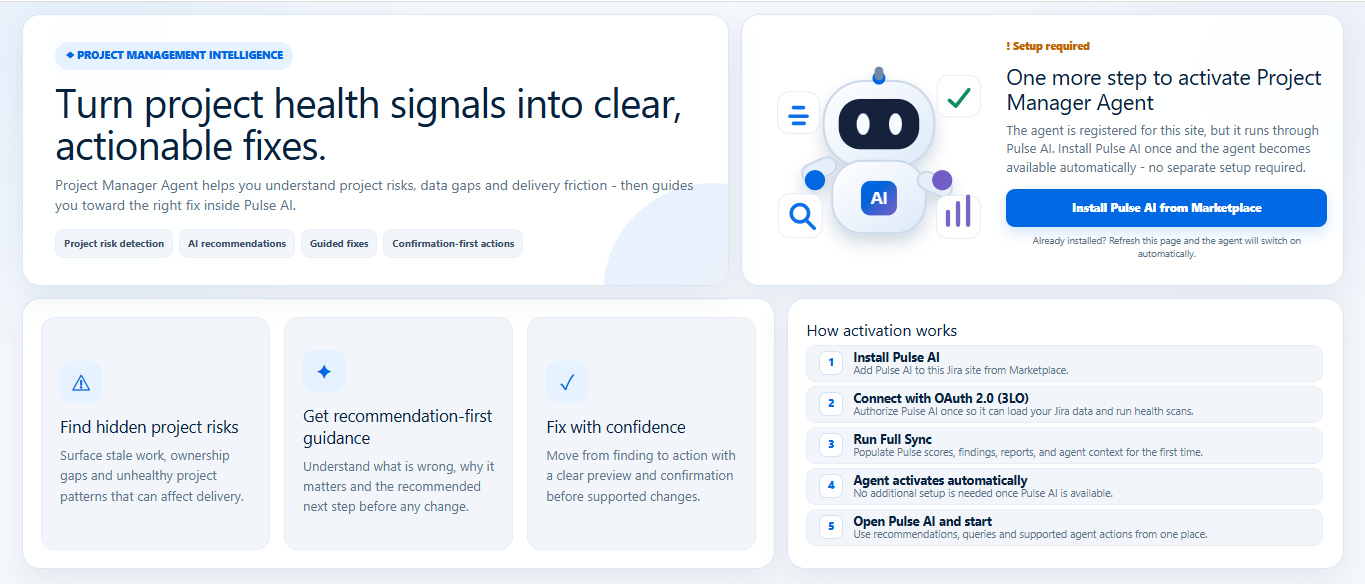
Shown when the agent is registered but Pulse AI isn't available yet. The screen lists the five activation steps and an Install Pulse AI from Marketplace button.
Ready and Connected
Shown when Pulse AI is installed and the agent is turned on. The screen shows Agent active on this site, an Open Pulse AI button, and a summary of how the agent works.
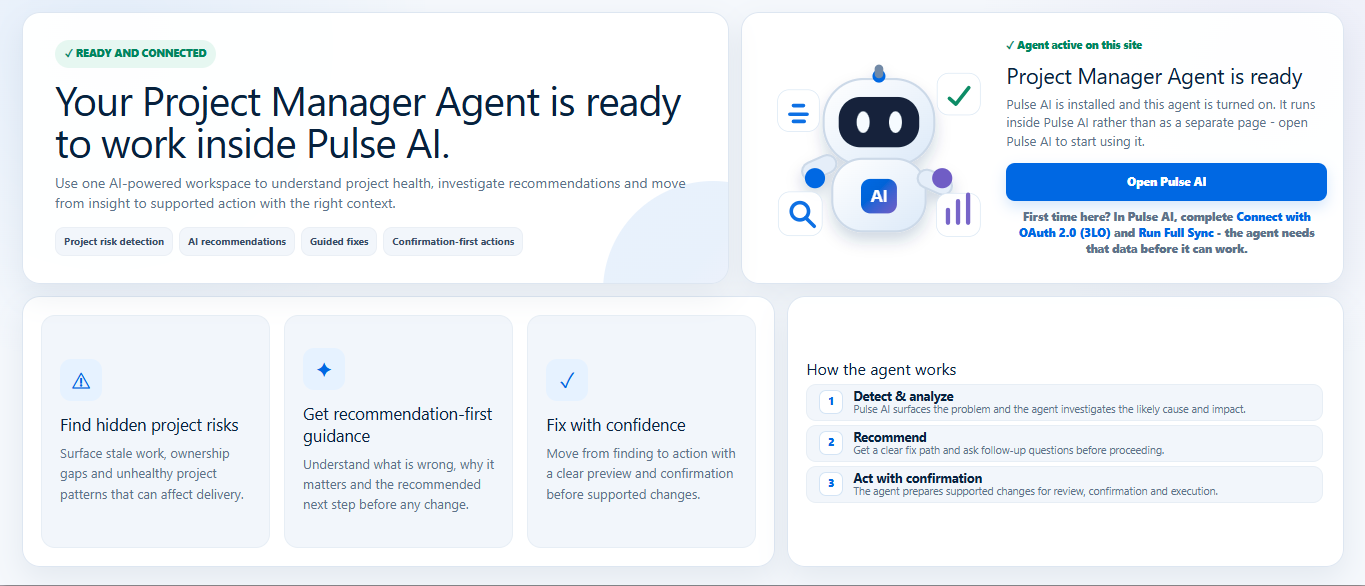
Note: First time here? In Pulse AI, complete Connect with OAuth 2.0 (3LO) and Run Full Sync - the agent needs that data before it can work.
This screen is only a status check. Once ready, all of the agent's actual work - findings, recommendations, confirmations - happens inside Pulse AI's own workspace.