Quick Start Guide
Get up and running with your first Jira dashboard chart in under 5 minutes.
This guide uses the Custom Charts gadget, but the flow is the same for all nineteen gadgets: add the gadget, pick a data source, configure it in the right-hand panel, then Save gadget. Learn it once here and you can set up any of the others.
Step 1 - Open or Create a Dashboard
- In Jira, click Dashboards in the top navigation bar
- Select an existing dashboard, or click Create dashboard to make a new one
- Click the Edit button (pencil icon) to enter edit mode
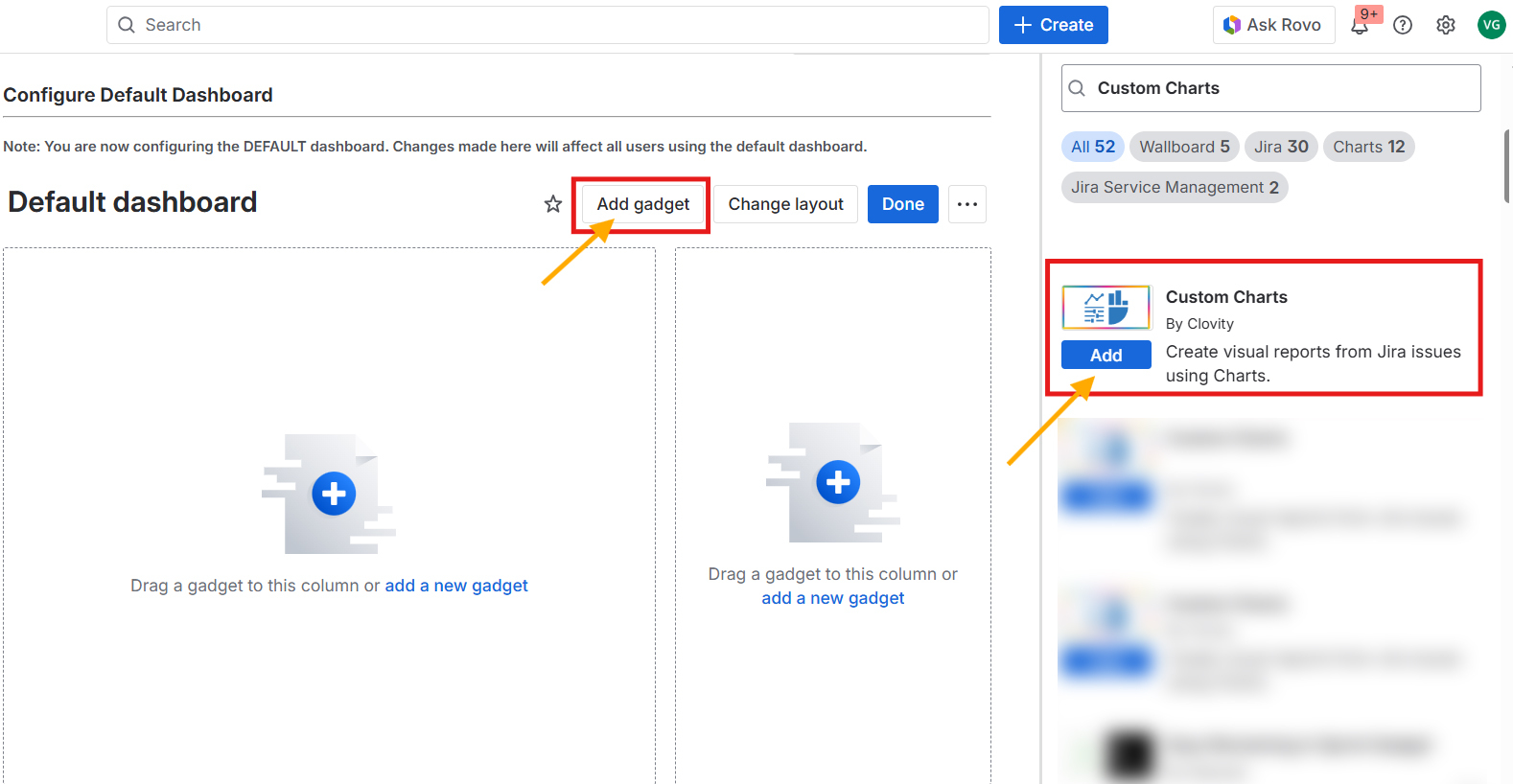
Step 2 - Add Your First Chart
- Click Add gadget (top-right area of the dashboard)
- In the gadget gallery search, type "Custom Charts"
- Click Add - the gadget appears on your dashboard in configuration mode
Step 3 - Set a Data Source
In the left panel of the configuration screen:
- Select Projects as the source type
- Search for and select a Jira project you have access to
- The issue count updates to show how many issues are included
Projects is the simplest place to start, but the same selector also accepts a Board, a Saved Filter, Custom JQL, or a Dynamic Filter Controller. You can change the source later without losing the rest of your configuration.
Step 4 - Choose a Chart Type
- In the bar across the top, open the Chart Type dropdown
- Select Pie Chart (a great starting point)
- In the same bar, set Field to Status
- Watch the Live Preview in the center panel update instantly
Chart Type, Field, and Group by all live in the top bar, not in the tabs on the right. The tabs control how the chart is calculated and styled once you have chosen what it plots.
Step 5 - Save the Gadget
- Click Save gadget at the bottom of the configuration screen
- Your pie chart showing issue status distribution is now live on the dashboard
That is the 5-minute path. Everything below is optional, and builds the rest of a working dashboard.
Going Further
Step 6 - Add an Issue List
- Click Add gadget again
- Search for "Issue List"
- Set the same project as the data source
- Add columns: Key, Summary, Status, Assignee, Priority
- Click Save gadget
Step 7 - Add a Dynamic Filter Controller
To make your dashboard interactive:
- Add the Dynamic Filter Controller gadget
- Set the same project as the base data source
- Add filter fields: Status, Assignee, Sprint
- Note the Reference ID shown after saving
- Edit your chart gadget → change Data Source to Dynamic Filter Controller → select the controller
- Now the filter bar controls your chart in real time
What's Next?
- Explore the Chart Types Guide for all 10 chart types
- Try Templates to start from a ready-made chart configuration
- Learn about Smart Labels for visual indicators in Issue List
- Set up Tabs in the Dynamic Filter Controller for preset views
- Browse the other sixteen gadgets in the sidebar - flow metrics, sprint and release tracking, wallboards, work breakdown, and KPI formulas
- Not sure which one you need? Use Start Here - Guide by Role