Overview
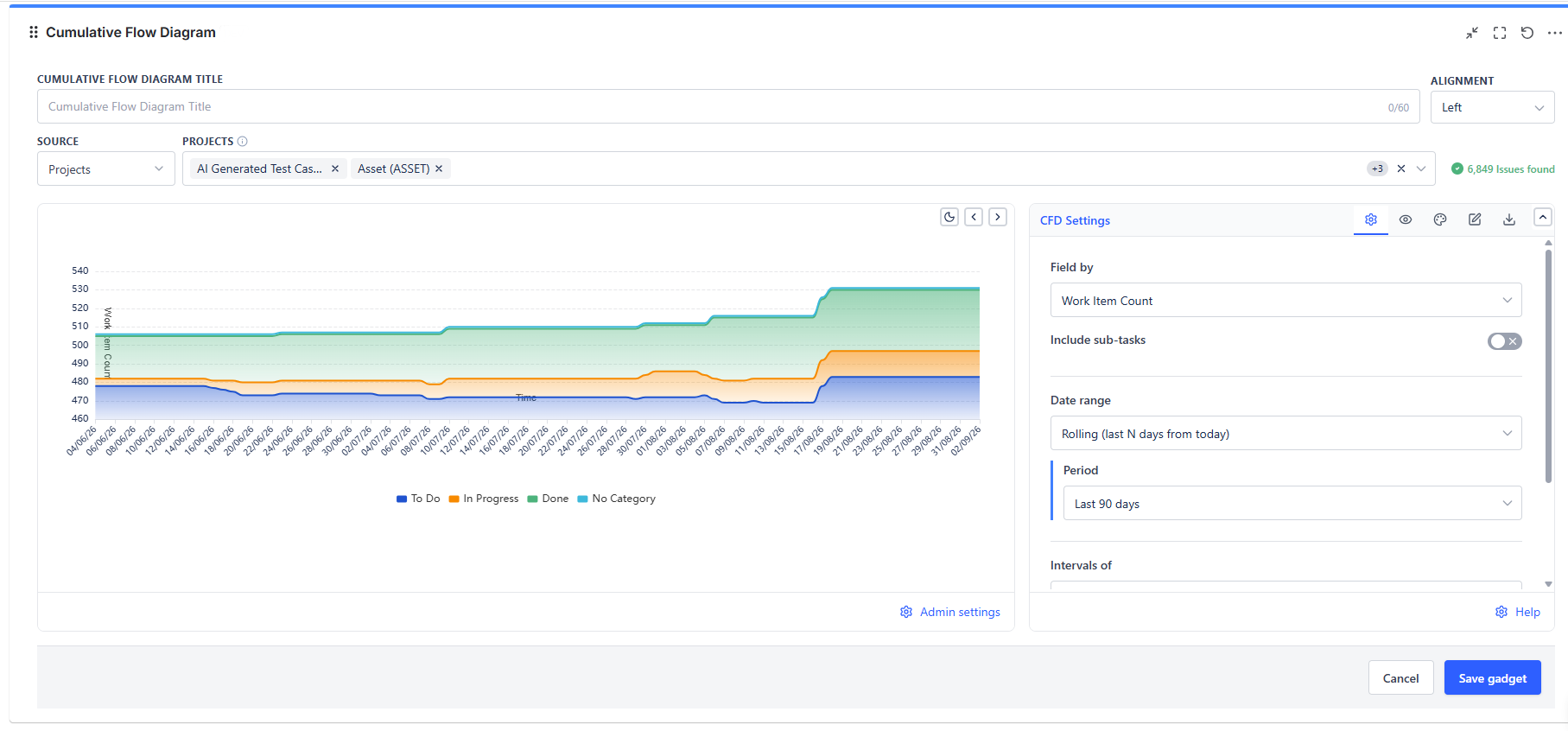
The Cumulative Flow Diagram (CFD) plots the count of issues in each workflow stage on every day of your chosen date range. Each stage is a colored band stacked on the others, so the total height of the chart always equals your total issue count. Watching how bands grow and shrink tells you whether work is flowing smoothly or piling up.
Overview
| Feature | Description |
|---|---|
| Stacked Area Chart | One colored band per workflow stage - bands stack to show total WIP |
| 6 Band Modes | Status categories, individual statuses, board columns, board column categories, work item types, custom field values |
| Field by | Issue count, Story Points, Story Point Estimate, Original Time Estimate, or any custom numeric field |
| Board Integration | Connect to a Jira Software board to use its column definitions as bands |
| Sprint & Release Scoping | Scope the CFD to a specific sprint (including "latest sprint auto") or release version |
| Flexible Date Ranges | Rolling windows, fixed ranges, sprint dates, or release dates |
| Include Sub-Tasks | Toggle to include or exclude sub-tasks from the analysis |
| Band Customization | Reorder, hide, and color-code individual workflow bands |
How to Read a CFD
- Band width (vertical height at any date) = number of issues currently in that stage
- Narrow bands = work moves through quickly (good)
- Wide bands = work is accumulating (potential bottleneck)
- Flat top line = no new work is being added (stable scope)
- Rising top line = new issues are being added (scope growth)
- Steepening right edge = accelerating completion (delivery speed increasing)
Data Sources
| Source Type | When to Use |
|---|---|
| Projects | Analyze all issues in one or more Jira projects |
| Board | Connect to a board to inherit its column definitions as CFD bands |
| Saved filters | Use a pre-saved Jira filter as the issue scope |
| Custom JQL | Write a JQL query for precise scoping (e.g., a specific component or epic) |
| Filter Controller | Follow a Dynamic Filter Controller so the chart re-scopes with the shared filter bar |
Band Modes
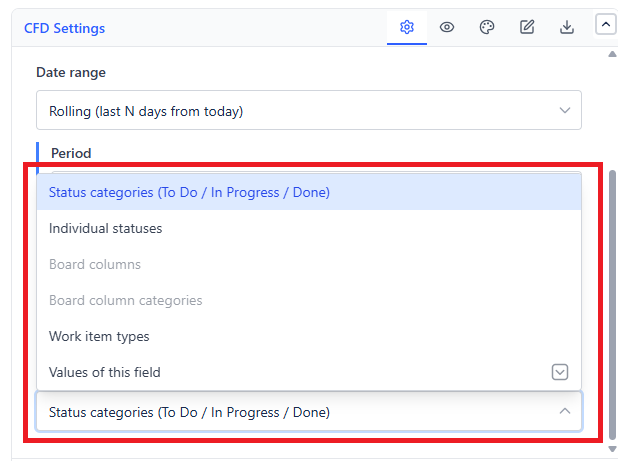
The Chart bands are based on setting controls how workflow stages are defined in the chart:
| Band Mode | What Defines the Bands | Best For |
|---|---|---|
| Status Categories | Jira's built-in status categories (To Do / In Progress / Done) | High-level flow overview |
| Individual Statuses | Each unique Jira workflow status is its own band | Detailed per-status analysis |
| Board Columns | Columns from a connected Jira Software board | Teams using Kanban or Scrum boards |
| Board Column Categories | The category groupings of board columns (e.g., all "In Progress" columns as one band) | Simplified board-level view |
| Work Item Types | Group issues by issue type | Comparing Stories vs. Bugs vs. Tasks over time |
| Values of this field | Group issues by a custom field value | Non-standard workflows or multi-team boards |
Field by
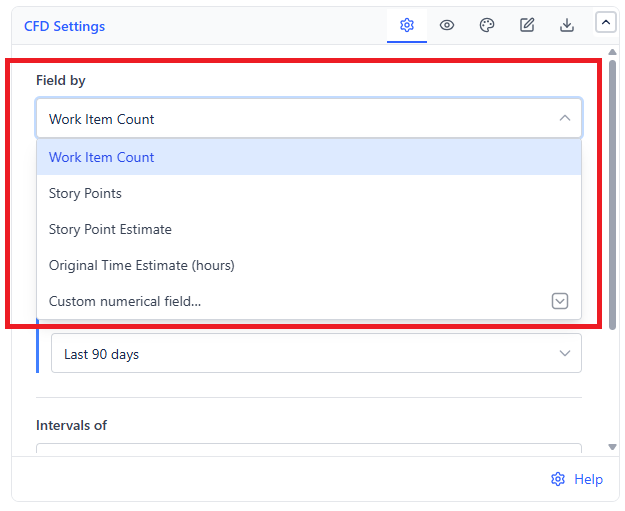
Choose what unit of work is counted in each band:
| Option | What Is Counted |
|---|---|
| Work Item Count | Number of issues in each band (default) |
| Story Points | Sum of story points for issues in each band |
| Story Point Estimate | Sum of story point estimates (team-managed projects) |
| Original Time Estimate (hours) | Sum of original time estimates |
| Custom Numerical Field | Sum of any custom numeric field you select |
Using Story Points instead of issue count gives a more accurate picture of work volume when your team sizes work unevenly.
Using Board Integration (Board columns)
When you select Board Columns and connect a Jira Software board, the CFD uses the board's column definitions instead of raw statuses. This means:
- Multiple statuses mapped to the same board column appear as a single band
- The band names match what your team sees on their board
- Column order matches the board left-to-right
To connect a board:
- In the data source panel, select Board and search for your board by name
- Set Chart bands are based on to Board columns - this option stays greyed out until the source is a Board
- The gadget loads the board's column configuration automatically
Date Range Options
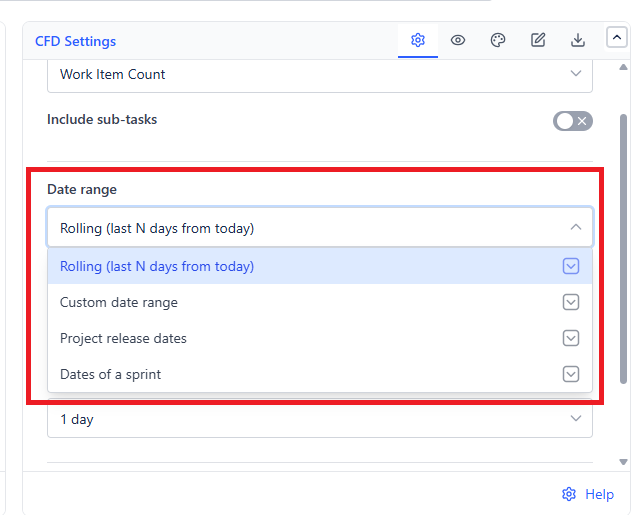
| Mode | Description | Best For |
|---|---|---|
| Rolling (last N days from today) | Last N calendar days ending today | Ongoing Kanban monitoring |
| Custom date range | Specific from-date to to-date | Point-in-time analysis or reporting periods |
| Dates of a sprint | Scoped to a sprint's start and end dates | Sprint retrospectives |
| Project release dates | Scoped to a fix version's start/end dates | Release tracking and delivery analysis |
Sprint Scoping
When connected to a board, you can scope the CFD to specific sprints:
- Set Date range to Dates of a sprint
- Select a specific sprint - or choose Latest sprint (auto) to always show the currently active sprint without reconfiguring
- The chart automatically uses the sprint start and end dates as the time window
Tip: Use "Latest sprint auto" on a permanent team dashboard so the CFD always shows the current sprint without anyone needing to update it after each sprint transition.
Release / Version Scoping
To scope the CFD to a release:
- Set Date range to Project release dates
- Select a fix version from the project's version list
- The chart spans the version's start date to release date
Display Options
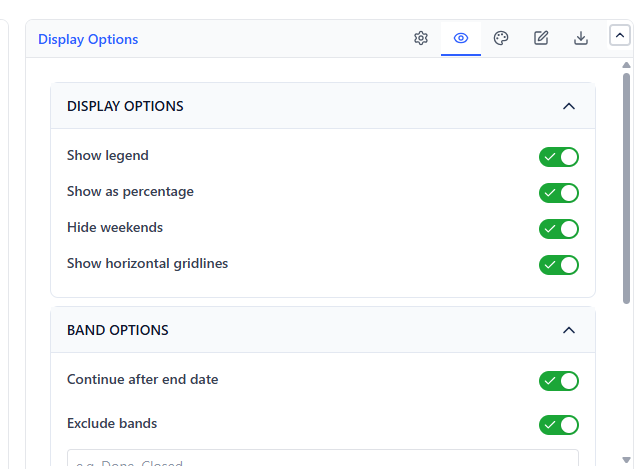
| Option | What It Does | Default |
|---|---|---|
| Show legend | Show/hide the band legend | On |
| Show as percentage | Display bands as % of total instead of counts | Off |
| Hide weekends | Skip Saturday and Sunday on the X-axis | Off |
| Show horizontal gridlines | Add gridlines for reading values | On |
| Enable scroll zoom (Axis & Zoom) | Allow scroll zoom on the chart | Off |
Intervals of (1 day, 1 week, 2 weeks, 1 month (approx.)) and Include sub-tasks are in the CFD Settings tab.
Band Configuration
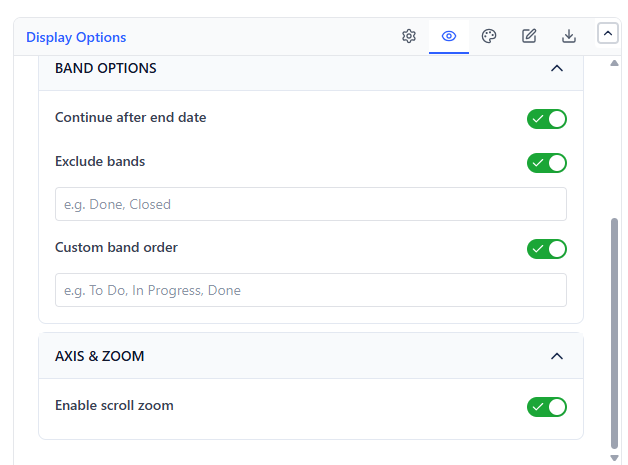 | 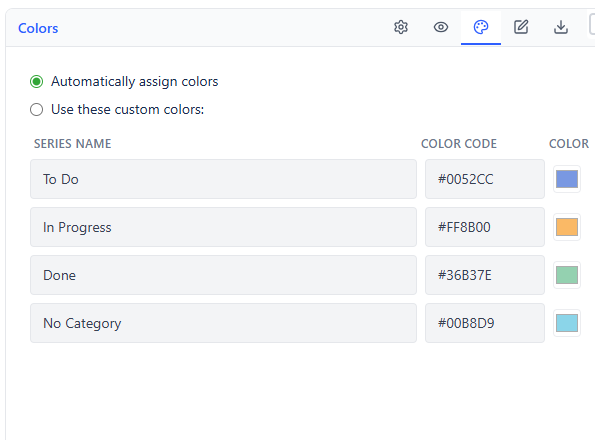 |
After the chart loads, you can customize individual bands:
- Exclude bands: Turn on Exclude bands and type band names, comma-separated (e.g. Done, Closed) - they are removed from both the chart and the count
- Custom band order: Turn on Custom band order and type band names, comma-separated, in the order you want (bottom of chart = first stage)
- Custom colors: In the Colors tab, choose Use these custom colors, then set each band's color
Tip: Order bands so the earliest workflow stage (e.g., "To Do") is at the bottom and the final stage (e.g., "Done") is at the top. This matches the standard CFD convention where completion accumulates upward.
Band Options
| Option | What It Does |
|---|---|
| Continue after end date | Include issues that transitioned after the chart's end date |
Export
| Format | What Is Exported |
|---|---|
| The chart as a PDF (when your admin allows export) | |
| Configuration | Configuration code of all settings, copied to your clipboard for reuse or backup |
Interpreting Common CFD Patterns
Healthy Flow
All bands are roughly proportional and the total height grows steadily. Done band widens progressively. No single band dominates.
Bottleneck
One band (e.g., "In Review") grows consistently wider over time while later bands stay flat. Work is entering the stage faster than it is leaving. Address the bottleneck stage's capacity.
Scope Creep
The top of the chart keeps rising even as the Done band grows. New work is being added faster than it is being completed.
Stalled Sprint
The chart goes flat across all bands for multiple days. Work is not moving - investigate blockers, dependencies, or team availability.