Cumulative Flow Diagram
Band Modes
The Chart bands are based on setting controls how workflow stages are defined in the chart. Each band in the stacked area represents one stage.
All 6 Band Modes
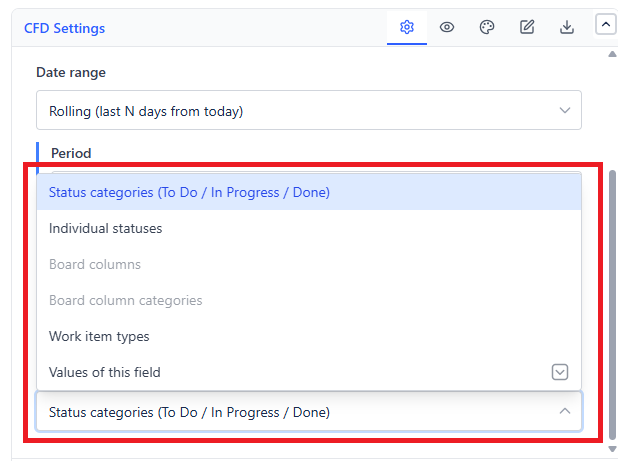
| Band Mode | What Defines the Bands | Best For |
|---|---|---|
| Status Categories | Jira's built-in categories: To Do / In Progress / Done | High-level flow overview - 3 bands, always clean |
| Individual Statuses | Each unique Jira workflow status is its own band | Detailed per-status analysis |
| Board Columns | Columns from a connected Jira Software board | Teams using Kanban or Scrum boards |
| Board Column Categories | Category groupings of board columns | Simplified board-level view |
| Work Item Types | Group issues by issue type (Story/Bug/Task) | Comparing work mix over time |
| Values of this field | Group by any custom field value | Non-standard workflows or multi-team boards |
Board Integration
When you select Board Columns or Board Column Categories, connect the gadget to a Jira Software board. The CFD then uses that board's column definitions instead of raw workflow statuses.
Benefits:
- Multiple statuses mapped to the same board column appear as a single band
- Band names match exactly what your team sees on their board
- Column order matches the board left-to-right
To connect a board:
- In the data source panel, select Board and search for your board by name
- Set Chart bands are based on to Board columns - this option stays greyed out until the source is a Board
- The gadget loads the board's column configuration automatically
Choosing the Right Band Mode
New to CFD? Start with Status Categories - just 3 bands, immediately readable.
Want more detail? Switch to Individual Statuses to see where exactly within "In Progress" the work sits.
Using a Kanban board? Use Board Columns to match your board layout exactly.
Analyzing work mix? Use Work Item Types to see how Stories vs. Bugs vs. Tasks accumulate over time.