Display Settings
Top line, Bottom line and Chart Title
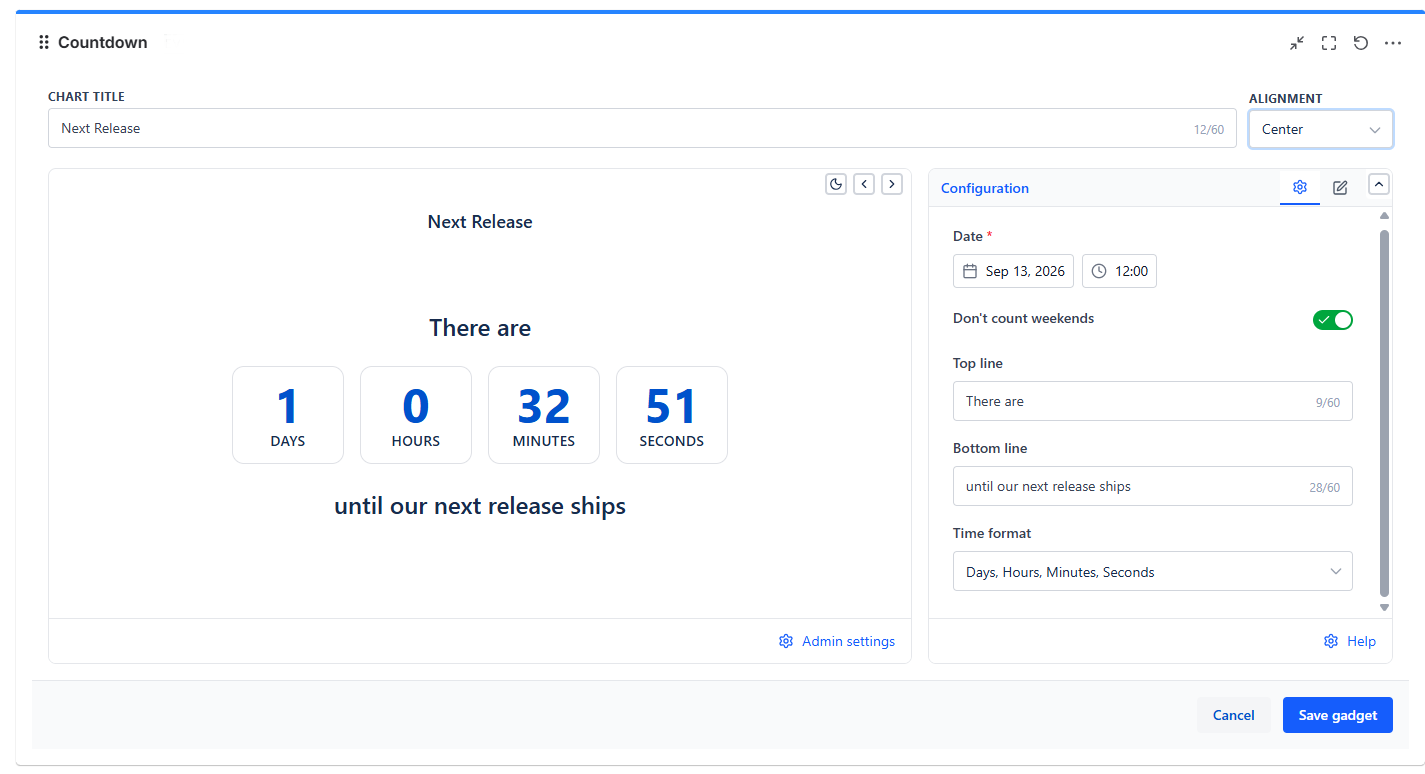
| Field | Where | Purpose |
|---|---|---|
| Top line | Configuration tab | Free text shown above the countdown numbers (e.g., "There are") |
| Bottom line | Configuration tab | Free text shown below the countdown numbers (e.g., "until version release") |
| Chart Title | Bar above the preview | The gadget's overall title, with Left/Center/Right alignment |
Combine Top line and Bottom line to build a sentence around the numbers - for example, "There are [3] [Days] until version release" - so the countdown reads naturally instead of showing bare numbers.
Description
Add a short rich-text note shown above or below the countdown. Show description on chart is on by default, and Position defaults to Bottom - useful for context like "Code freeze is 3 days before this date."
At Zero
Once the target date passes, the countdown freezes at all zeros rather than counting up or showing a message - a simple, unambiguous signal that the moment has arrived.
Live Updates
Updates every second when Seconds are shown, or every minute otherwise. The target is saved as a date and time with no time zone attached, and each viewer's browser reads it as that clock time in their own time zone. A target of 17:00 reaches zero at 17:00 local time for every viewer, so two people in different time zones see different time remaining.
Common Use Cases
Release countdowns. Drop a Countdown on the team dashboard pointed at the release date, with "Don't count weekends" on if the remaining work only happens on business days.
Contract or renewal deadlines. A simple "Days" display keeps a far-out deadline visible without the noise of a constantly-ticking seconds counter.
Event coordination. Pair with a Regional Clock showing the target office's local time, so viewers can see both the countdown and what time it'll actually be there when the deadline hits.