Overview
Set a single target date and time, and the gadget counts down to it live - a release date, a go-live, a contract deadline - one countdown per gadget instance. To track more than one deadline, add another Countdown gadget alongside it.
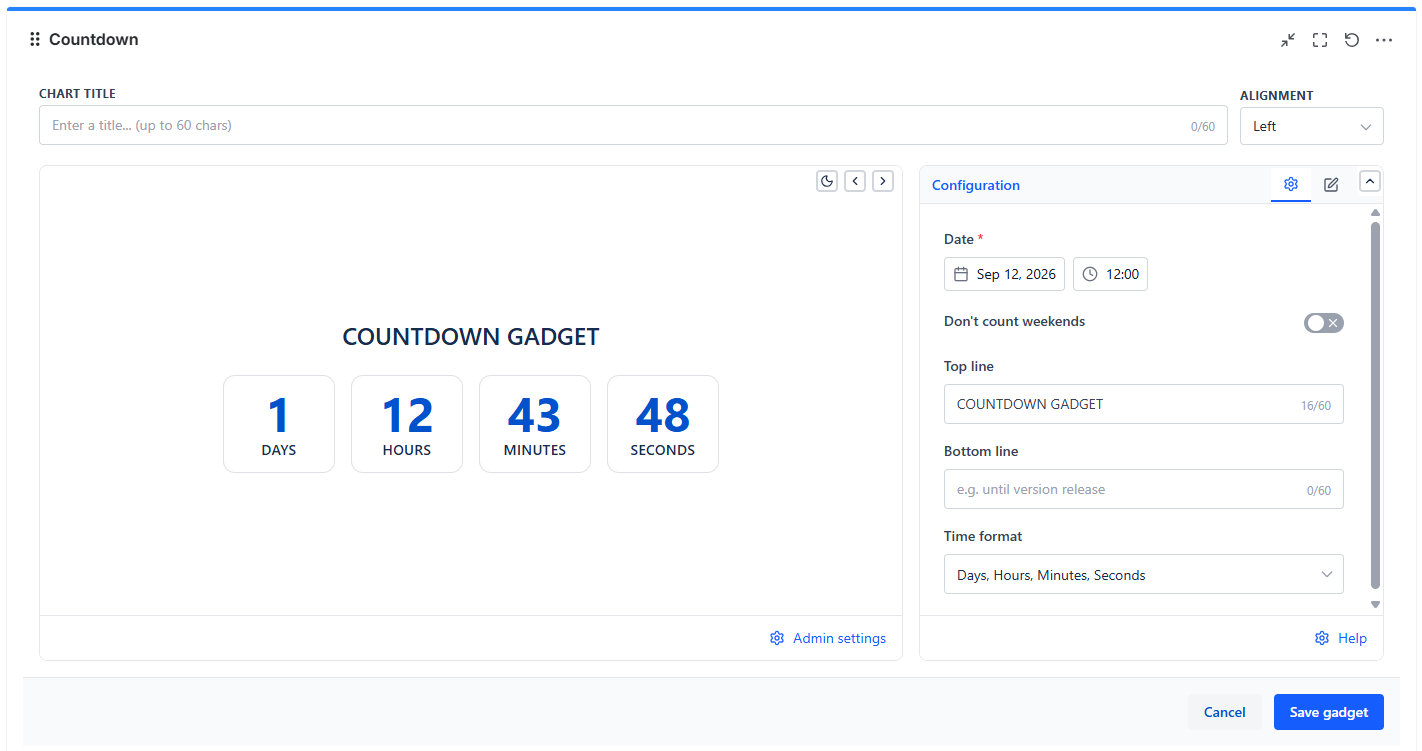
Target Date
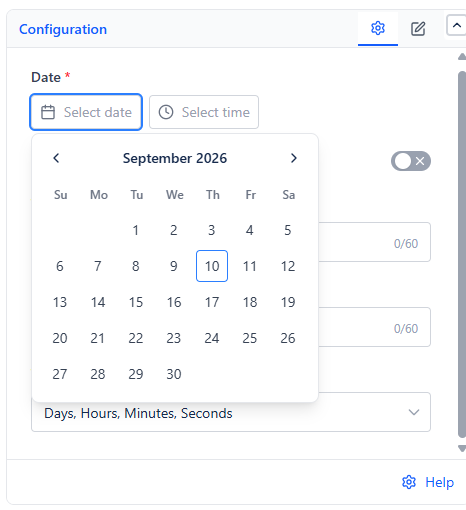 | 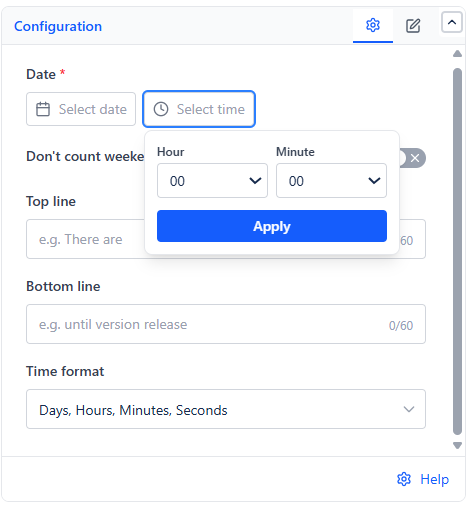 |
A single required Date field - pick the date from a calendar popover, then set the time using separate Hour (00-23) and Minute (00-59) dropdowns and click Apply, so the target is precise to the minute in 24-hour time. Since there's no support for multiple milestones in one gadget, teams tracking several deadlines typically place a few Countdown gadgets side by side, one per milestone.
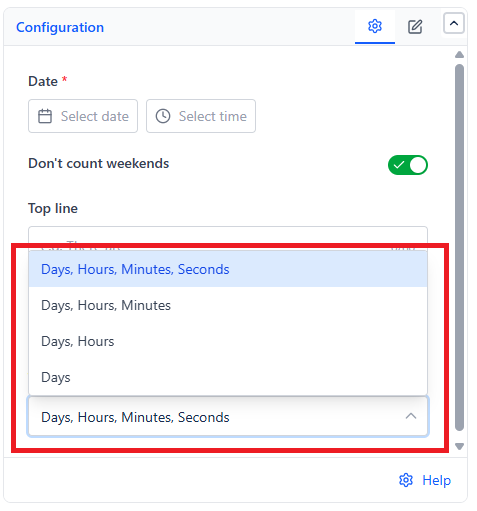
Time format
| Option | Shows | Best For |
|---|---|---|
| Days, Hours, Minutes, Seconds (default) | All four units | A dashboard meant to feel urgent as the deadline nears |
| Days, Hours, Minutes | Three units | Most day-to-day tracking, without a ticking-seconds distraction |
| Days, Hours | Two units | Longer-range deadlines, where minutes and seconds aren't meaningful |
| Days | Days only | A simple, calm "how many days left" view for far-out milestones |
Don't count weekends
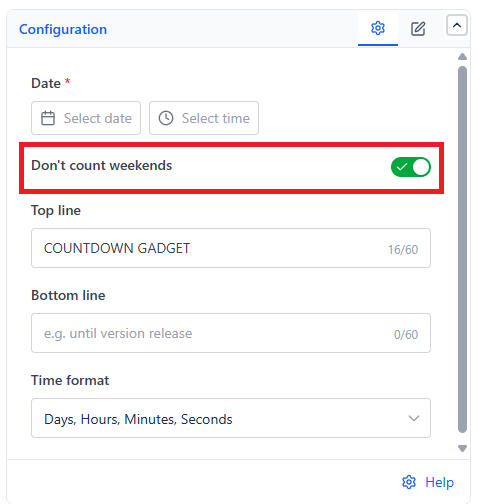
Off by default. When enabled, Saturdays and Sundays are subtracted from the remaining time, so the countdown reflects effective workdays rather than calendar days - useful when the work needed before the deadline only happens on business days.