Diagrams Macro
Easy Uml Diagrams renders diagrams in Confluence from simple text-based diagram code.
Best for
- Architecture diagrams and workflows
- Sequence diagrams for APIs
- Entity relationships and schemas
- Timelines, mindmaps, and planning visuals
How it works
- You write diagram code in the editor
- Preview renders live
- Saving publishes the diagram into the page
- The published page shows the rendered diagram only - there are no on-page controls; open the page in edit mode and click the diagram to make changes
UML Editor Guide
Editor layout
- Source (left): diagram code
- Preview (right): rendered diagram
Using Samples
The editor includes a Samples menu. Use it to:
- Insert a working diagram instantly
- Modify nodes/edges to fit your use case
Saving
Click Save/Publish to store the source and render on the page.
Writing diagram code that renders reliably
- Always start with a valid diagram type header, for example:
flowchart TDsequenceDiagramerDiagram
- Keep indentation consistent
- Prefer simple IDs (letters/numbers/underscores) for fewer parsing issues
- Build complex diagrams gradually (save often)
Supported Diagram Types
Use these headers as "known good" starting points:
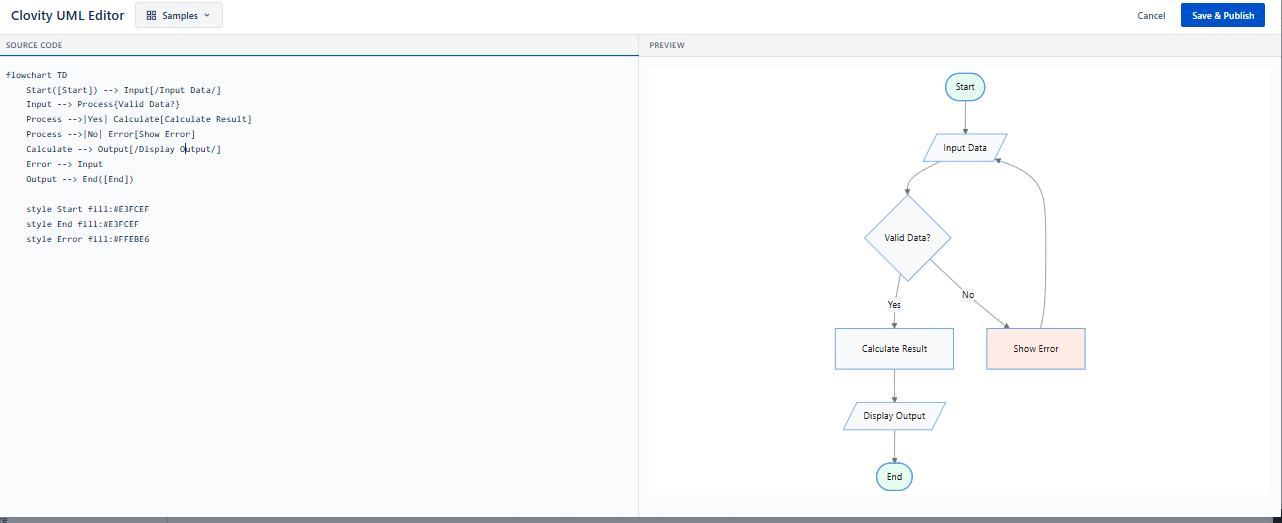
Flowchart
flowchart TD
    Start([Start]) --> Input[/Input Data/]
    Input --> Process{Valid Data?}
    Process -->|Yes| Calculate[Calculate Result]
    Process -->|No| Error[Show Error]
    Calculate --> Output[/Display Output/]
    Error --> Input
    Output --> End([End])

    style Start fill:#E3FCEF
    style End fill:#E3FCEF
    style Error fill:#FFEBE6
Sequence Diagram
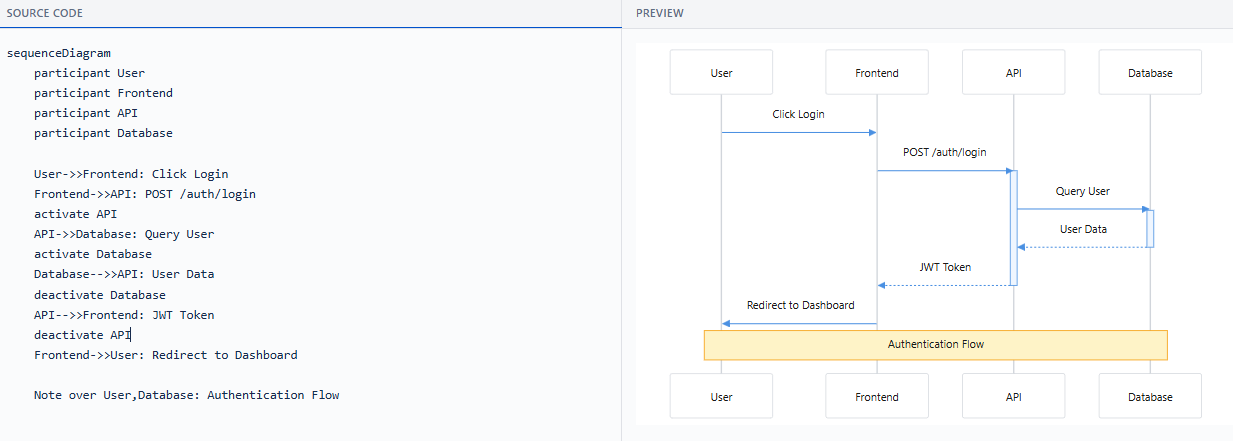
sequenceDiagram
    participant User
    participant Frontend
    participant API
    participant Database

    User->>Frontend: Click Login
    Frontend->>API: POST /auth/login
    activate API
    API->>Database: Query User
    activate Database
    Database-->>API: User Data
    deactivate Database
    API-->>Frontend: JWT Token
    deactivate API
    Frontend->>User: Redirect to Dashboard

    Note over User,Database: Authentication Flow
Class Diagram
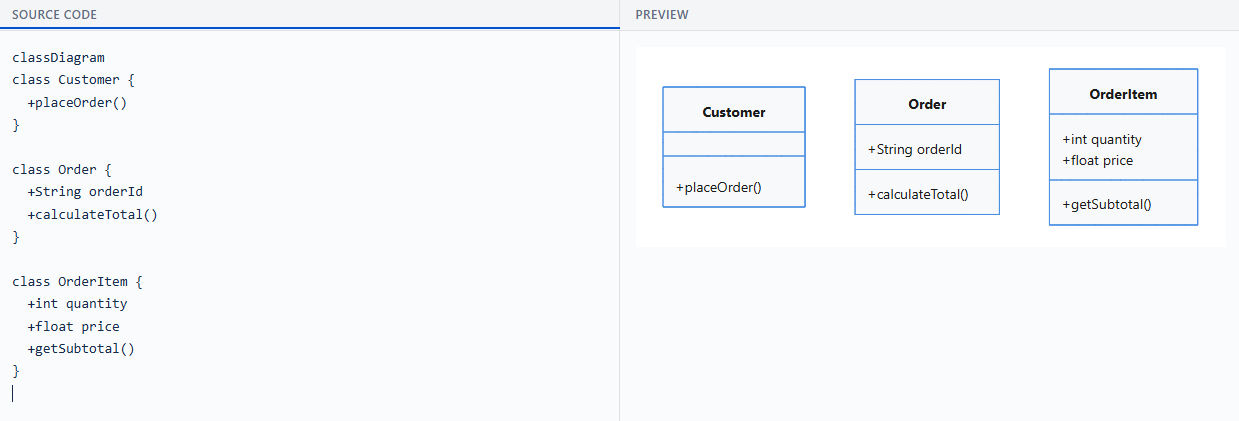
classDiagram
class Customer {
  +placeOrder()
}

class Order {
  +String orderId
  +calculateTotal()
}

class OrderItem {
  +int quantity
  +float price
  +getSubtotal()
}
Gantt
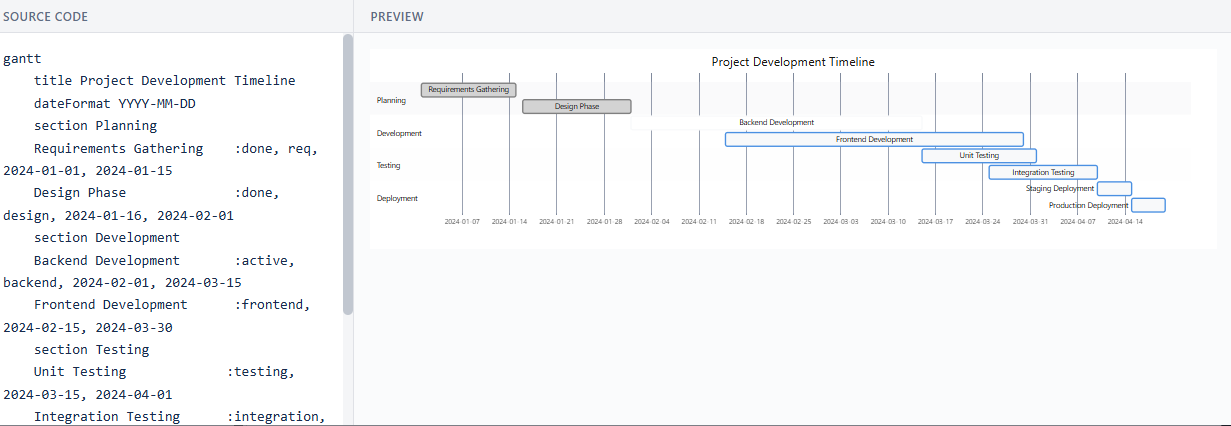
gantt
    title Project Development Timeline
    dateFormat YYYY-MM-DD
    section Planning
    Requirements Gathering    :done, req, 2024-01-01, 2024-01-15
    Design Phase              :done, design, 2024-01-16, 2024-02-01
    section Development
    Backend Development       :active, backend, 2024-02-01, 2024-03-15
    Frontend Development      :frontend, 2024-02-15, 2024-03-30
    section Testing
    Unit Testing             :testing, 2024-03-15, 2024-04-01
    Integration Testing      :integration, 2024-03-25, 2024-04-10
    section Deployment
    Staging Deployment       :staging, 2024-04-10, 2024-04-15
    Production Deployment    :prod, 2024-04-15, 2024-04-20
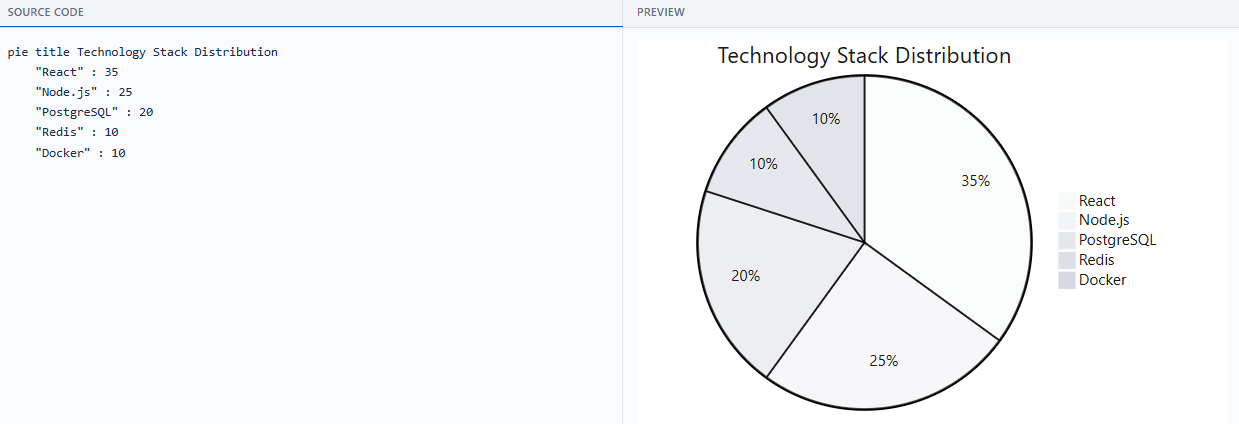
Pie
pie title Technology Stack Distribution
    "React" : 35
    "Node.js" : 25
    "PostgreSQL" : 20
    "Redis" : 10
    "Docker" : 10
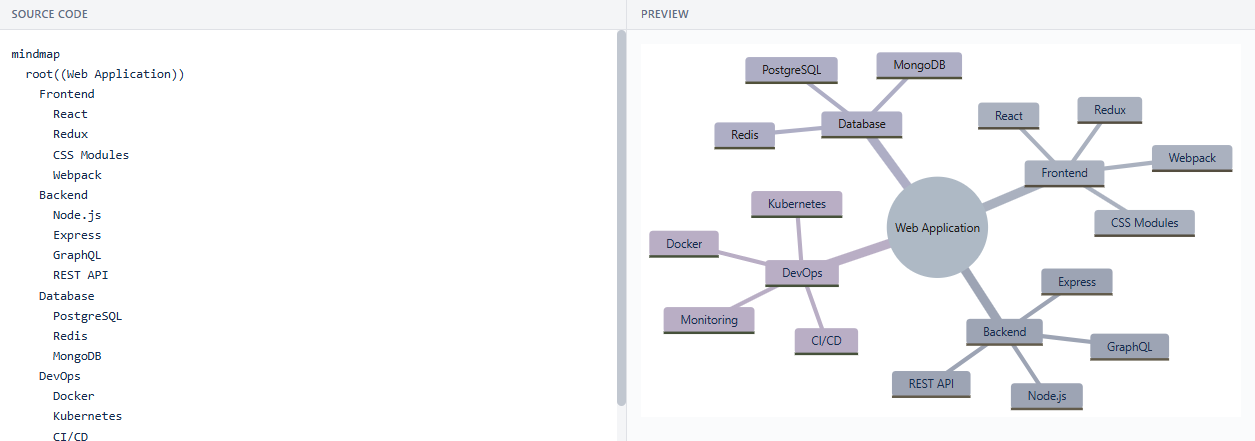
Mindmap
mindmap
  root((Web Application))
    Frontend
      React
      Redux
      CSS Modules
      Webpack
    Backend
      Node.js
      Express
      GraphQL
      REST API
    Database
      PostgreSQL
      Redis
      MongoDB
    DevOps
      Docker
      Kubernetes
      CI/CD
      Monitoring
Viewing a Published Diagram
The published page shows only the rendered diagram - there are no hover controls, zoom, pan, fullscreen, copy, or comment/reaction buttons on the diagram itself. To change a diagram, open the page in edit mode and click it to reopen the editor.
Error Panel
If the diagram code contains invalid syntax, a red "Invalid Diagram Syntax" panel appears in place of the diagram, with an expandable Error Details section describing what failed. Fix the syntax in the editor and save again to re-render.
UML Troubleshooting
"Invalid Diagram Syntax"
Likely causes
- Missing diagram header line (e.g.,
flowchart TD) - Typos in arrows/keywords
- Unsupported syntax for the selected diagram type
Fast recovery
- Replace your content with a known-good example
- Confirm it renders
- Rebuild your diagram step-by-step (save often)
Diagram looks cropped or hard to read
- Simplify the diagram - fewer nodes, shorter labels
- Split one large diagram into multiple smaller diagrams grouped by section