Work Schedule & Time Formats
Control how elapsed time is measured - calendar time (every hour) or business hours only (excluding nights, weekends, and non-working hours).
Why This Matters
By default, Time in Status counts every hour - including nights, weekends, and public holidays. An issue that sat untouched over a 3-day weekend accumulates 72 hours against its age.
If your SLA commitments are stated in business days (e.g., "resolve P1 issues within 2 business days"), calendar time gives a misleading picture. Business-hours calculation gives the number that actually reflects your team's working capacity.
Time Format Options
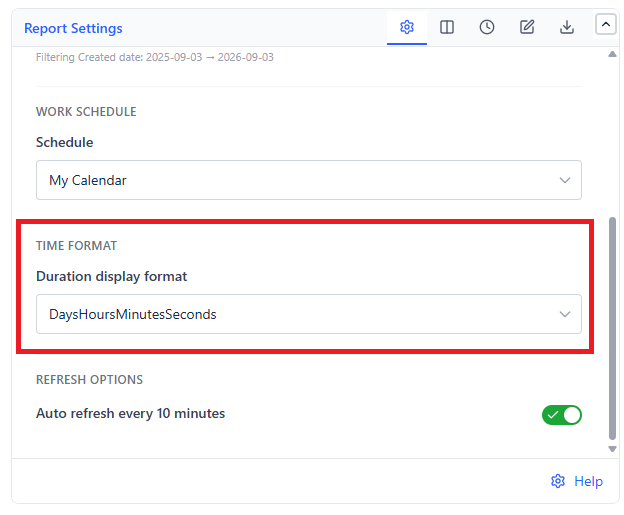
The Duration display format setting, in the Report Settings tab, controls both the unit and whether business hours are used:
| Format | Type | Example |
|---|---|---|
| Business DaysHoursMinutes | Business hours | 2d 3h 15m |
| Business Decimal Days | Business hours | 2.4 days |
| Business Decimal Weeks | Business hours | 0.48 weeks |
| Decimal Days | Calendar time | 2.4 days |
| Decimal Hours | Calendar time | 57.6 hours |
| Decimal Weeks | Calendar time | 0.34 weeks |
| DaysHoursMinutesSeconds | Calendar time | 2d 9h 36m 0s |
| Hours:Minutes | Calendar time | 57:36 |
| HoursMinutes | Calendar time | 57h 36m |
| Minutes | Calendar time | 3456 min |
Rule: Any format starting with "Business" uses your Work Schedule. All others use calendar time (24/7).
Work Schedule Configuration
To use business-hours calculation, configure your team's work schedule first.
How to Set Up a Work Schedule
- Open the Work Schedule tab in the Time in Status gadget settings
- Give the schedule a name (e.g., "DEV Team schedule") - you can keep several and reuse them
- Select which days of the week are working days (e.g., Mon-Fri)
- Set the working hours - a start time and an end time
- Optionally add Breaks and Holidays (see below)
- Save the schedule
Breaks
A break is a daily window that does not count as working time - a lunch hour, for example. Give it a start time, an end time, and a label.
Breaks are subtracted from every working day, so an 09:00-17:00 day with a 1-hour lunch counts as 7 hours, not 8.
Holidays
A holiday is a full day that does not count at all. Give it a date and a name.
Tick Repeat every year for fixed-date holidays like New Year, so you do not have to re-enter them each year. Leave it off for dates that move.
Several schedules
You can create more than one schedule, duplicate an existing one as a starting point, and delete ones you no longer need - useful when teams in different regions have different working days or holidays.
Applying the Work Schedule
Once your Work Schedule is saved, go to the Report Settings tab and do two things:
- Pick the schedule in the Schedule dropdown
- Set Duration display format to a "Business" format (e.g., "Business Decimal Days")
The gadget then excludes non-working hours - and any breaks and holidays on that schedule - from every time calculation.
Practical Example
An issue moved to "In Review" on Friday at 5pm and out on Monday at 9am.
| Calculation | Result |
|---|---|
| Calendar time | 64 hours (full weekend counted) |
| Business hours (8h/day, Mon–Fri) | 0 hours (no working time elapsed over the weekend) |
The business hours result accurately reflects that no one was actually reviewing the issue over the weekend.