Time in Status Gadget
Overview
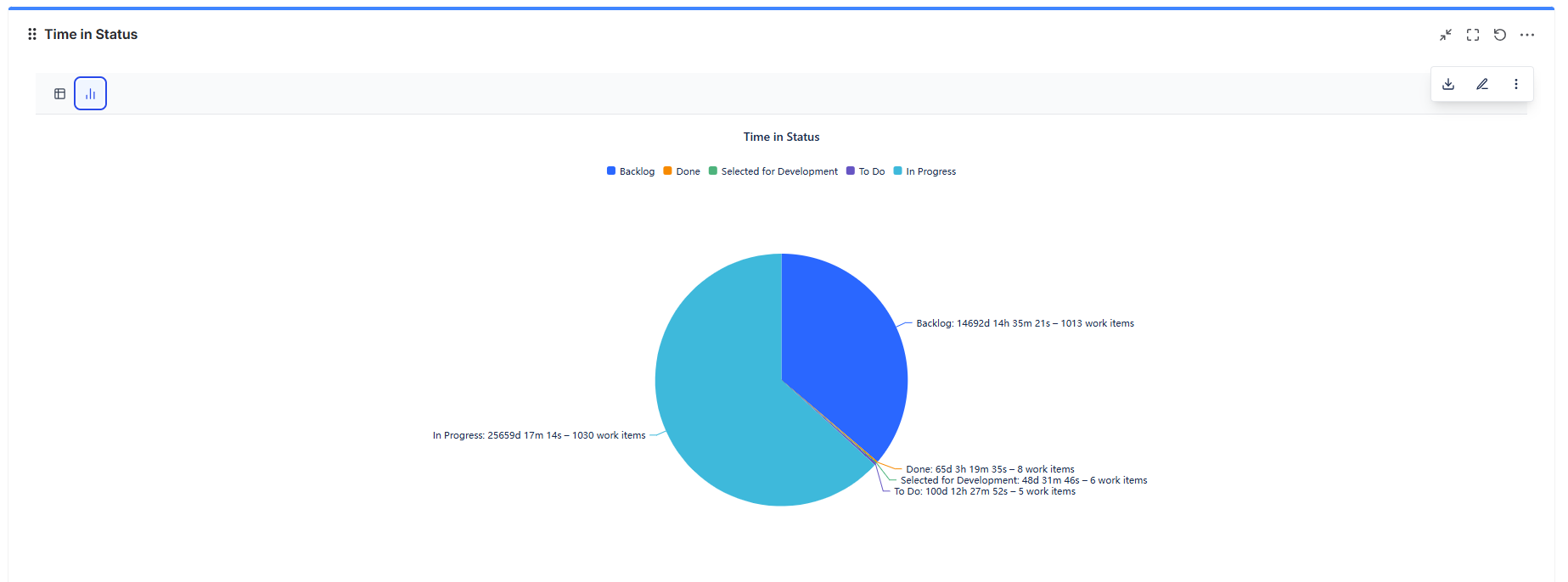
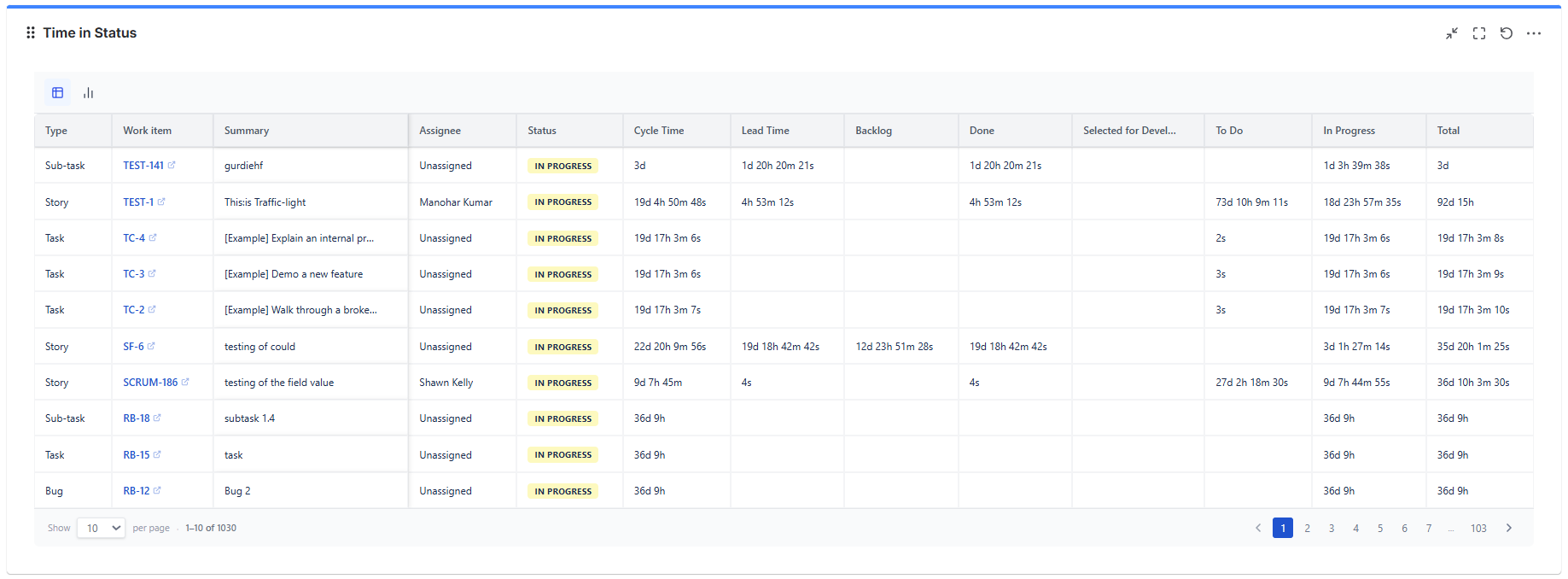
The Time in Status gadget reads your Jira issue changelog to calculate exactly how long each issue has spent in every workflow status - not just the current state, but the complete history of every transition.
When to Use It
- Finding bottlenecks - which status holds work longest?
- Measuring Cycle Time and Lead Time across your workflow
- Detecting rework - issues that visit the same status multiple times
- SLA tracking - when did issues enter each stage?
- Assignee analysis - who holds work the longest?
What Makes It Different from Other Charts
Standard Jira charts show the current state of issues. Time in Status reads the full changelog - every time an issue moved from one status to another, the exact timestamp is recorded. This gadget uses those timestamps to calculate real durations, not snapshots.
Data Sources
| Source Type | When to Use |
|---|---|
| Projects | Select one or more Jira projects and analyze all issues within them |
| Saved Filter | Use a pre-saved Jira filter to scope the issue set |
| Custom JQL | Write a JQL query for precise scoping (e.g., sprint in openSprints()) |
| Board | Connect to a Jira Software board - issues on that board are used as the analysis scope |
| Dynamic Filter Controller | Connect to a shared filter bar so users can slice the data interactively |
Feature Highlights
| Feature | Description |
|---|---|
| Changelog-Based | Reads actual status transition history - not just current state |
| 7 Report Types | Time in Status, Average Time, Time per Date, Status Count, Transition Count, Time in Assignee, Status Entrance Date |
| Chart Outputs | Column chart, bar chart, and line chart - each report type has its own visualization |
| Status Grouping | Combine multiple statuses into named bands - built-in Cycle Time and Lead Time groups included |
| Working Hours | Select a "Business" time format + configure a Work Schedule with working days, hours, breaks and holidays |
| Date Range Filter | Scope analysis to the last 7, 30 or 90 days, or an exact date range |
| Configurable Columns | Choose which statuses, fields, and issues appear in the report |
Configuration Tabs
| Tab | What It Controls |
|---|---|
| Report Settings | Report type, time format, date range |
| Column Manager | Which fields and statuses appear as columns, and Status Groups |
| Work Schedule | Working days, hours, breaks and holidays for the Business time formats |
| Description | Explanatory text |
| Import / Export | Configuration sharing |
Status Groups do not have a tab of their own - they are configured in the Column Manager.