Setup & Filter Types
Set up the Dynamic Filter Controller by choosing a base data source and adding the filter fields users will interact with.
Step 1: Base Data Source
The base data source defines the universe of issues that can be filtered. All gadgets connected to this controller will draw their data from this scope.

Choose the source type that covers the full scope of your dashboard:
| Source | When to Use |
|---|---|
| Projects | The dashboard covers one or more Jira projects |
| Board | The dashboard is for one team's board - the board's own filter becomes the base scope |
| Saved Filter | You have a pre-defined filter that covers the dashboard scope |
| Custom JQL | You need precise scoping (e.g., project = TEAM AND issuetype in (Story, Bug, Task)) |
Tip: Use JQL as the base source to pre-scope the data, then let filter fields narrow it further. This keeps the dataset focused and avoids slow queries.
On a Scrum board, Project becomes Sprint
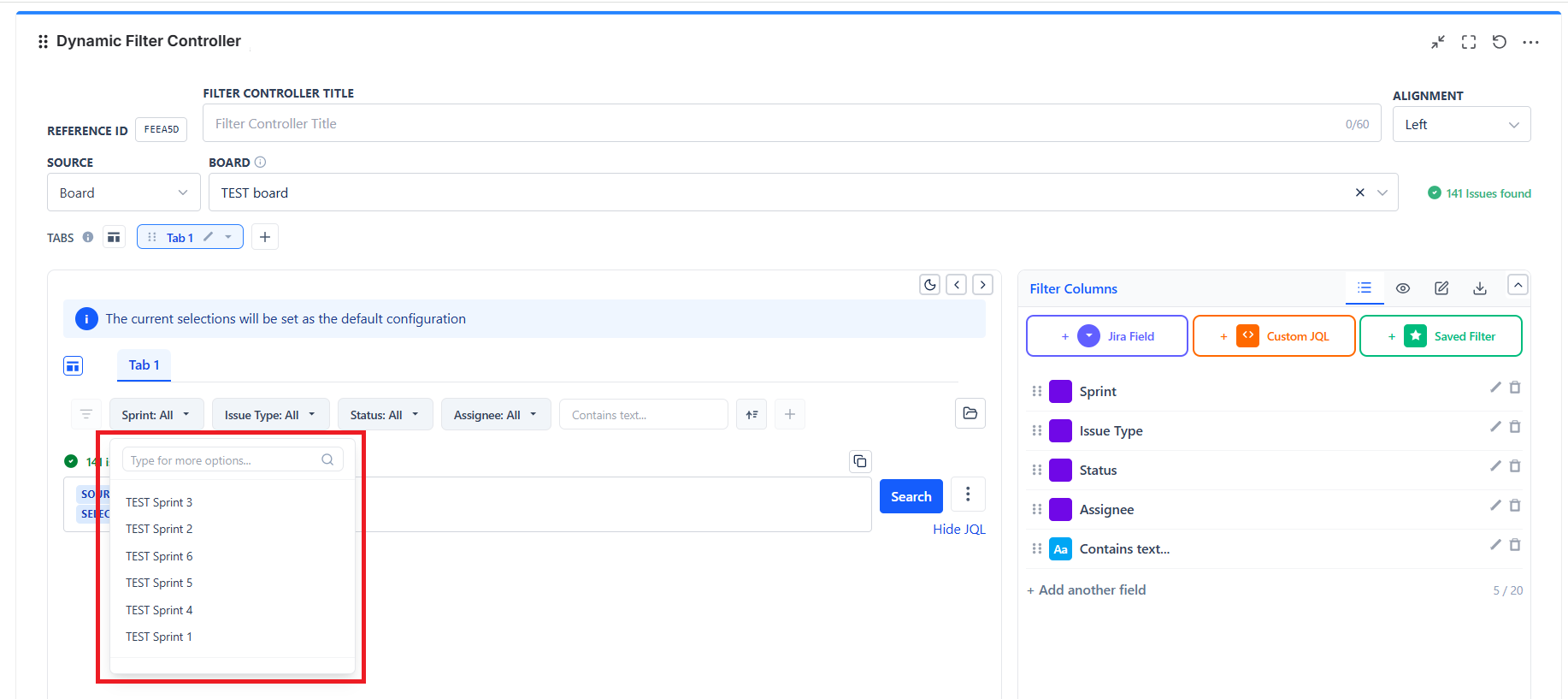
When the base source is a Scrum board, the controller swaps the Project filter field for a Sprint field automatically. On a board the project is already fixed, so a project filter would do nothing - the useful filter there is which sprint.
The swap is virtual: your saved configuration still holds the Project field, so switching the source back to Projects, a Kanban board, or any other source restores it unchanged. You do not need to edit the field list either way.
Step 2: Add Filter Fields
Filter fields are the dropdowns, search boxes, and toggles that appear in the filter bar.
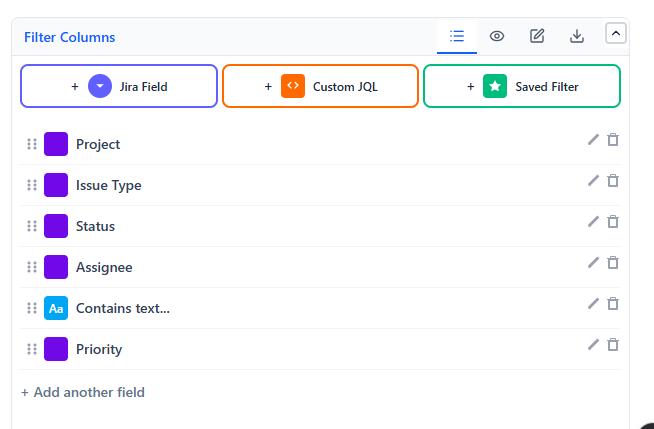
- In edit mode, open the Filter Columns panel on the right
- Click the kind you want - there are three buttons, one per kind:
- + Jira Field - any Jira field, rendered to suit its type
- + Custom JQL - a free JQL input
- + Saved Filter - a multi-select of your saved Jira filters
- Configure and label the field
- Repeat for each filter you want
Each row can be renamed with the pencil icon, removed with the trash icon, or dragged to reorder. A counter at the bottom of the panel shows how many of the 20 columns you have used.
Filter Field Types
| Type | What It Creates | Best For |
|---|---|---|
| Jira Field | A control for any Jira field, shaped to that field's type | Status, Sprint, Assignee, Priority, Issue Type, Component, etc. |
| Contains text… | A free-text search box | Filtering by issue summary or description keywords |
| Custom JQL text field | An advanced JQL input field | Power users who need complex conditions |
| Saved filters - Multi-select | A multi-select of your saved Jira filters | Reusing filter criteria your team already maintains |
Custom JQL text field and Saved filters - Multi-select can each be added once per tab. Once one is on the tab, it is greyed out in the add menu. Jira fields have no such restriction.
Numeric fields get operators
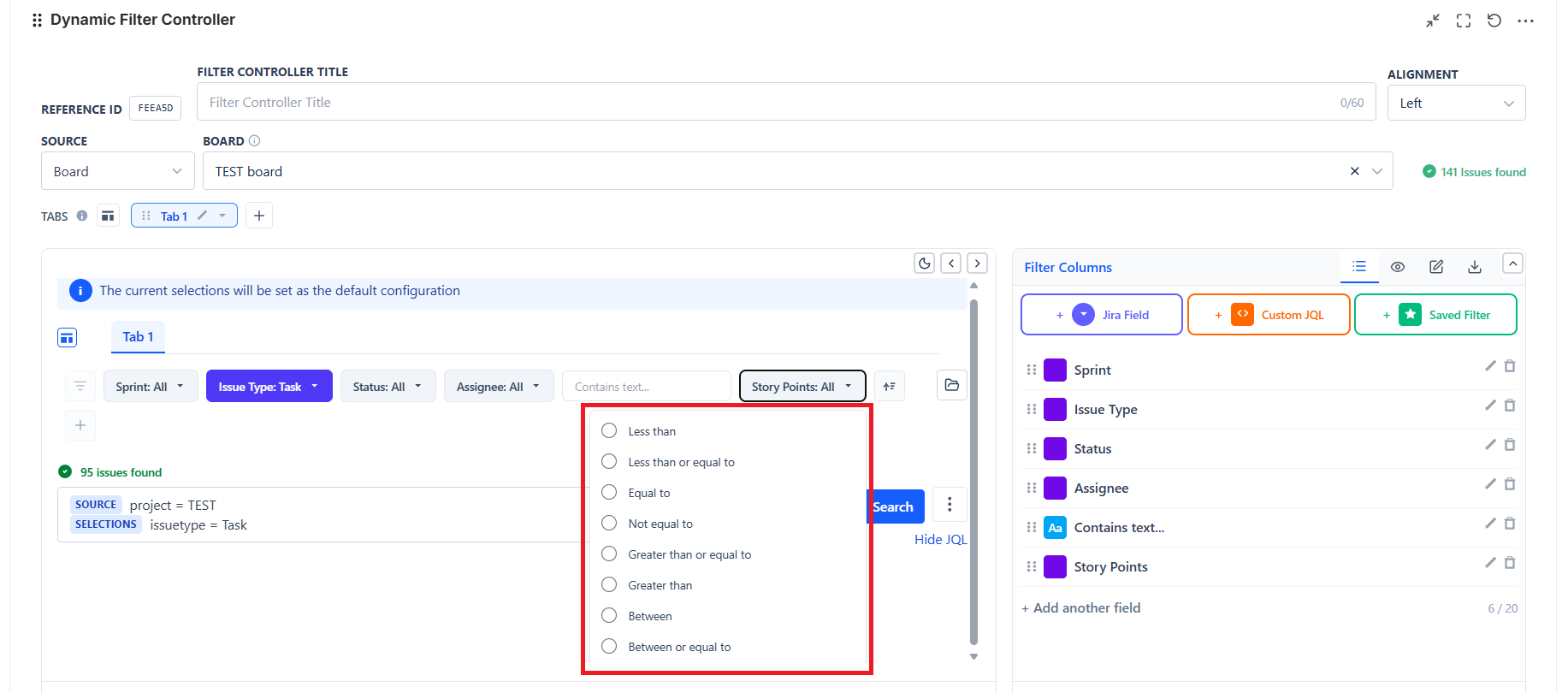
When the Jira field you add is numeric - Story Points, or any custom number field - the filter renders with an operator picker instead of a value list:
| Operator | Needs |
|---|---|
| Less than | One value |
| Less than or equal to | One value |
| Equal to | One value |
| Not equal to | One value |
| Greater than or equal to | One value |
| Greater than | One value |
| Between | Two values |
| Between or equal to | Two values |
How many filter fields you can add
Each tab holds a maximum of 20 filter columns. At the limit the + button is disabled and its tooltip says so.
The cap is per tab, not per gadget - a four-tab controller can carry up to 80 filter columns in total. A configuration that is already above the cap, for example one imported from elsewhere, is never truncated: it keeps every column, but you cannot add more until you delete some.
Recommended Filter Combinations
| Dashboard Type | Suggested Filter Fields |
|---|---|
| Sprint Dashboard | Sprint, Assignee, Status, Priority |
| Team Workload | Assignee, Status, Issue Type, Priority |
| Bug Tracking | Priority, Status, Assignee, Component |
| Release Dashboard | Fix Version, Priority, Status, Assignee |
| Executive KPI | Project, Status Category, Assignee |
Order and Labels
- Order the filter fields from most to least important - leftmost filters get the most use
- Label each field clearly - "Team Member" is clearer than "Assignee" for non-Jira users