Progress Bar Macro
Progress Bar Macro
What It Does
The Progress Bar macro creates a multi-step, cross-page progress bar in Confluence. Each step macro is placed on a separate page. Together they render a unified visual bar that shows readers where they are in a multi-page process - like an onboarding flow, a tutorial series, or a multi-phase procedure.
The bar is automatically scoped to a parent page all step macros that share the same parent page belong to the same progress bar, with no manual ID configuration required.
How It Works
- Add a Progress Bar macro to each page that is part of the flow.
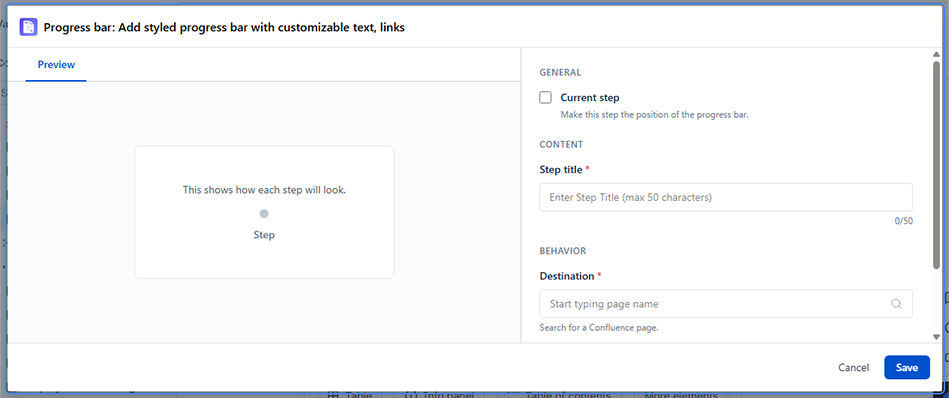
- Configure each macro with its step title, step number, and destination (the Confluence page this step links to).
- When a reader views any page in the flow, the macro with the lowest step number renders the full progress bar above the content.
- The active step (highlighted in the bar) is determined by matching the current page to a step's destination.
- Readers can click any step in the bar to navigate directly to that page.
Configuration Options
| Setting | Description | Required |
|---|---|---|
| Current step | Mark this step as the active position in the bar | No |
| Step title | Label shown in the bar for this step (max 50 characters) | Yes |
| Destination | The Confluence page this step navigates to on click | Yes |
| Step number | Position of this step in the sequence (1–100) | Yes |
Visual Behavior
- Blue dot - shown on the current (active) step and the first step when no step is active yet
- Gray dot - shown on steps that come after the active step (not yet completed)
- No dot - completed steps (before the active step) show no dot; the blue line covers them
- Blue line - drawn from the first step to the active step to show progress
- Step color - defaults to
#0052cc; inherits from the color set when saving a step
Scope & Bar Identity
The macro automatically groups steps by shared parent page. You do not need to assign a bar ID manually. Steps on pages that share the same parent are treated as one progress bar. This means you can run independent progress bars across different sections of your space without any naming conflicts.
Setup Example
To build a 3-step onboarding flow:
-
Create three pages, Step 1 – Welcome, Step 2 – Setup, and Step 3 – Complete, as child pages of an Onboarding parent page.
-
On the Step 1 – Welcome page, insert the Progress Bar macro three times, once for each step, and configure them in order:
Macro Step title Step number Destination Current step 1st Welcome 1 Step 1 – Welcome Yes 2nd Setup 2 Step 2 – Setup No 3rd Complete 3 Step 3 – Complete No -
Repeat step 2 on the Step 2 – Setup and Step 3 – Complete pages, using the same three macros with the same settings. Change only the Current step setting so it matches the page you are on:
Page Mark as current step Step 1 – Welcome 1st macro (Welcome) Step 2 – Setup 2nd macro (Setup) Step 3 – Complete 3rd macro (Complete)
Common Use Cases
- Multi-page onboarding or employee orientation flows
- Step-by-step tutorial series spread across Confluence pages
- Multi-phase project procedures with one page per phase
- Training paths where each module lives on its own page