Pivot Table Gadget
Totals, Formatting & Export
Control summary rows and columns, date formatting, legend and colour, and how to export your pivot data.
Summary Rows and Columns
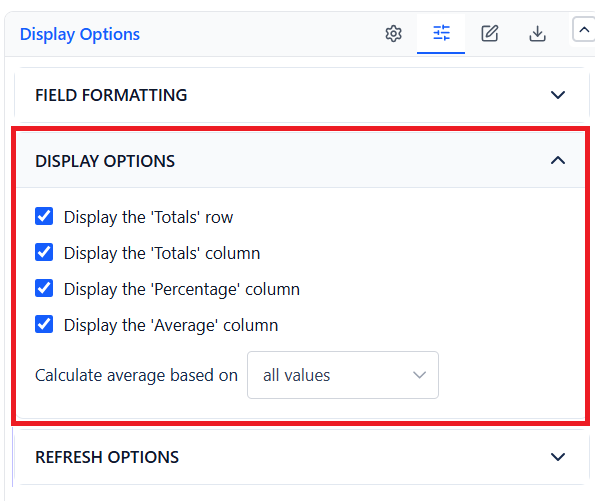
| Setting | Effect |
|---|---|
| Show Totals Row | Adds a sum row at the bottom of the table |
| Show Totals Column | Adds a sum column on the right |
| Show Percentage Column | Shows each row value as a percentage of the grand total |
| Show Average Column | Adds an average column - choose basis: all values or non-zero values only |
Date Field Formatting
When a date field is used as a row or column field, each one gets its own Format dropdown, so you can write different date fields differently in the same pivot.
| Format | Example |
|---|---|
| DD Mon YYYY | 20 Jan 2025 |
| DD Month YYYY | 20 January 2025 |
| Mon DD, YYYY | Jan 20, 2025 |
| DD/M/YYYY | 20/1/2025 |
| DD-M-YYYY | 20-1-2025 |
| DD.M.YYYY | 20.1.2025 |
| M/DD/YYYY | 1/20/2025 |
| M-DD-YYYY | 1-20-2025 |
| M.DD.YYYY | 1.20.2025 |
| YYYY-M-DD | 2025-1-20 |
Legend and Color
| Setting | What It Controls |
|---|---|
| Legend position | For chart display types: Bottom, Top, Left, Right, or Hidden |
| Heatmap base color | Blue, Green, Red, or Grey - applies to the three heatmap display types |
| Auto refresh every 10 minutes | Reload data automatically in view mode |
Export
| Format | What Is Exported |
|---|---|
| CSV | Complete pivot matrix including row/column headers, all values, and totals |
| PNG | Image snapshot of the current display (table or chart) |
| Configuration | Configuration code of all settings, copied to your clipboard for reuse or backup |
Tip: Export as CSV to analyze the pivot data in Excel or Google Sheets. The exported file preserves all row and column headers so you can apply your own formulas and conditional formatting.