Installation & Setup
Prerequisites
Before installing, confirm:
- Your instance is Confluence Cloud - this app does not support Confluence Server or Data Center (self-hosted). On Atlassian Government Cloud or Atlassian Isolated Cloud, see the matching tab instead - installation works differently there.
- You have access to the Atlassian Marketplace from within Confluence
For Site Admins - Installing the App
Step 1 - Find the App on the Marketplace
| Step | Action |
|---|---|
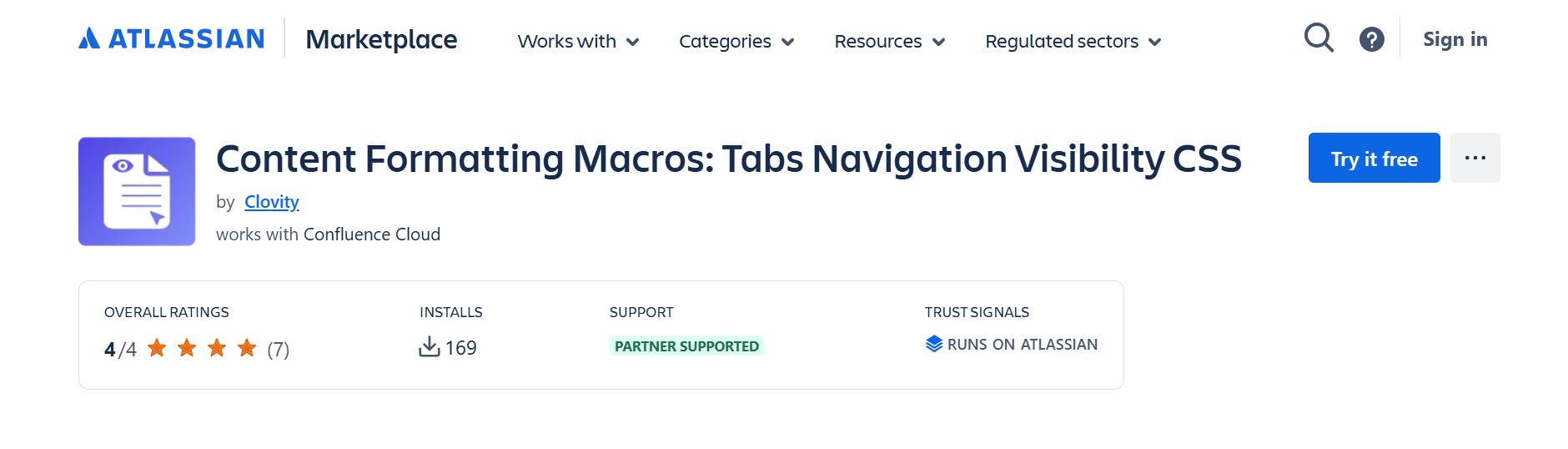
| 1 | Go to marketplace.atlassian.com and search for "Content Formatting Macros: Tabs Navigation Visibility CSS" |
| 2 | Click Try it free (30-day trial) or Buy now |
Step 2 - Connect to Your Site
- Select your Atlassian Cloud site when prompted
- Sign in if needed
- Choose Confluence
Step 3 - Review & Confirm Permissions
- Review the permissions the app requires and click Accept
- Start the free trial or purchase - the app installs automatically, no restart required
Step 4 - Manage the Installed App
- Go to admin.atlassian.com → Apps → Manage Apps to configure, manage the license, or uninstall
For End Users - Requesting the App
If you don't have site admin access, you can still request the app:
- Find Content Formatting Macros: Tabs Navigation Visibility CSS on marketplace.atlassian.com
- Click Try it free to send a request to your site admin, with justification if prompted
- Your admin approves or denies the request - you're notified once it's approved
Verify Installation
After installation, open any Confluence page in edit mode:
- Click inside the page body and type
/ - In the macro search, type Alert - you should see Alert | Clovity
- or search Tab Parent Content Mapper - you should see Tab Parent Content Mapper | Clovity
If both macros appear, installation is complete and working. If they don't, go to admin.atlassian.com → Apps → Manage Apps and confirm the app shows Active.
Permissions Requested During Install
| Permission | Why It's Needed |
|---|---|
| Read Confluence content, pages, spaces and page hierarchy | Tab mappers read child, labeled and selected pages; page tree and news macros list content |
| Read labels | Tab Label Content Mapper finds pages by label |
| Search Confluence | Find pages by CQL filter and in page pickers |
| Read users and groups | Conditional Show/Hide evaluates the viewer's groups; User Profile macro shows profile data |
| Read attachments | Attachment Control Center lists attachments |
| Delete attachments | Attachment Control Center bulk delete |
| Create and edit content and files | Page Templates creates pages from a template; file uploads |
| Read embedded content | Render embedded content in macros |
| App storage | Saving macro configuration and Attachment Control Center data |
Pricing
Content Formatting Macros is a paid app billed through Atlassian, with a 30-day free trial available before purchase. Billing is handled through your Atlassian account settings - see the Marketplace listing for current pricing.
First Steps After Install
Once installed, share the following with your team:
- Point editors to the Quick Start Guide for first-use instructions
- Confirm page editors can see the macros via the
/menu - Insert a test macro (for example, an Alert) to confirm rendering works end-to-end
Uninstalling
To uninstall: Go to admin.atlassian.com → Apps → Manage Apps → click the app name → Uninstall. Macro placeholders will remain on pages but will no longer render until the app is re-installed.